Task Wizard
The automation module consists of two separate types of distribution, the first of which are the tasks they perform a given operation only once.
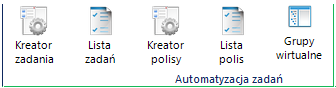
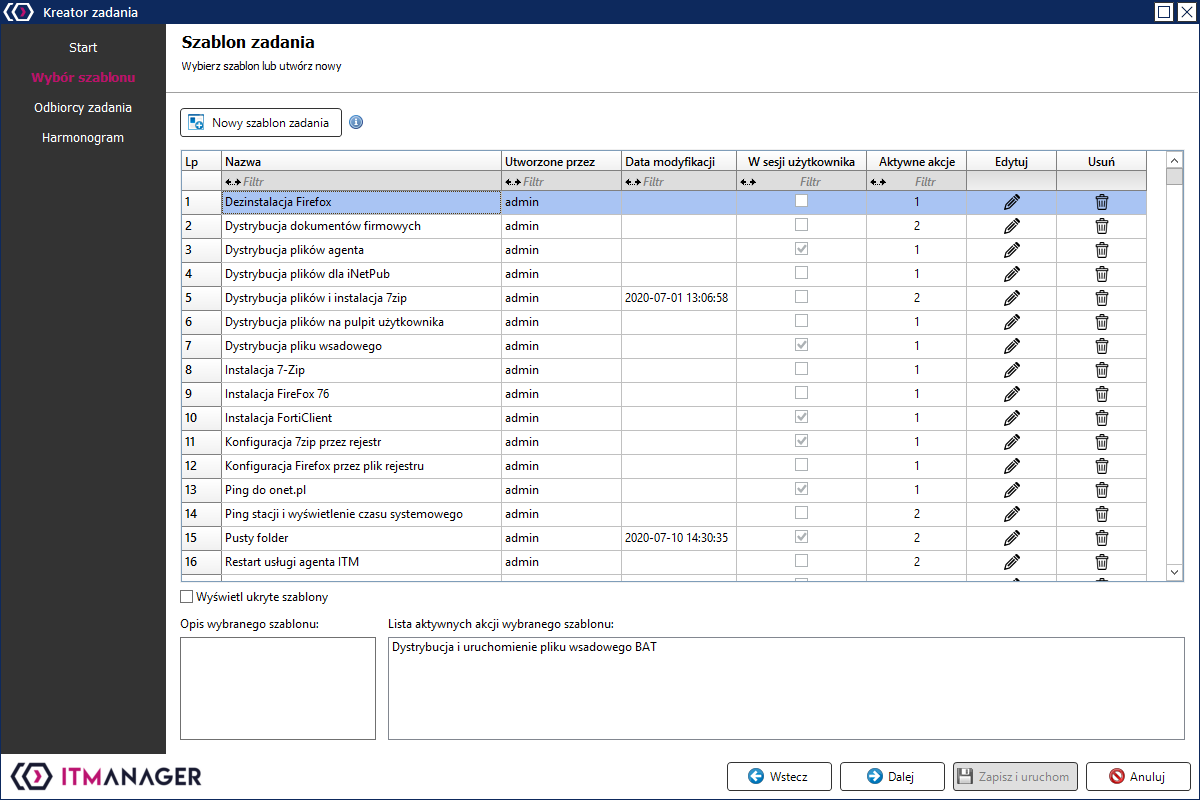
To create a task, go to Task Wizard and select an already existing template or create it again using the button New task template
The template must have a name, the template description is optional. The option to run the task in a logged-in user session means that the task will be launched on every user logged in to the computer.
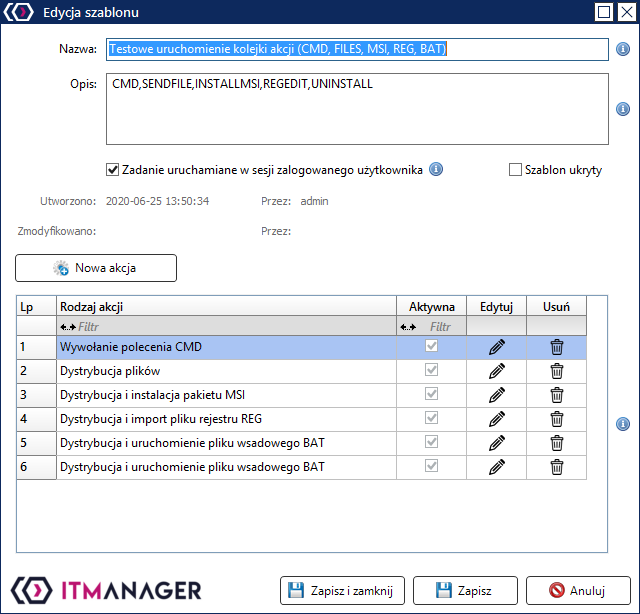
To save the template you need to add actions New action, the actions are available in the drop-down list Action type
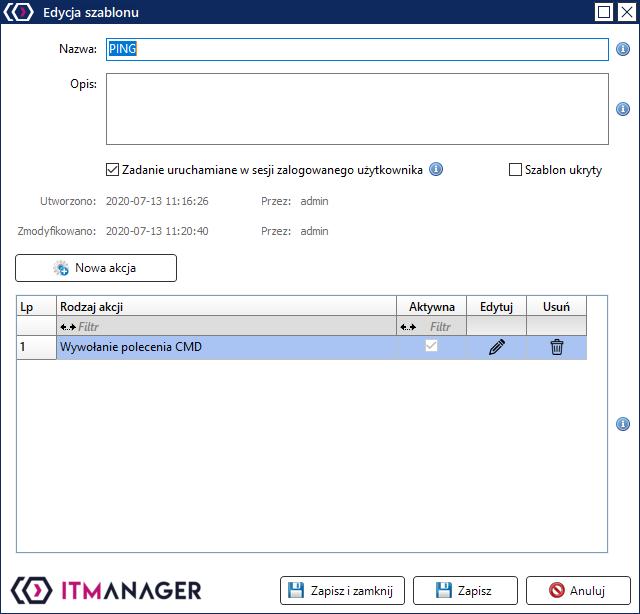
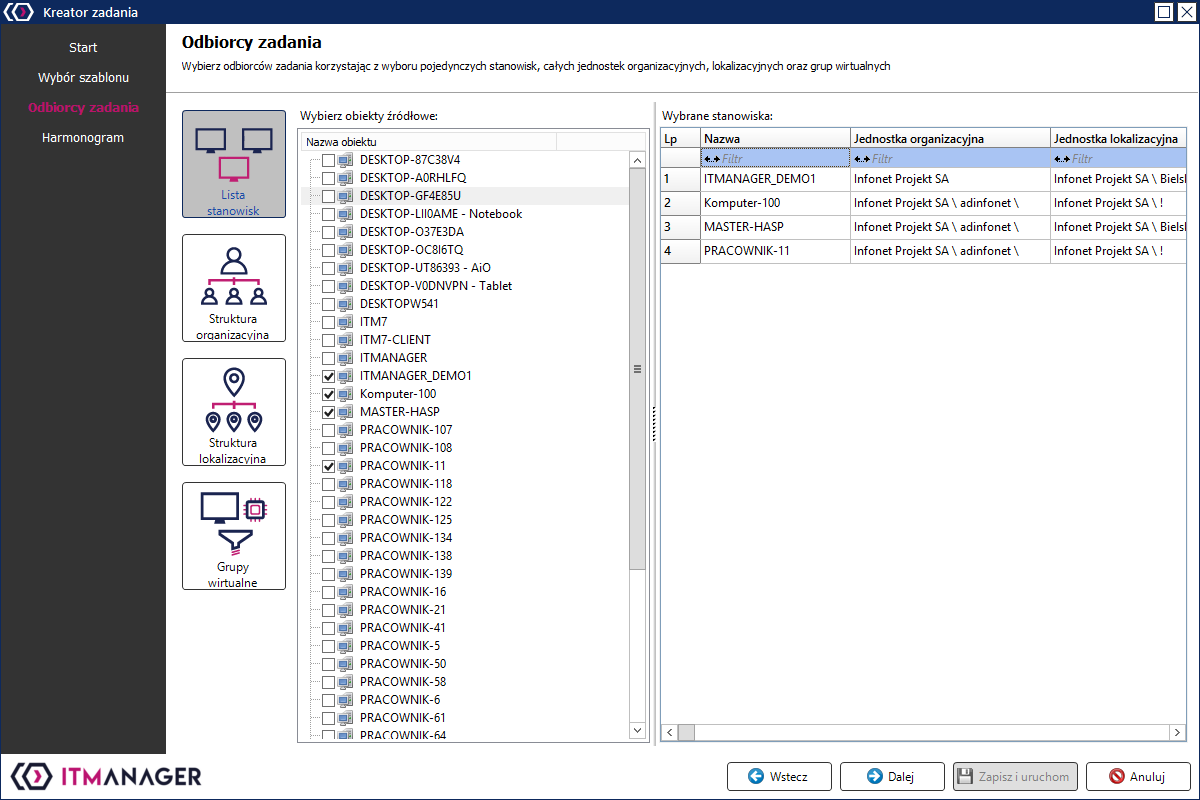
Save Template under the addition of the action and proceed to the selection of stations where the action(s) will be performed. Stations can be selected individually from the Workstation List or in groups using organisational, location-based or virtual units.
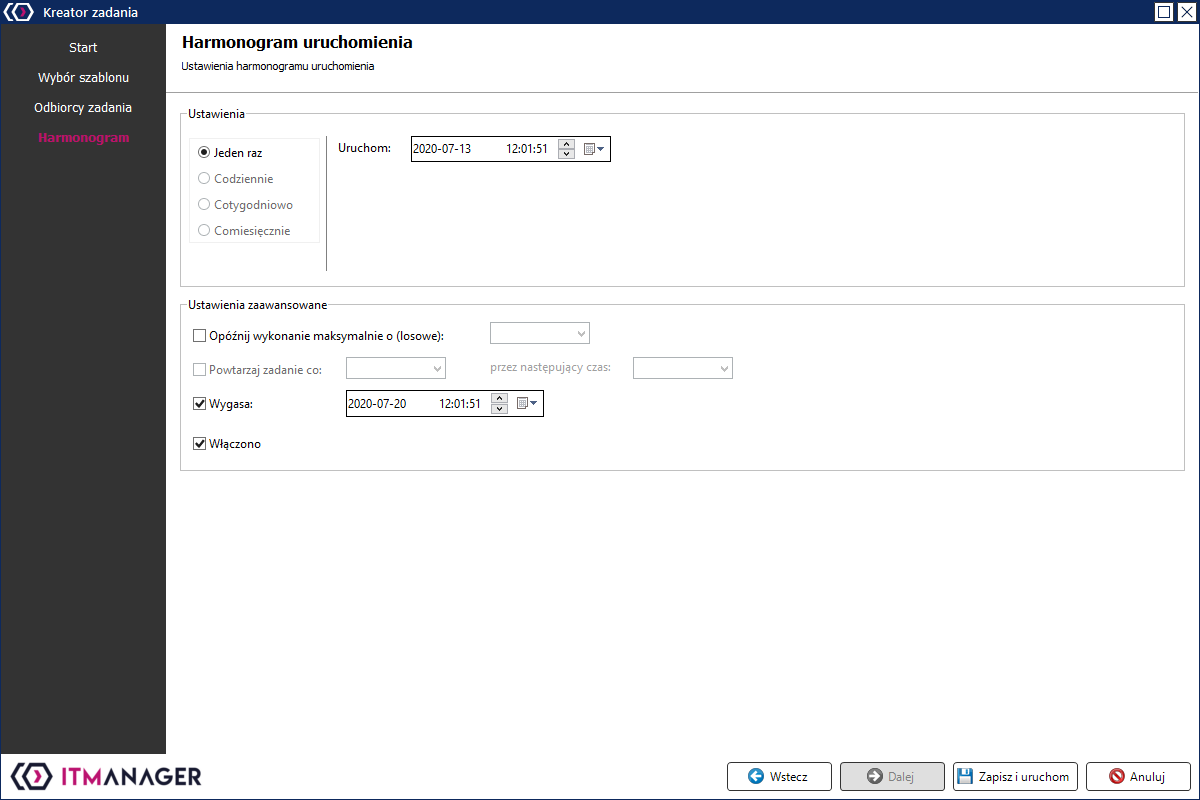
In the last window, set the start time of the task.
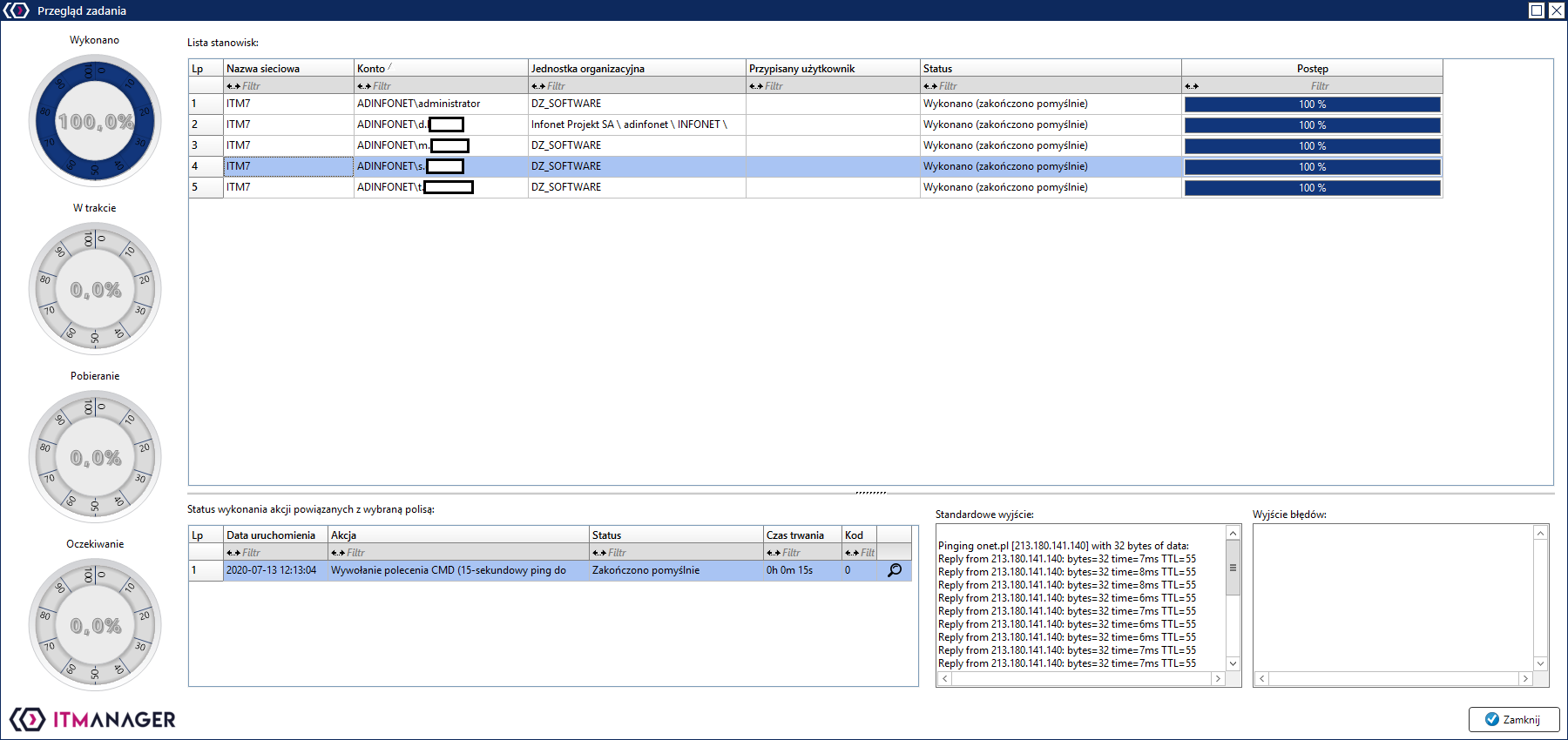
After saving and running the template, a window with a view of the distribution progress will appear.
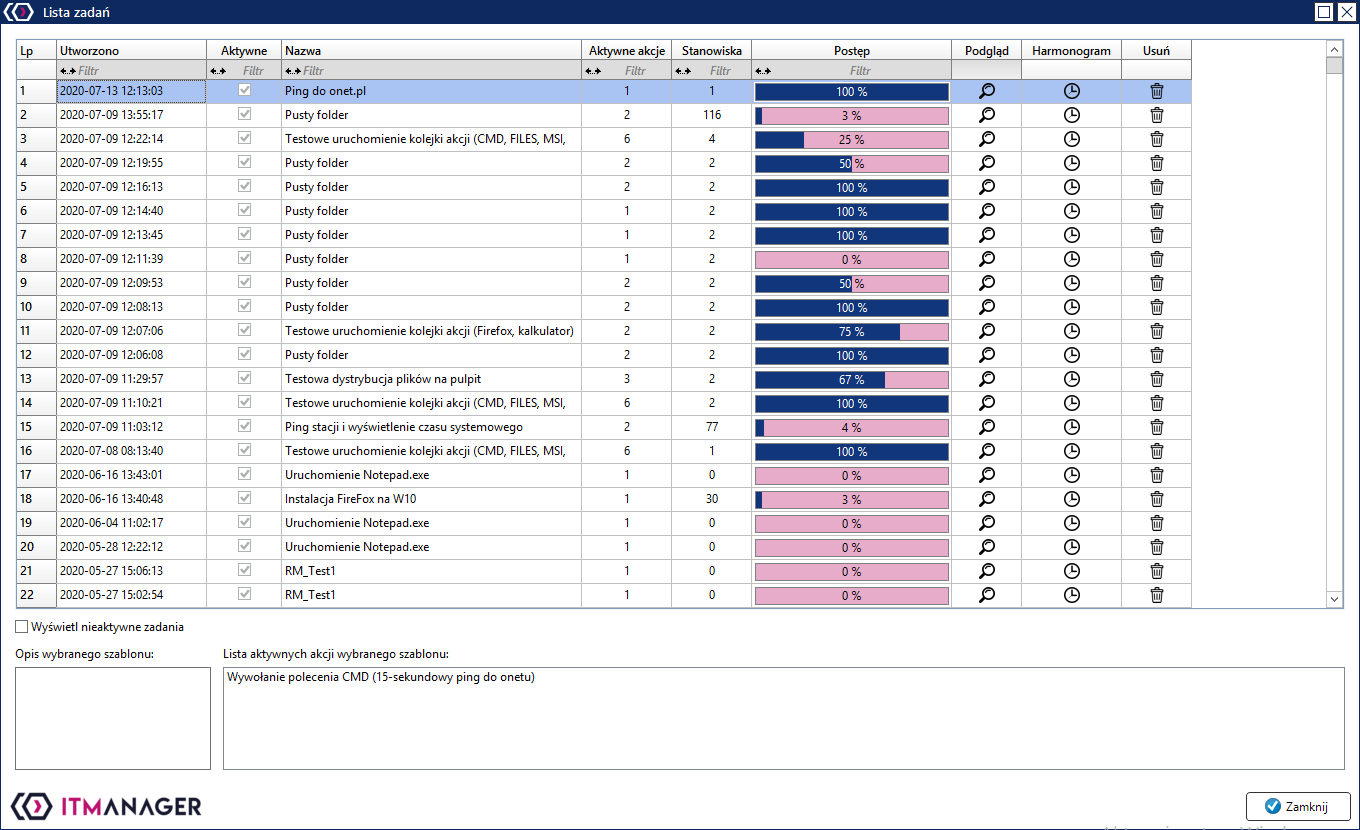
Task List
In the view of the list of tasks, you can view all the tasks with the possibility of removing them and editing the schedule.