User Data Backup
The User Data Archiving Module is responsible for backing up/archiving data stored on users' computers. The module gives the possibility to choose the directories, files to be archived and where to store them locally on the user's computer, network resource or FTP server.
Backup tasks
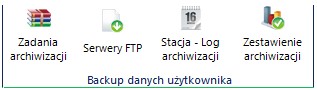
The tab Backup tasks is responsible for the archiving settings.
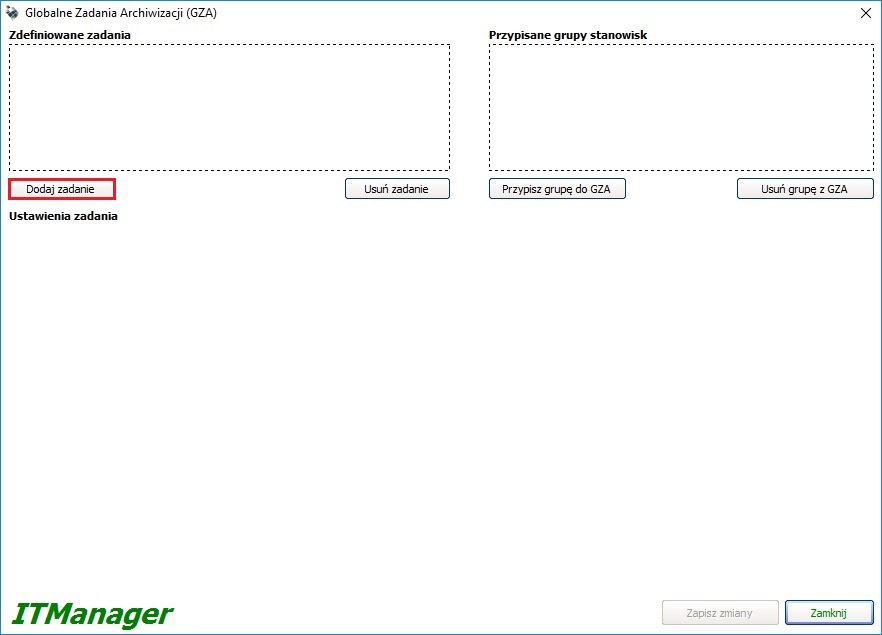
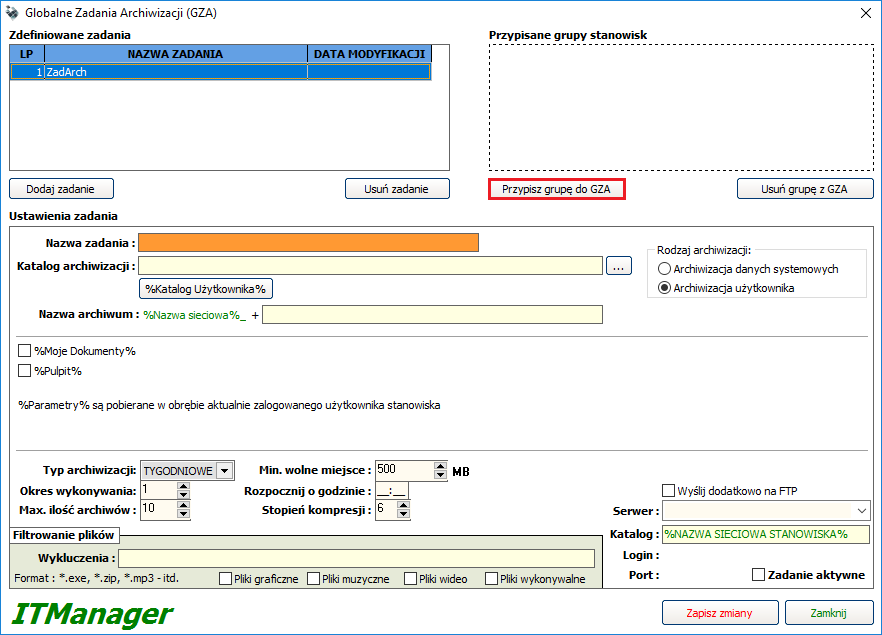
To create a new archive task, after opening a new window, define its name by clicking Add a Task.
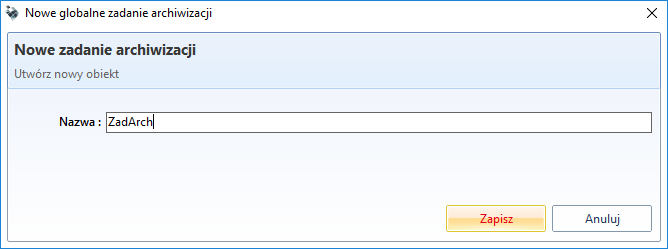
In the new window, you must name the task and save it
Once the task is named, select the job groups to be archived. To do so, select the button Assign a group to GBT.
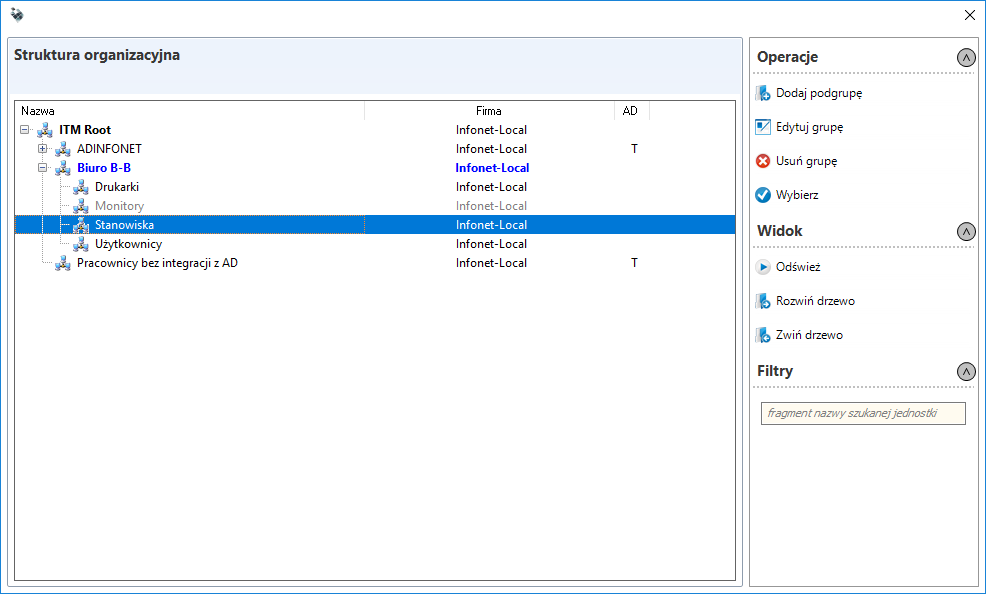
In the organisational structure window, select a position group and click Select.
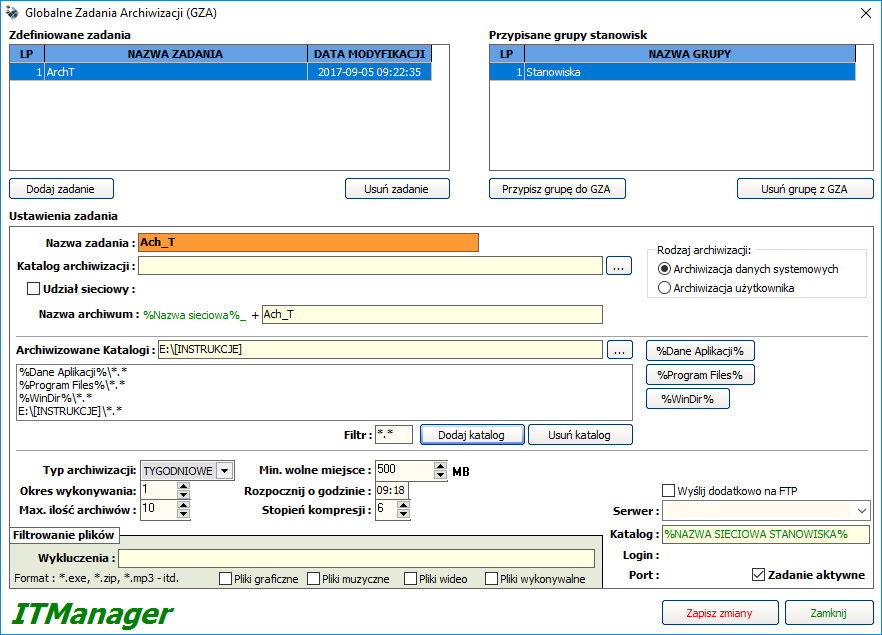
Once the job name and job group have been set, you can go to the job settings. Here you can set the directory to which the archives will be saved and the name of the archive itself, the first part of which is the network name of the station. There are 2 types of archiving in the system:
System data backup** - backup of the indicated directories.
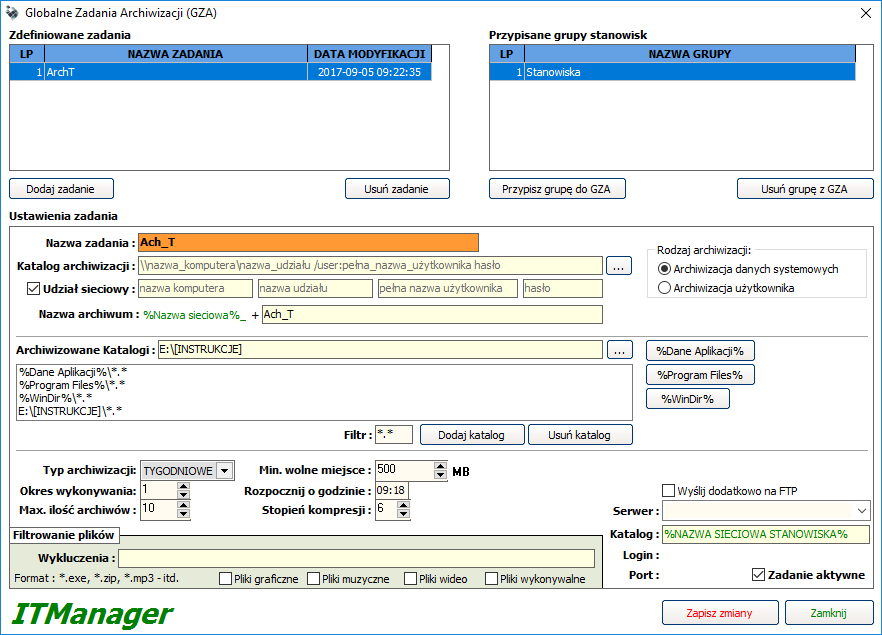
If you select Network Share, you can indicate the folder in the network location.
User backup - archiving system information such as My Documents or Desktop, The division between archiving system and user data results from the fact that the archiving task can be performed by both the service running in the system session and the service running in the user session. A user session has the option of archiving the profile of a logged user.
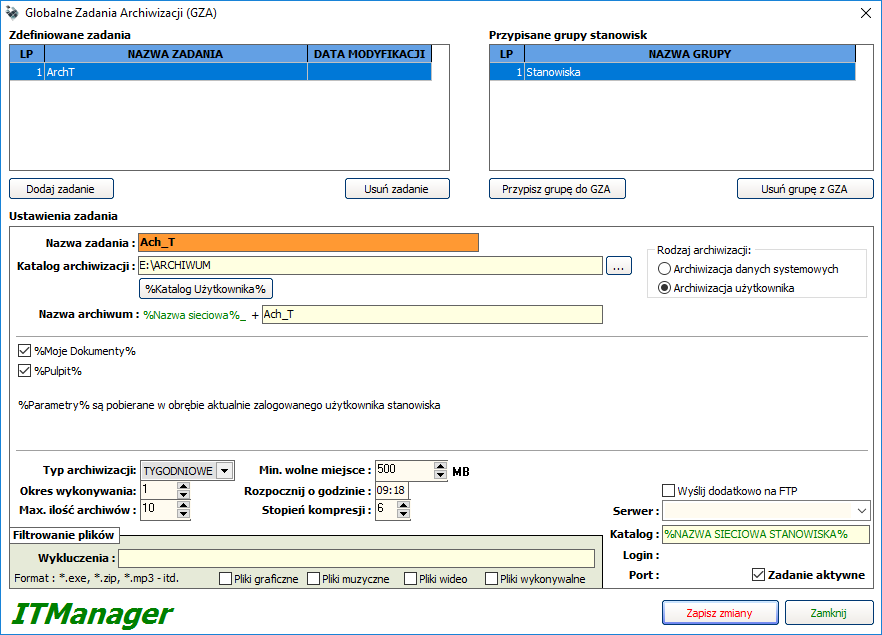
In both cases, the following settings can be specified:
Backup type - specifies what the number of archives will be executed,
Execution period - how many days/weeks the task will be launched,
Max. backup count - number of backup files created for the selected task. When this number is exceeded, the oldest file will be deleted and replaced with the newest one,
File filtering - the default mask is . which can be changed e.g. to *.doc to archive only documents. Exclusions give you the possibility to enter built-in or manual extensions to be excluded from the archive being created (e.g. photos, films, music),
Min. free space - the amount (in MB) of minimum disk space required to create a copy,
Start at hour - by specifying the time when the archive starts, you can plan to make copies, e.g. during a work break,
Compression level - changing the compression ratio affects the size of the created file, but it is only relevant for documents, databases (movies, photos are already internally packed),
Send to FTP additionally - extra transfer of the created backup file to the selected FTP server. This solution prevents clogging of the internal LAN (there is a possibility to specify the maximum transfer, number of simultaneous connections on the server),
Task active - parameter to switch the selected task on/off from the archiving schedule.

WARNING
Option The archiving directory may contain a path to the user directory - however, such a path is recommended for tasks of the type User backup. If such a path is indicated for tasks of the System data backup type, the archiving task will be saved in the home directory of the system service.
FTP servers
The tab FTP servers is responsible for configuring the FTP server to which the archived files are to be sent.
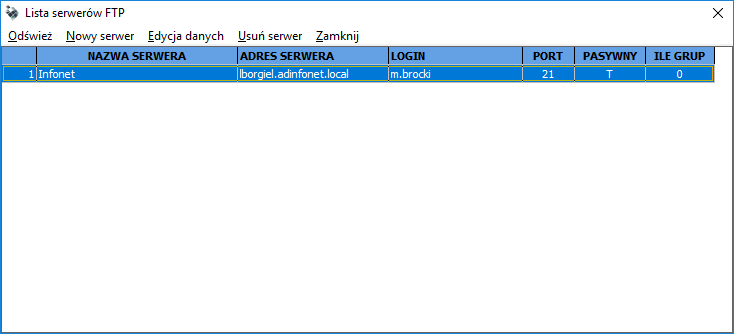
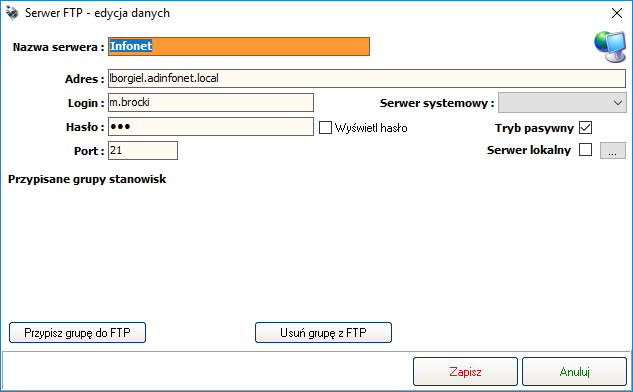
In the configuration window, please enter the address, login, password and FTP server port. The option Assign a group to FTP specifies which tasks will be archived on the server.
Workstation - Backup Log
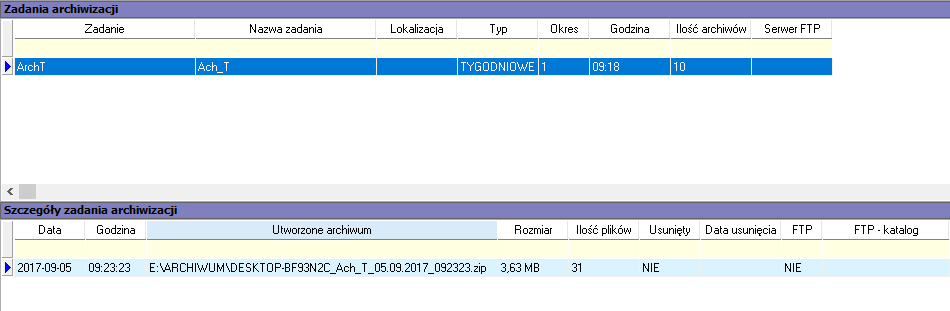
After selecting the button Workstation - Backup Log, the information about the preset archives and details for the selected station will be displayed in the main console window.
Backup report
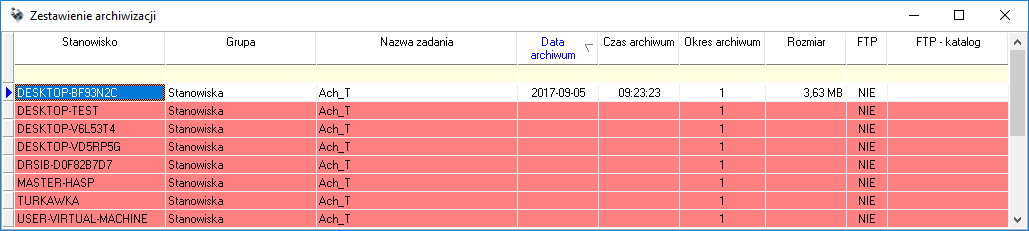
The tab Backup report contains information about the archiving tasks performed at the stations.