
System operations
Section System operations contains information on agent updates, AD integration and a preview of operations performed in the console.
Updating agents
Agent updates can be carried out in a similar way as their installation described above or by means of Agent update located in the tab Tools.

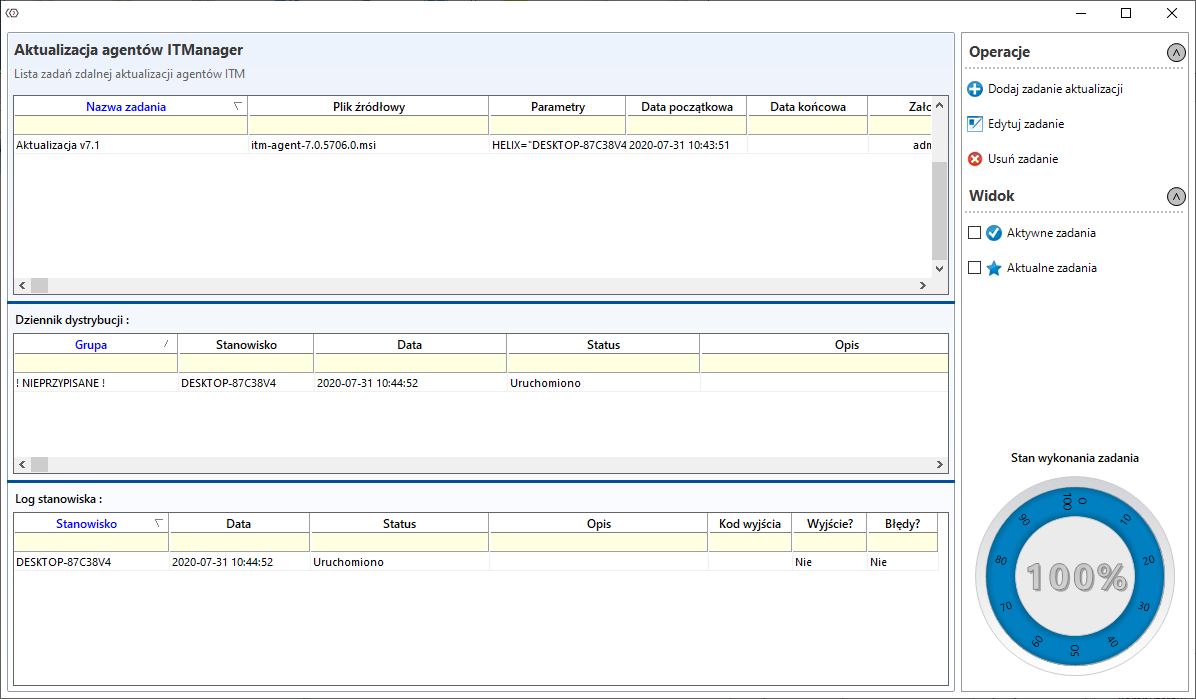
In the Agent update window from the menu Operations select Add update task
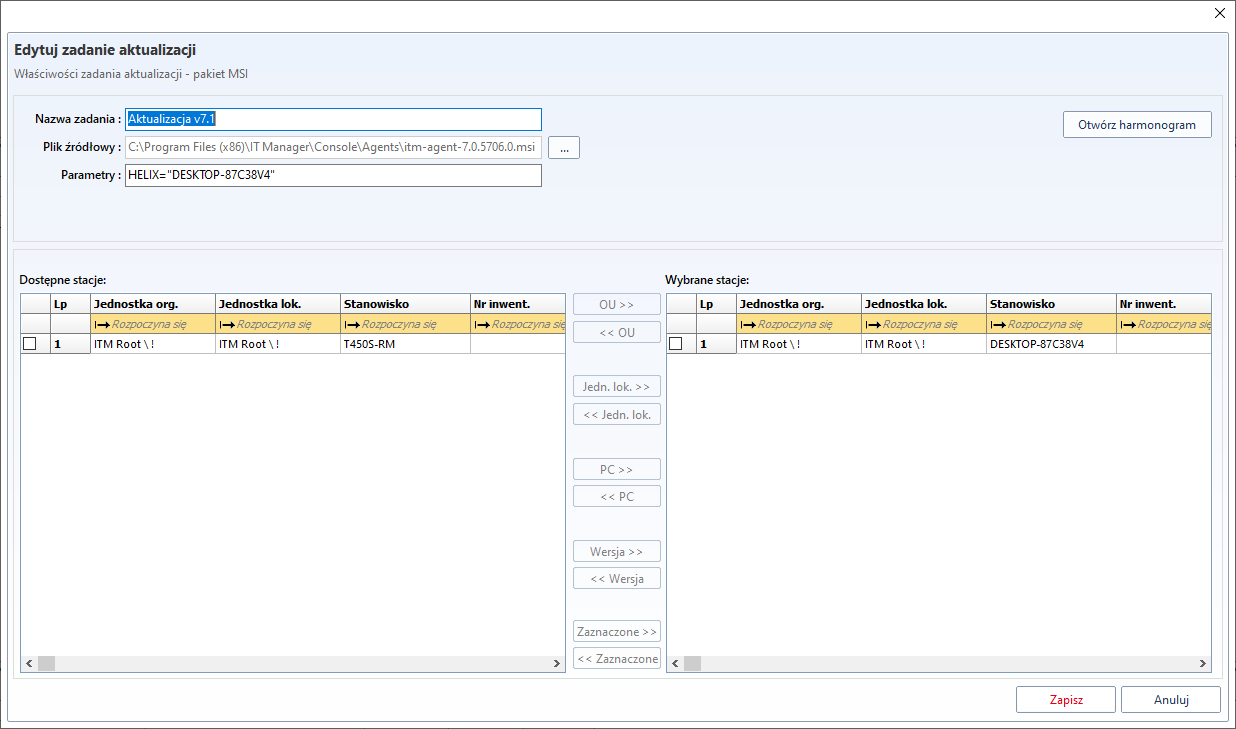
In the new window, the name of the task, the path to the source file and the parameter should be given. For an ITManager agent, this parameter is HELIX, which specifies the address of the ITM server. After adding the workstations on which the agents are to be updated, go to Schedule.
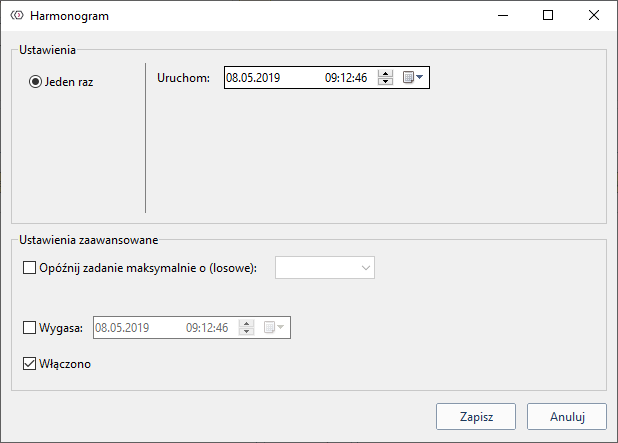
If there are a lot of positions in the organisation it is best to set the date of Expiry.
Active Directory integration
The option of integration with Active Directory enables downloading the database of AD users and generating an LDAP tree, which will enable, among other things, remote distribution of agents.
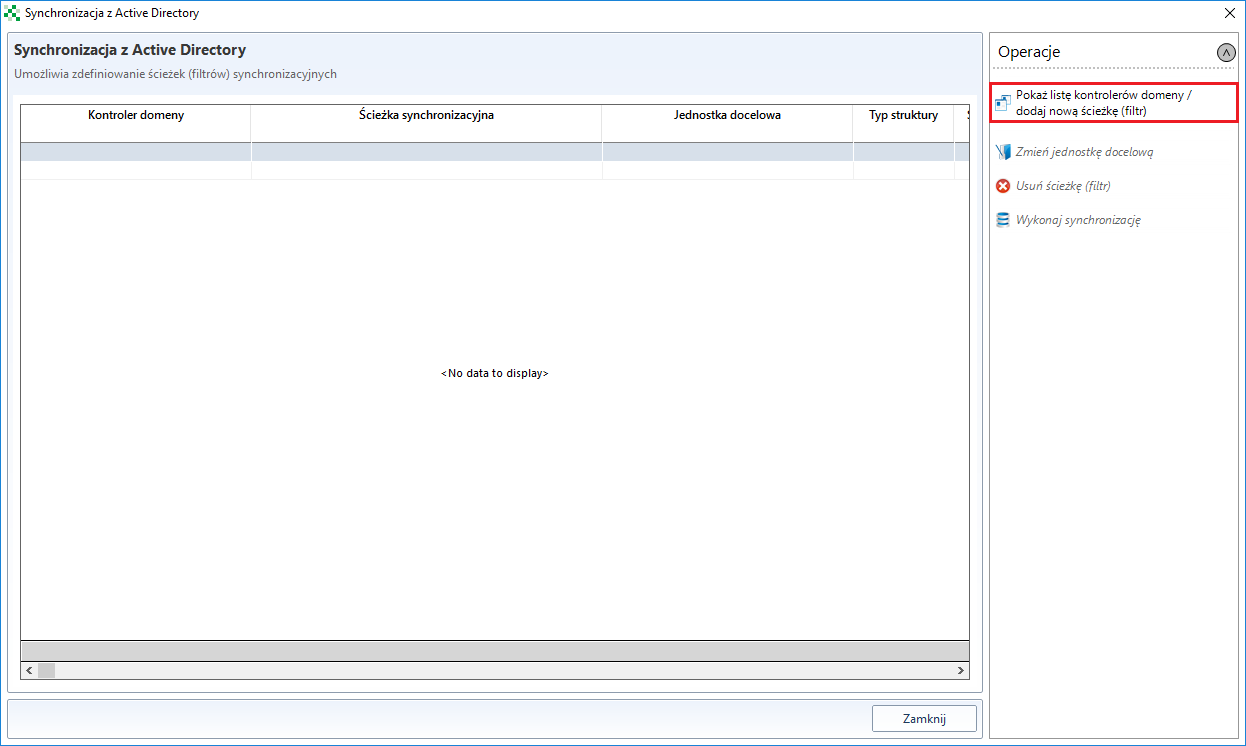
In the new window, from the tab Operations, select Show list of domain controllers / add new path (filter).
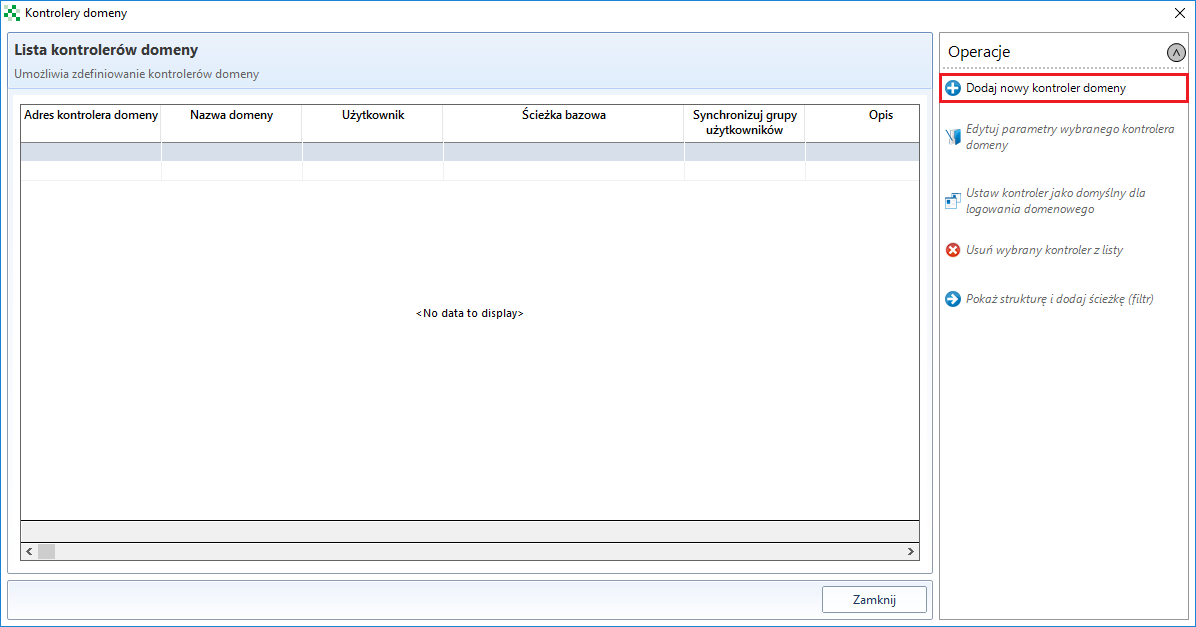
Then in the next window select the option Add a new domain controller
In the window Mapping attributes of domain controller the required data must be entered:
Domain controller address - address where the controller is located;
Domain name
User/Password - data of the user with reading rights;
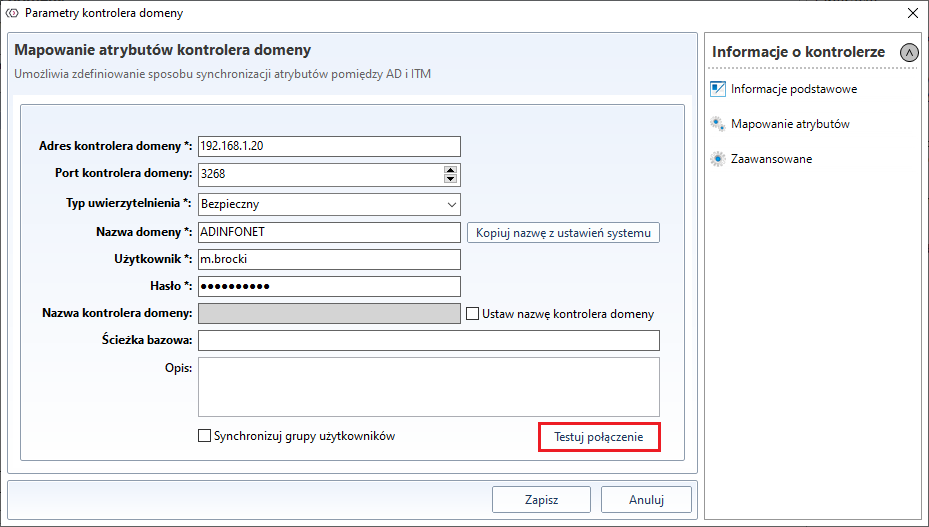
Fields Domain controller name and Base path are not required.
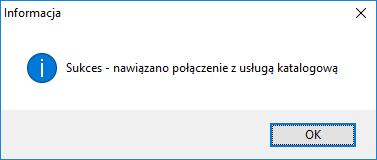
After you have entered all the information, please check if the entered data is correct via the Test connection button. After successful testing, the following message will be displayed.
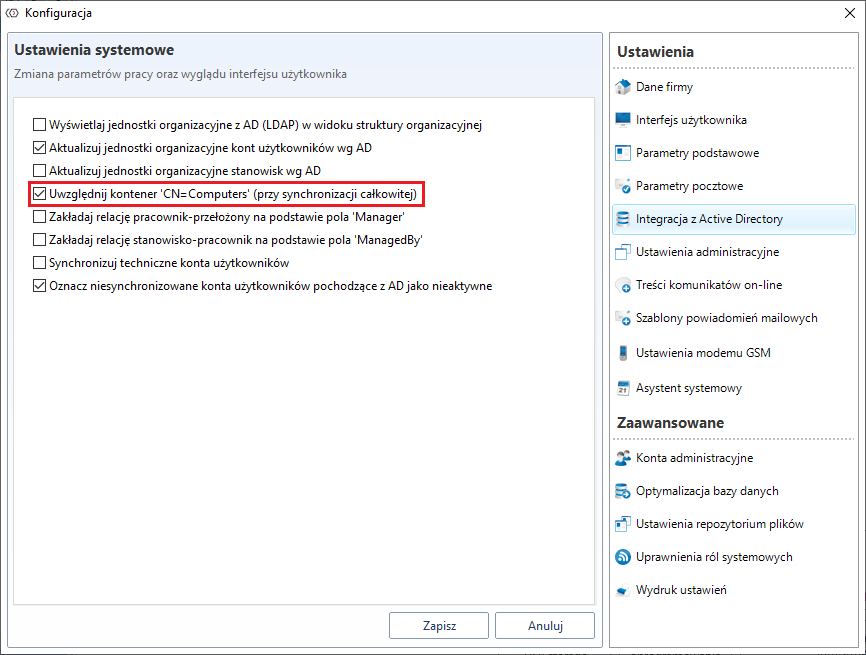
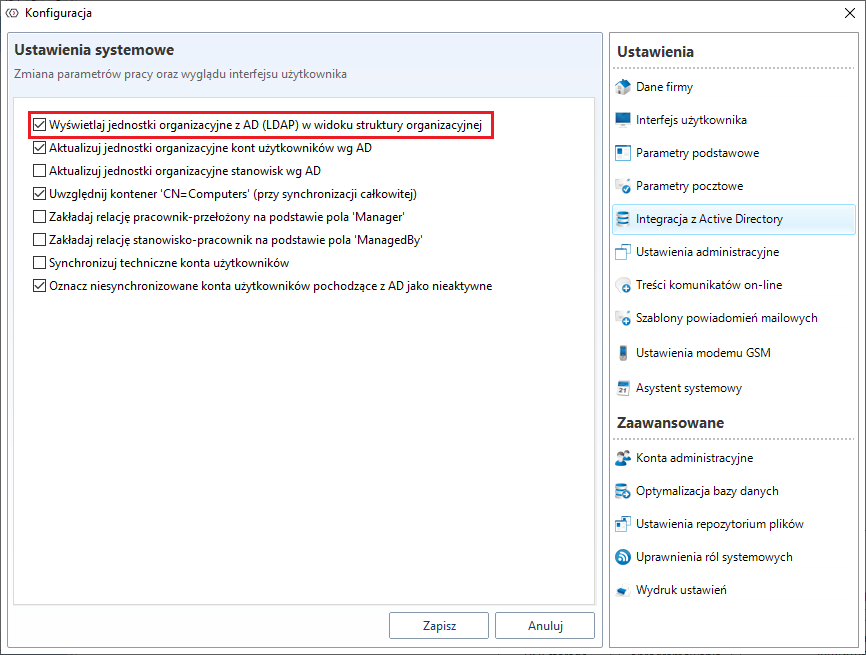
If the synchronization has bypassed the workstations, go to the tab System configuration->Active Direstory integration and check the option Take into account the container 'CN=Computers' (during full synchronization).

Important
Synchronization with AD should be started in server options Tools->Helix servers configuration->AD
Operations on selected domain controller
For each of the controllers you can additionally set separate options for synchronizing individual objects in AD: Synchronisation of organisational units Synchronisation of user accounts
Computer account synchronisation**
To do this, select the controller and click the right mouse button
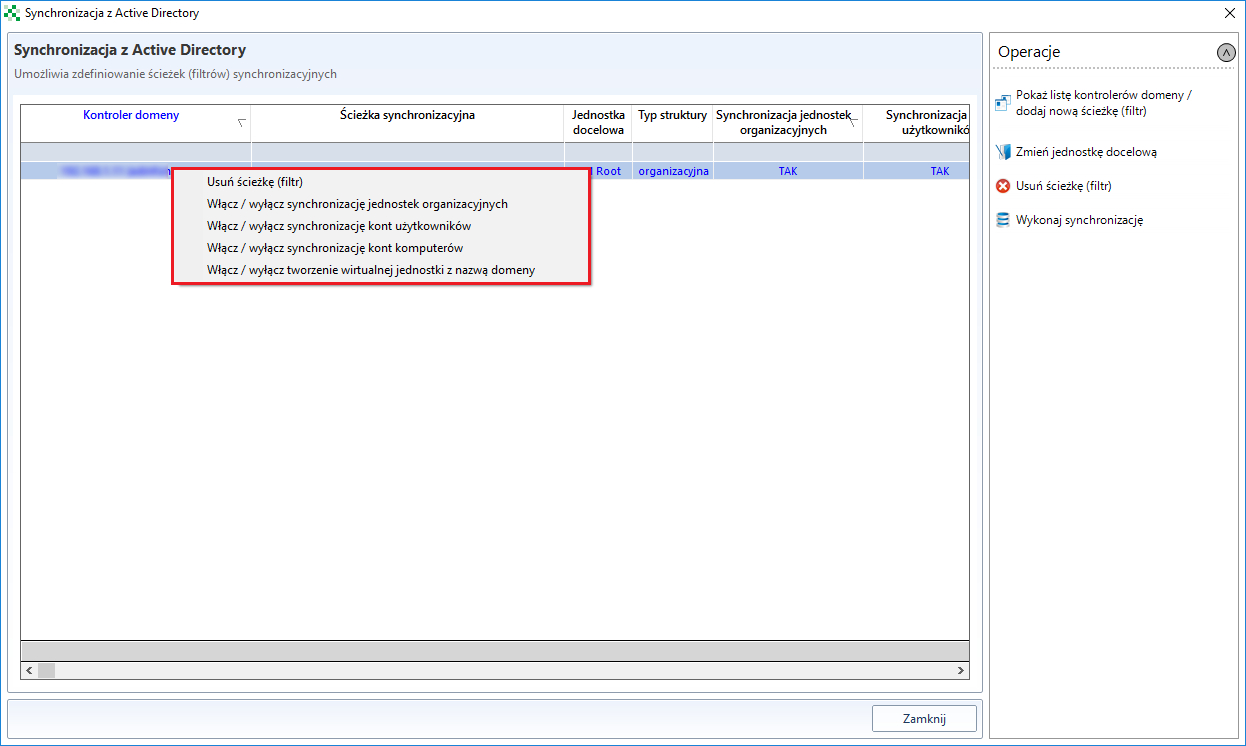
When the selected option is selected or unchecked, synchronise with AD.
In the main window Active Directory integration, you can change the target unit (Change target structur unit) to which the LDAP tree will be connected.
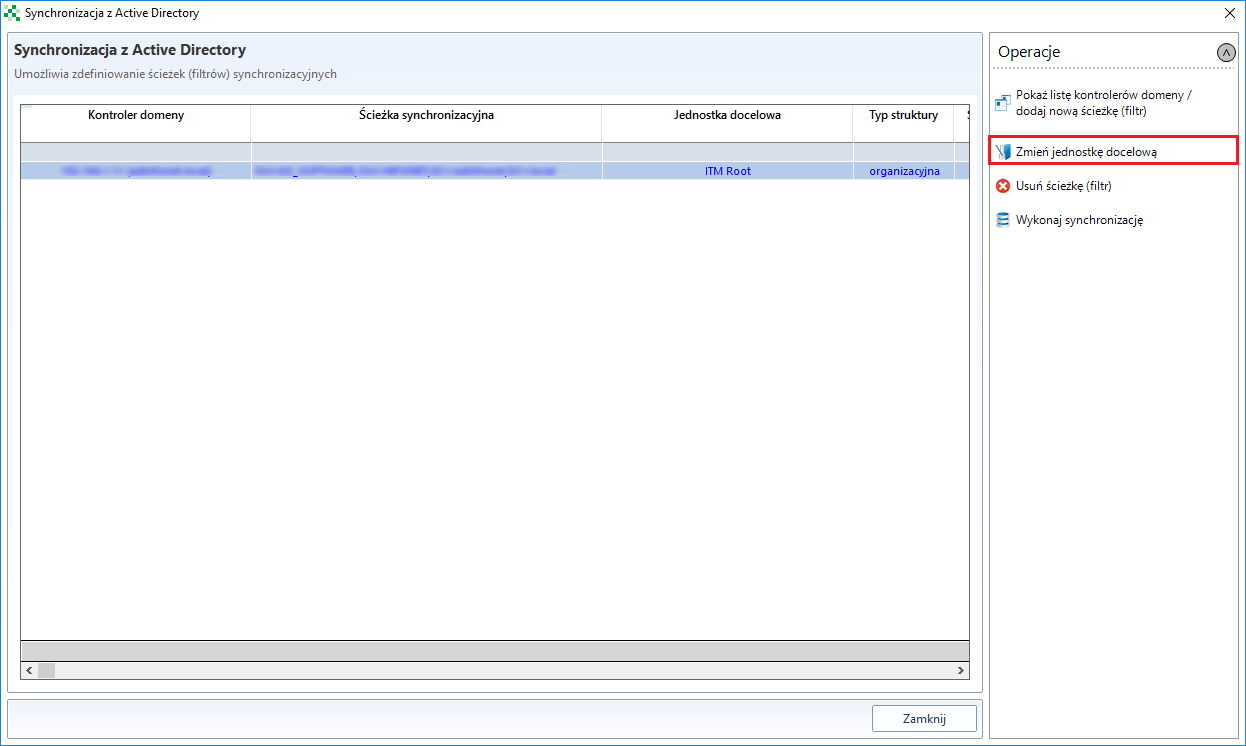
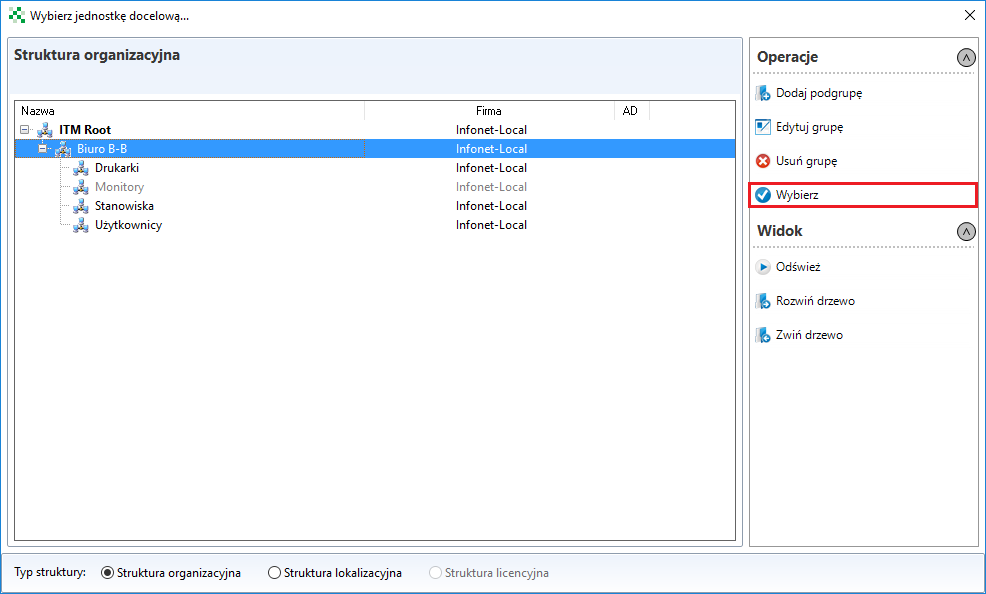
Once the target unit has been selected, synchronisation with AD must be performed again.
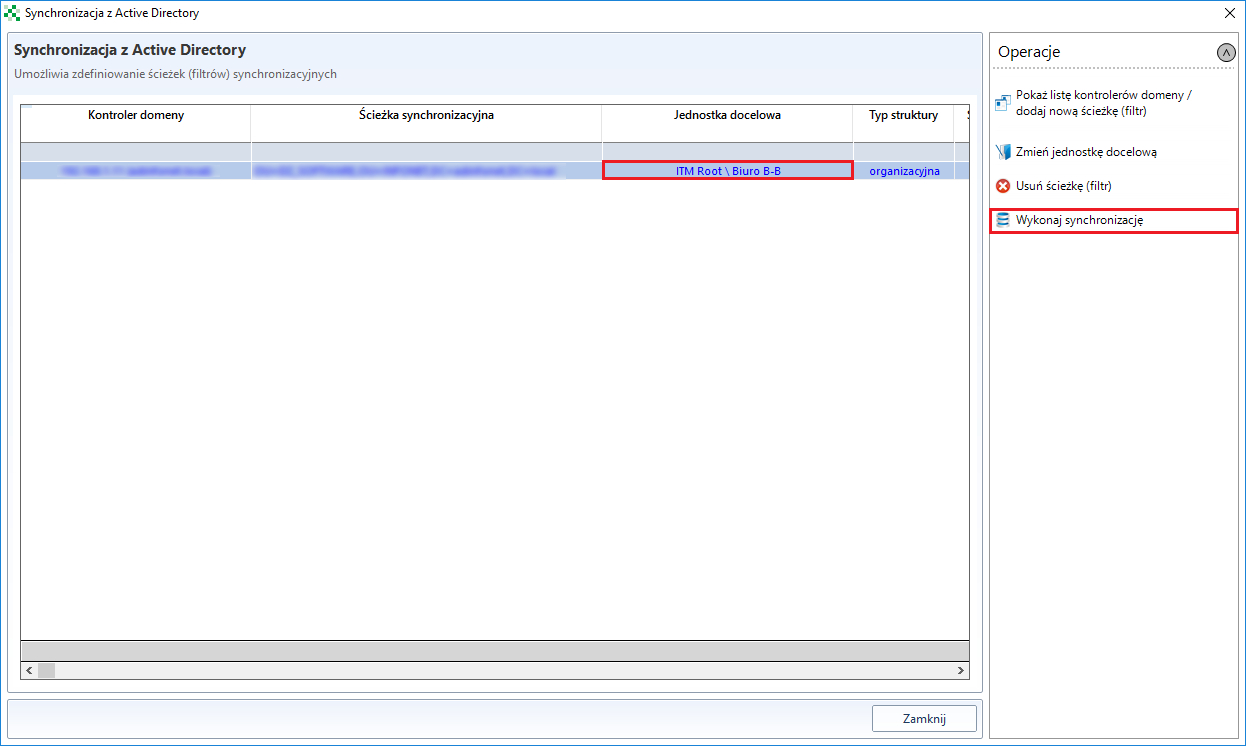
The tree will be reflected in the organisational structure
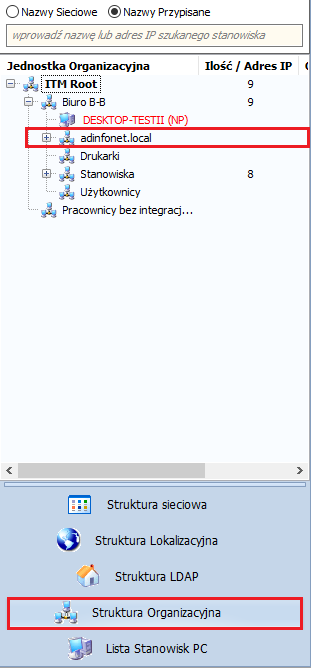
If the tree is not reflected in the organizational structure, go to the tab System configuration->Active Directory integration and check the option Show organizational units from AD (LDAP) in the organizational structure view.
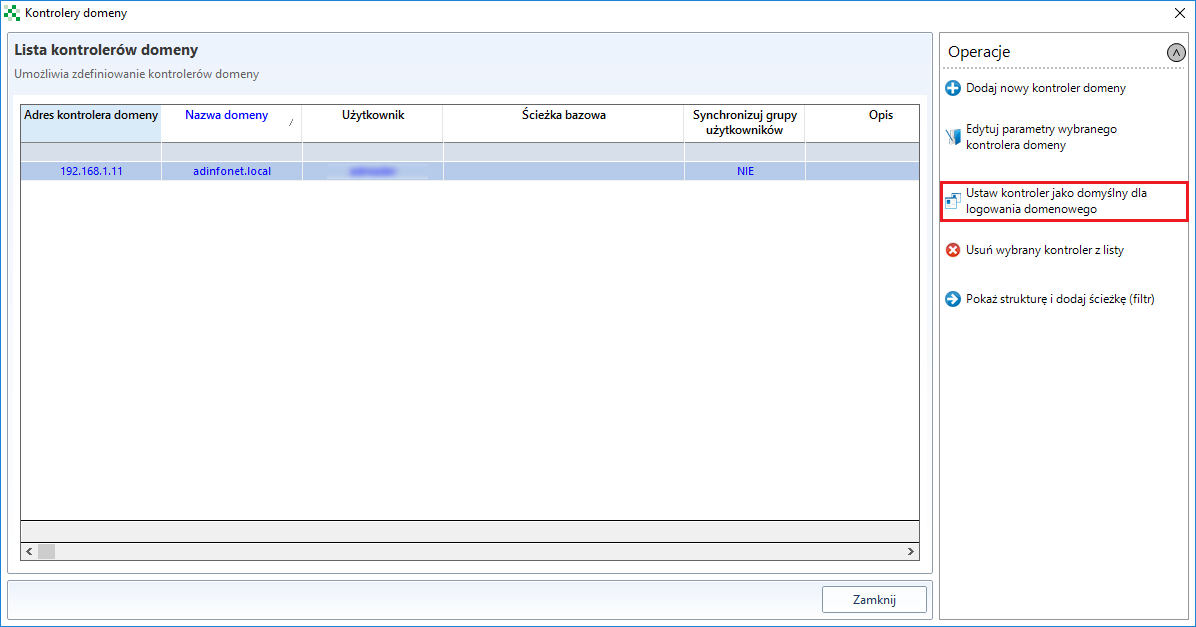
After selecting the tab Show list of domain controllers/add new path (filter) you will be able to set this controller as default controller Set controller as default for domain login. It is necessary for the login function with domain credentials to work on the portal and console.
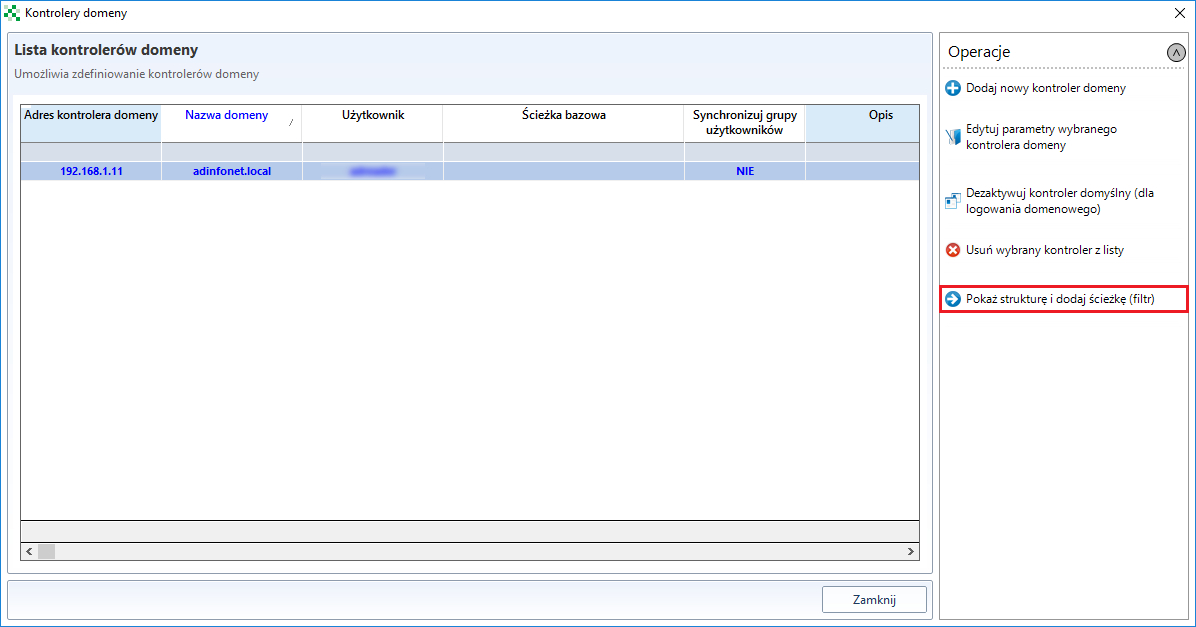
Option Show structure and add path (filter) gives the possibility to define a new synchronization path
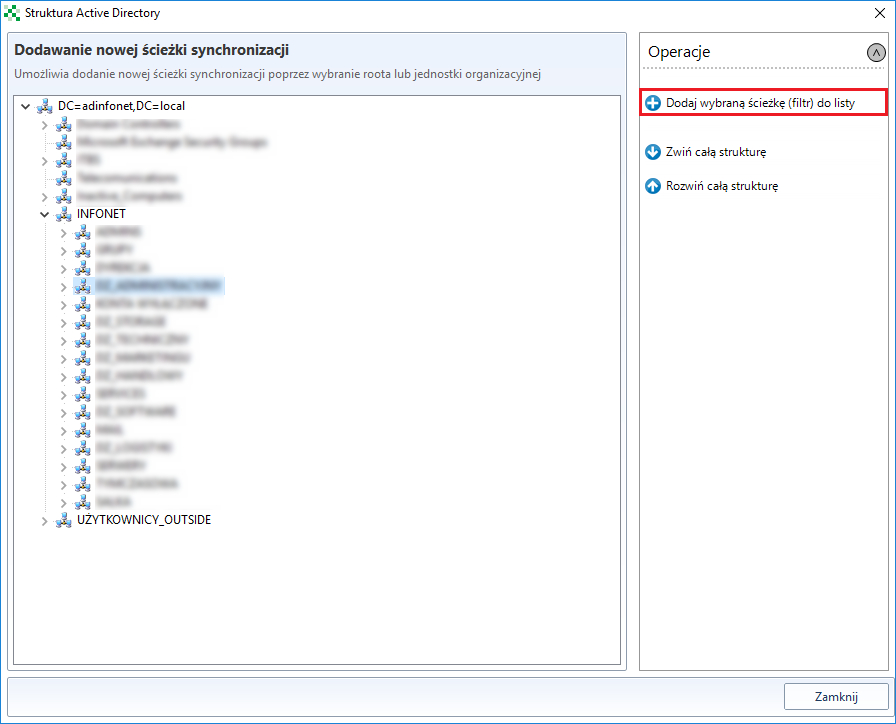
In the new window, you can select a synchronization path. After selecting the unit, click Add the selected path (filter) to the list and perform synchronization again.
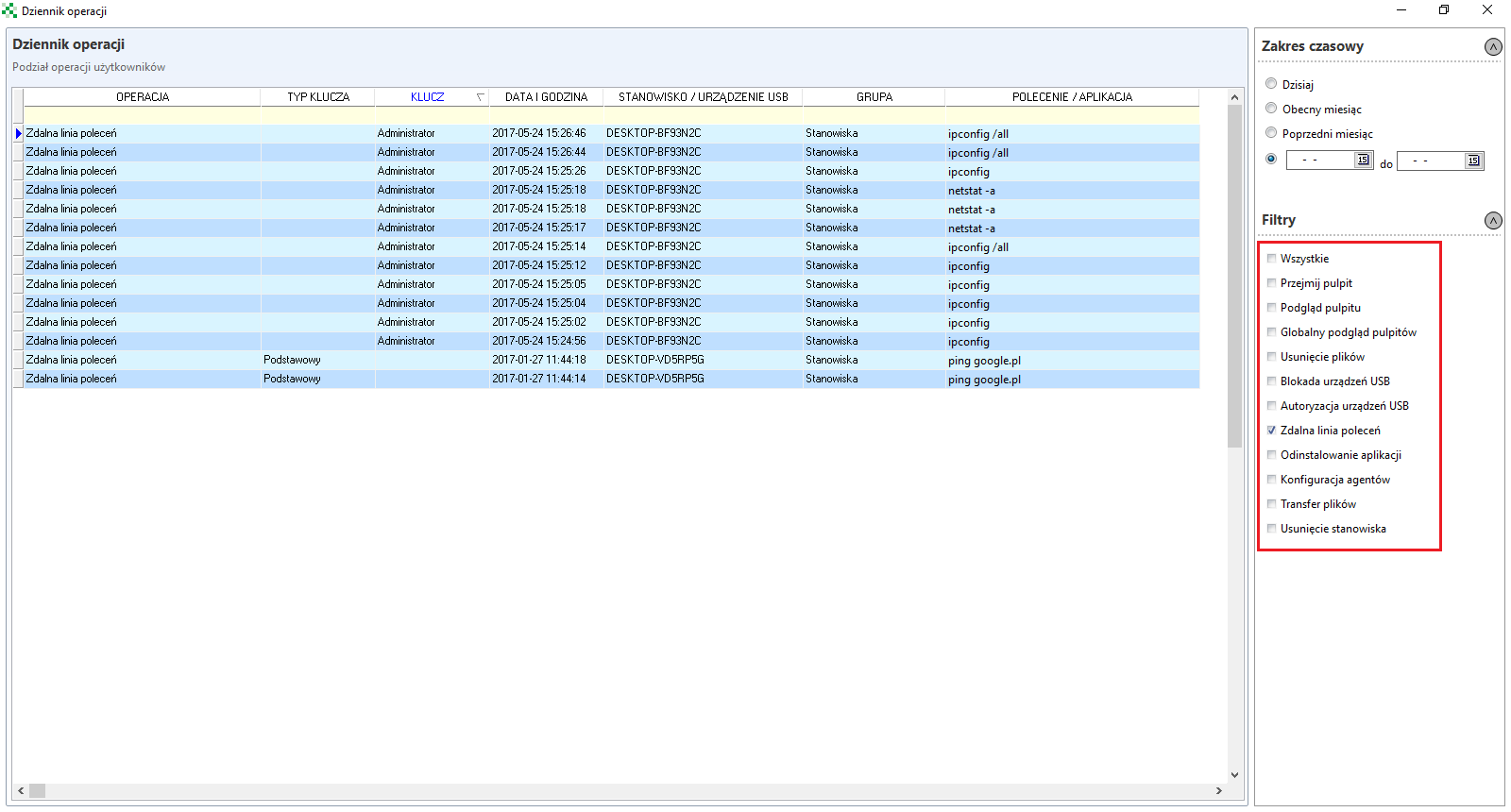
Operation log
Operation log contains a list of the operations carried out by the key at a given position. On the right hand side of the Filters tab, you can select the information to be displayed.
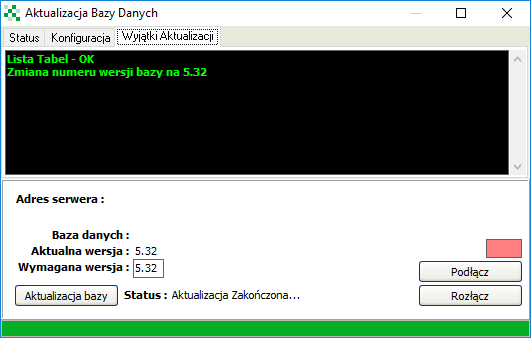
Updating the database
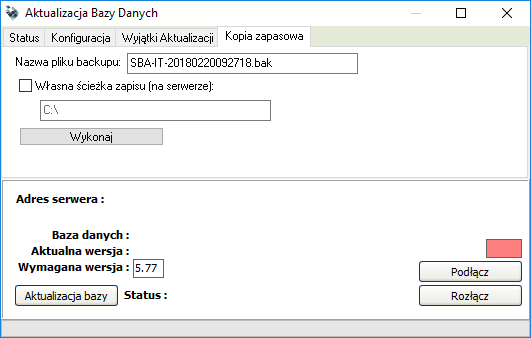
Database update tab allows you to update the database, check the current version of the program and the connection parameters of the database.
Bookmark Support allows you to backup the ITManager database.
Important
Backup database is saved locally on the computer where the SQL instance with ITM database is located