Software inventory
Software database
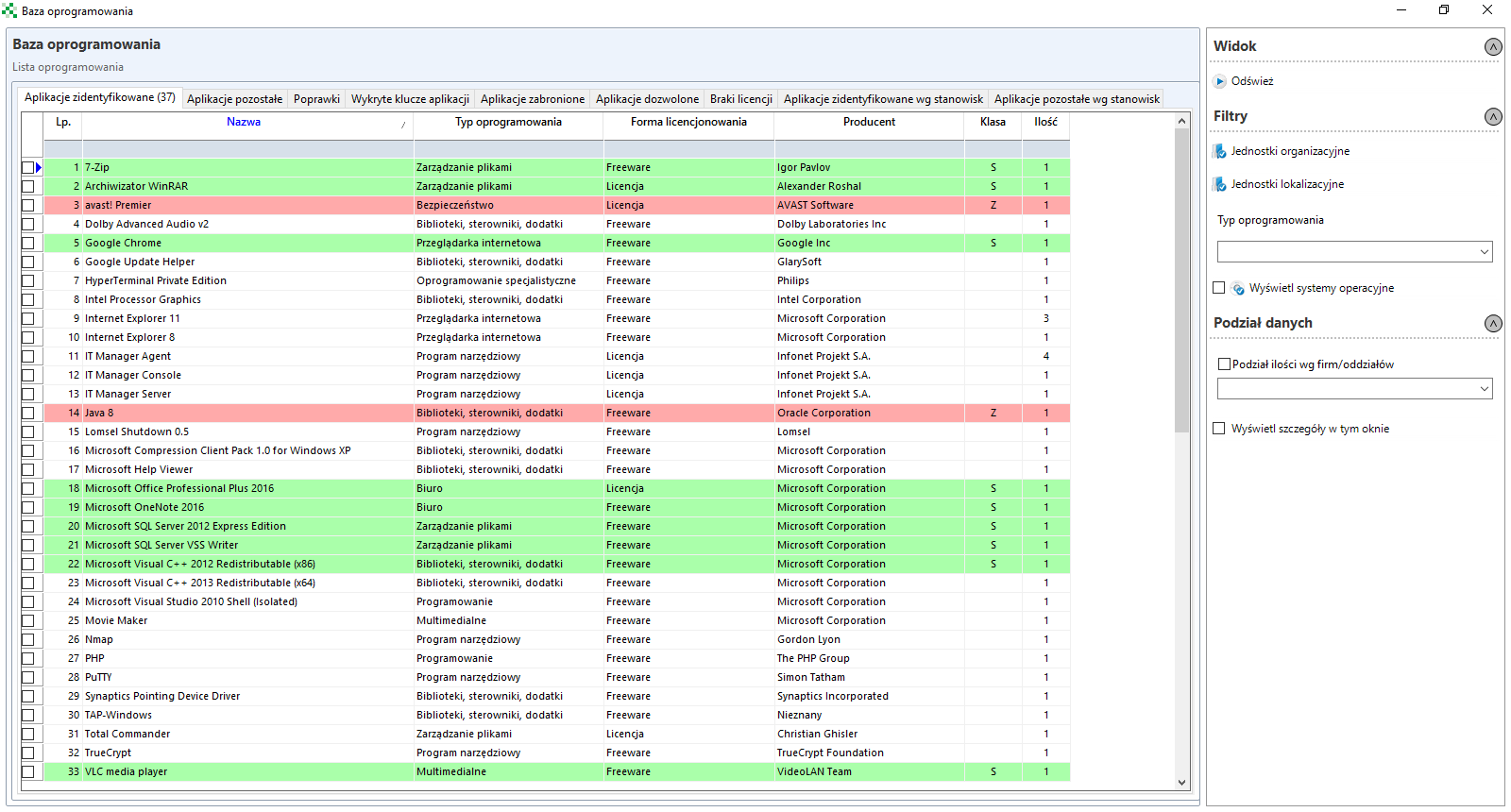
After clicking on the button Software database a window with the list of owned applications will open.
In the application database you can see the detected programs. They are divided into the following tabs:
Identified software - here are all applications identified by the ITManager software.
In this window it is possible to classify applications as Allowed and Forbidden by right-clicking on an application or application group by selecting it in the table.
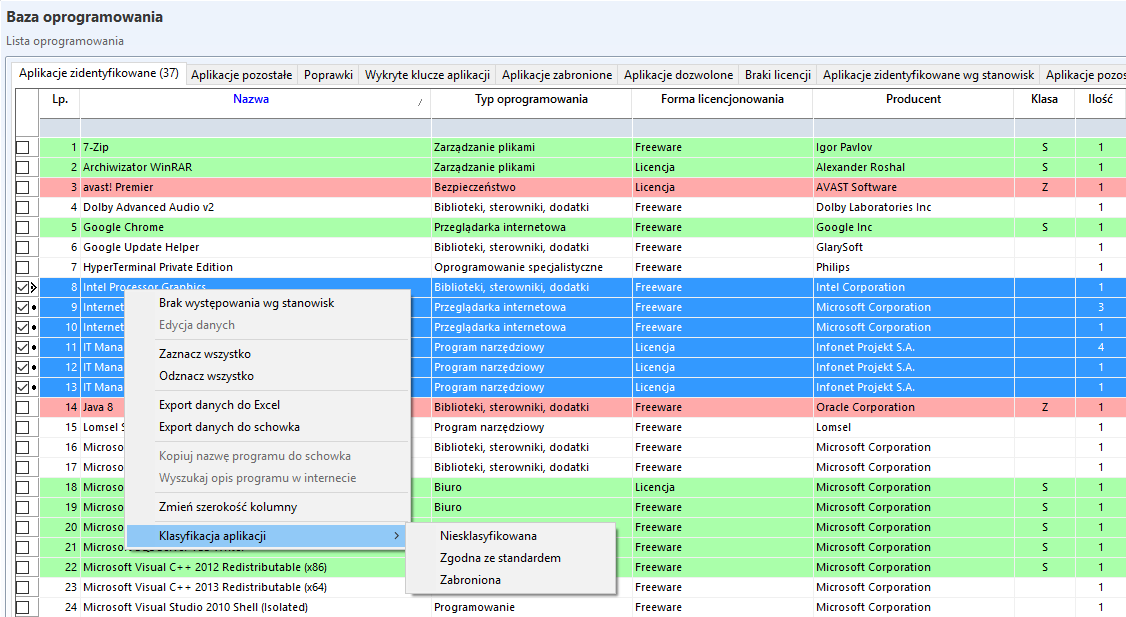
The distinction between applications Allowed (green) and Forbidden (red) is only informative. It does not block the installation of the software.
After selecting option Show details in this window (panel on the right side), additional window with list of computer stations on which selected application is installed will be displayed.
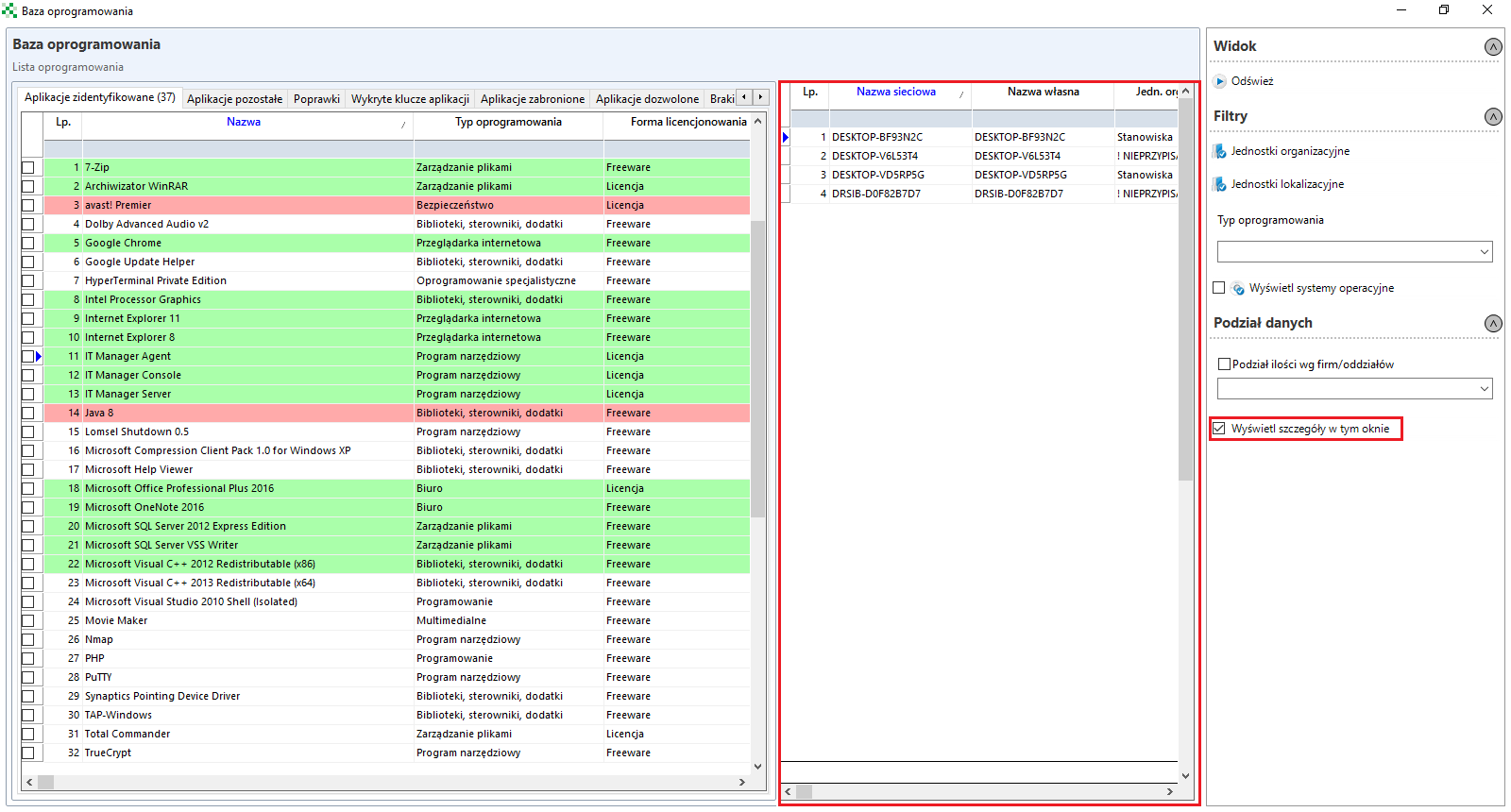
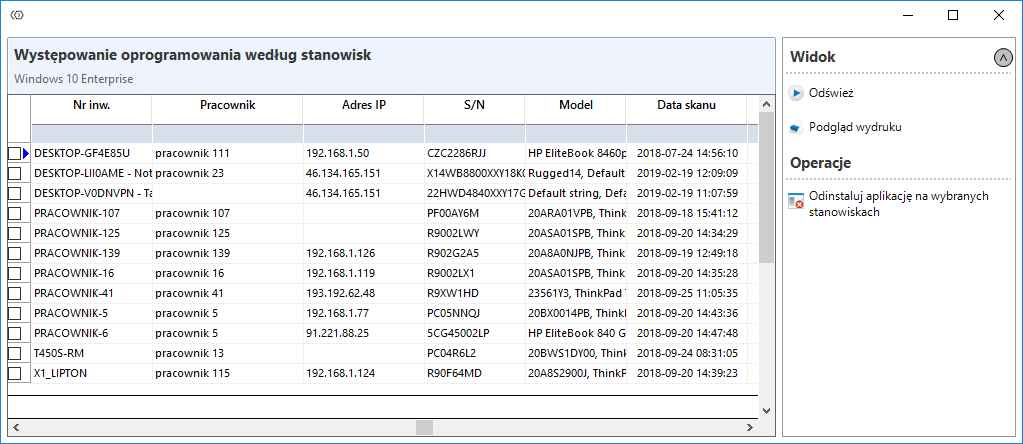
Double-clicking on a given application opens a new window in which a list of positions on which the application is installed will be displayed. In this window it is also possible to uninstall the software on one or more workstations.


WARNING
Remote uninstallation of the application is only possible if the application has a deinstallation path and the possibility of uninstalling in the so-called "silent mode".
Other software - as in the main application window, this is a list of applications that have been found, but are not currently in the ITManager signature database. As in the previous tab it is possible to uninstall specific software and check on which stations it is installed.
Patches - is a list of system Patches that have been detected by the ITManager system.
Detected software keys - list of keys that were detected by the ITManager system.
Forbidden applications - list of positions where applications marked as denied are located.
Allowed applications - list of positions with applications marked as allowed.
Lack of license - list of workstations where software requiring license was detected. Adding a license will be discussed in the next section.
Applications identified by workstations/Other applications by workstations - list of applications sorted by their presence on positions.
Operating systems overview
After clicking the System overview button, a new window with a detailed list of operating systems will open.
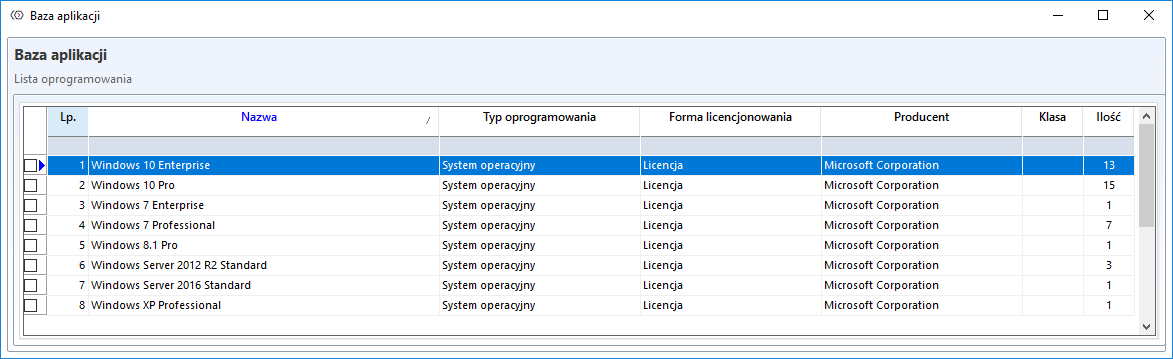
After two clicks on a given system, a new window will display the computer stations on which the system is located.
Duplicated software keys
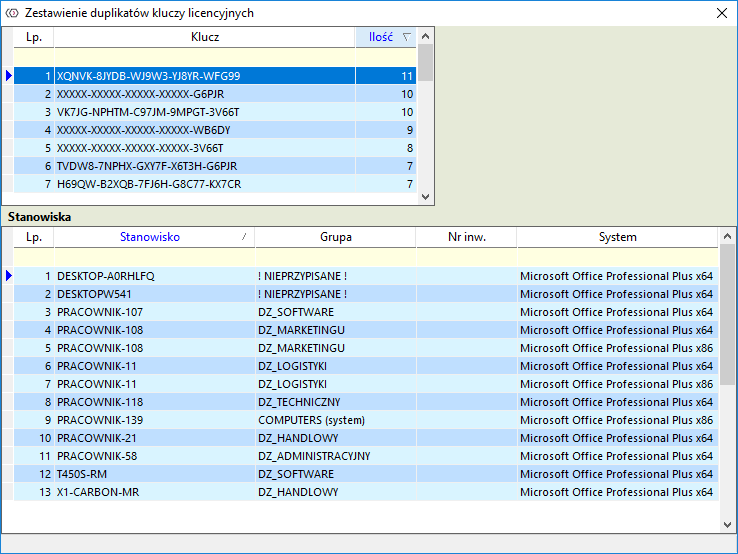
A detailed overview of operating systems and software that has been installed more than one time with the same license key, is available on the Duplicated software keys tab. The list shows positions with duplicate installations together with the group to which they belong, inventory number and the operating system in place.
File scan
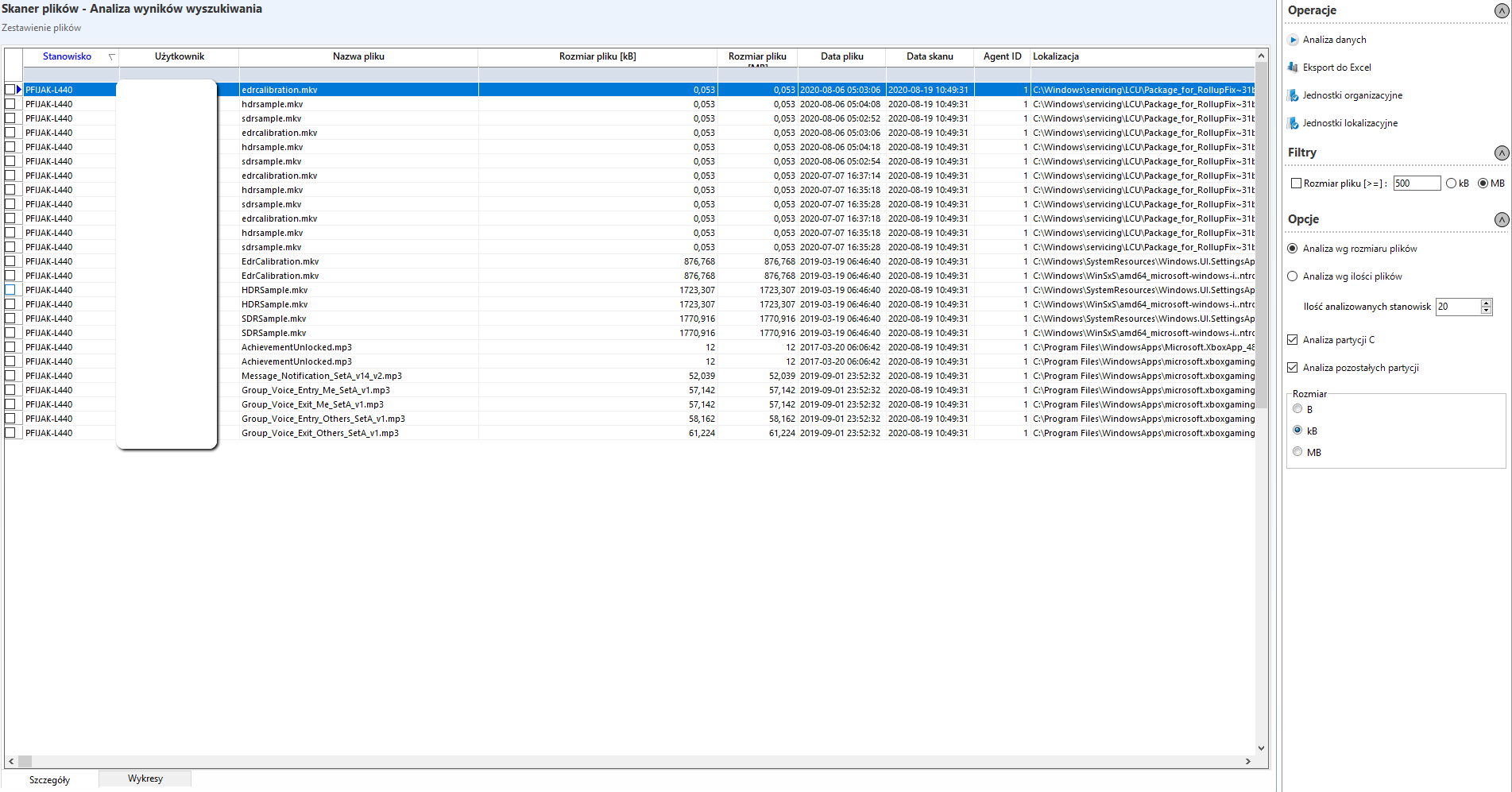
When you click ** File scan** , a window will open, in the Filters section, uncheck File Size [>=]. or change the file sizes to be taken into account. After setting the filters, click the Data analysis.
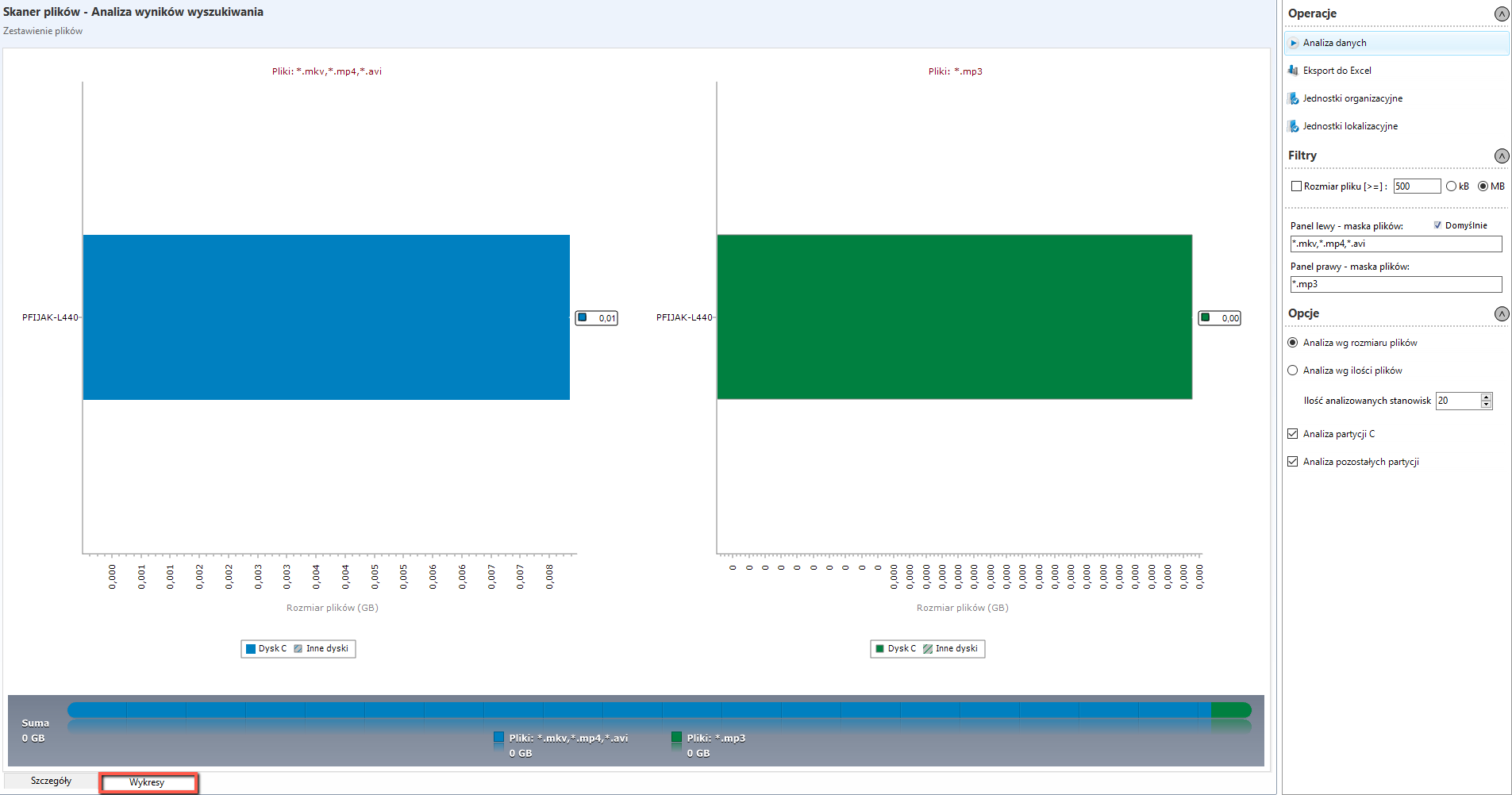
Under the tab Graphs you will find information with a detailed graphical overview of the multimedia files, These files are differentiated into Films and Music.
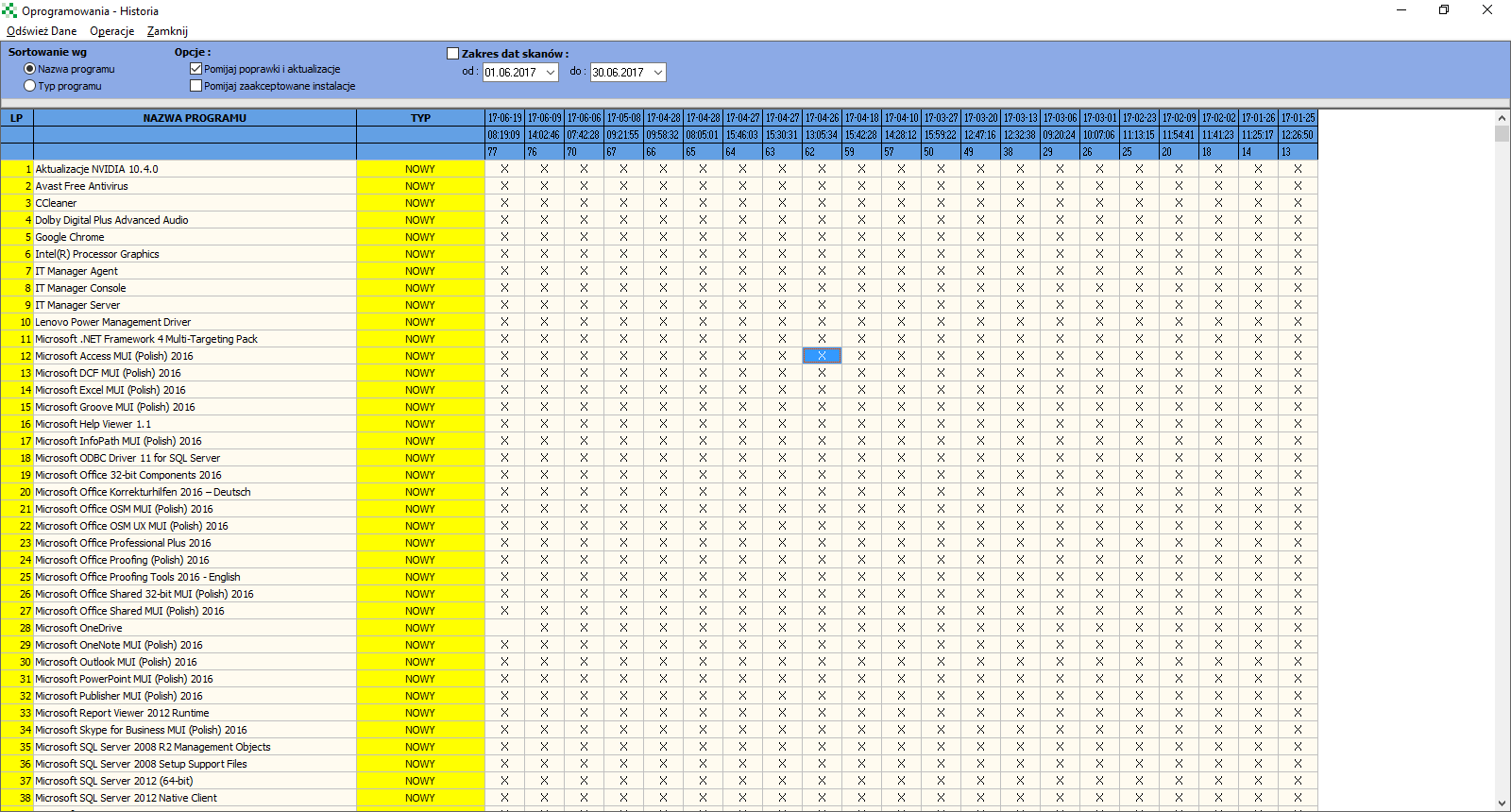
Installed software change history
Installed software change history gives you the opportunity to view the history of software changes.
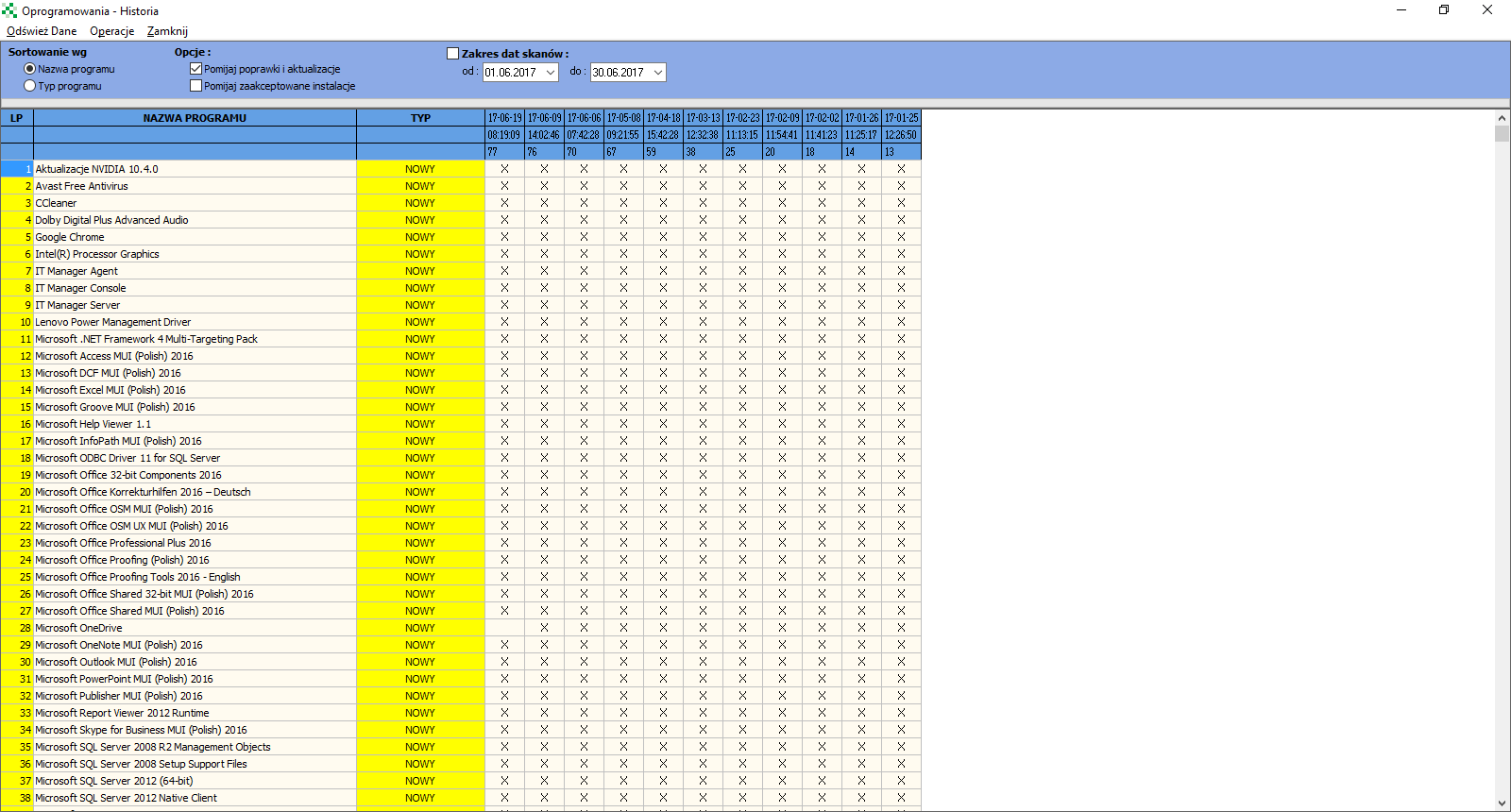
Additionally, by going to menu Operations->Data Optimization you can narrow down the preview to the latest changes in the software.
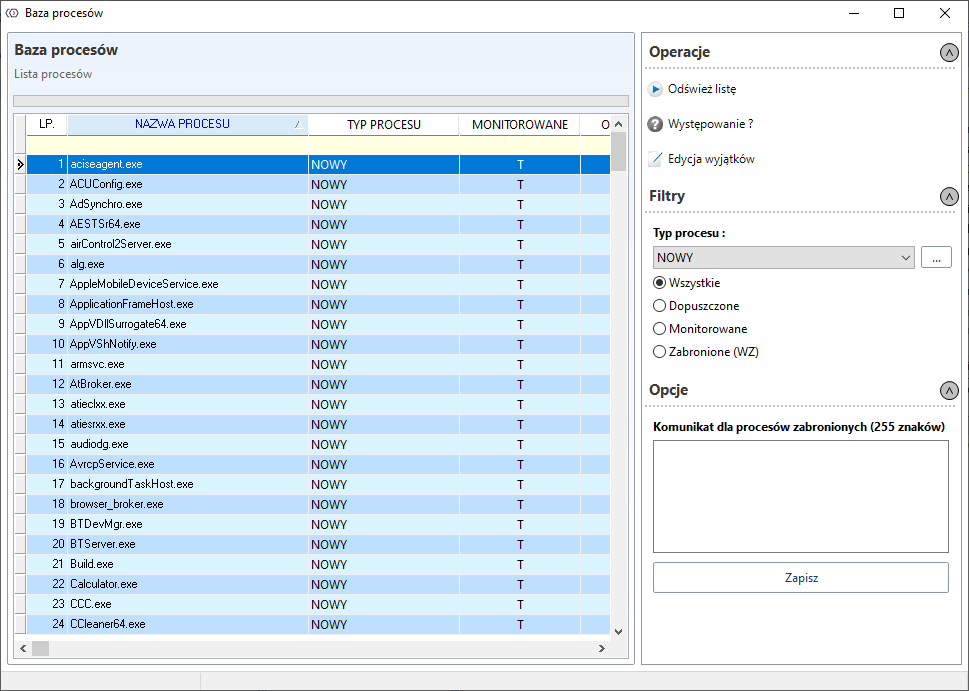
Process database
After clicking the Process database button, a new window with a list of processes will open.
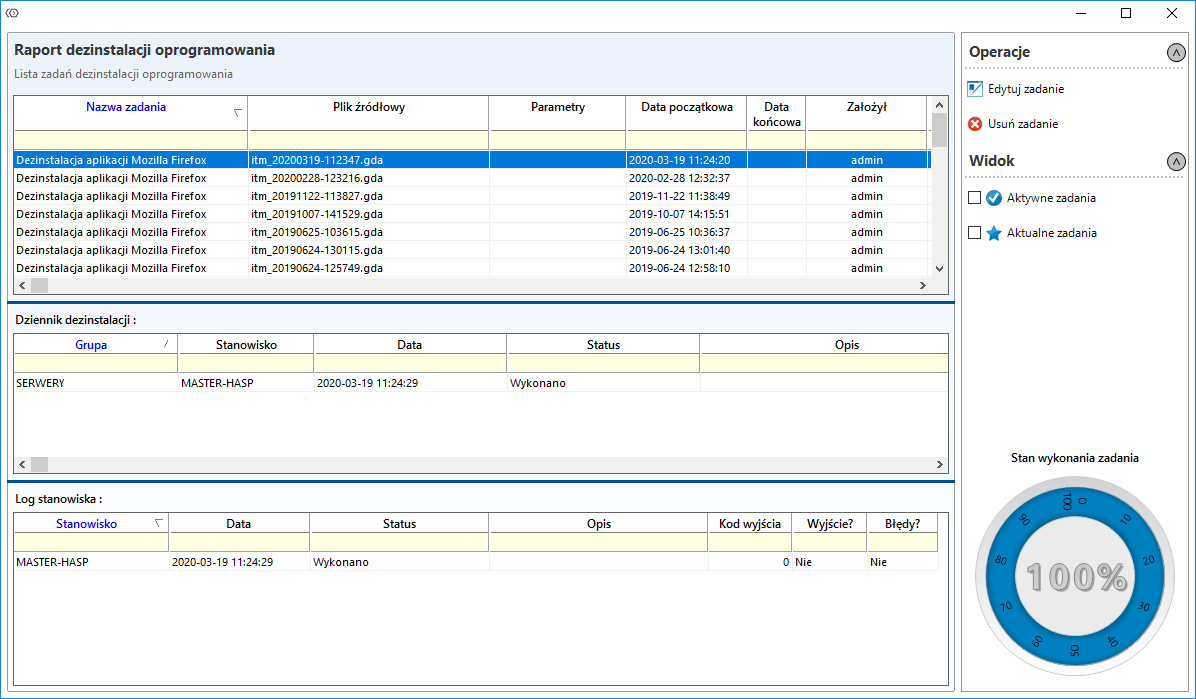
Software uninstallation report
After clicking on the Software uninstallation report button, a new window will open with a list of current software uninstallation tasks.