Software audit
License database
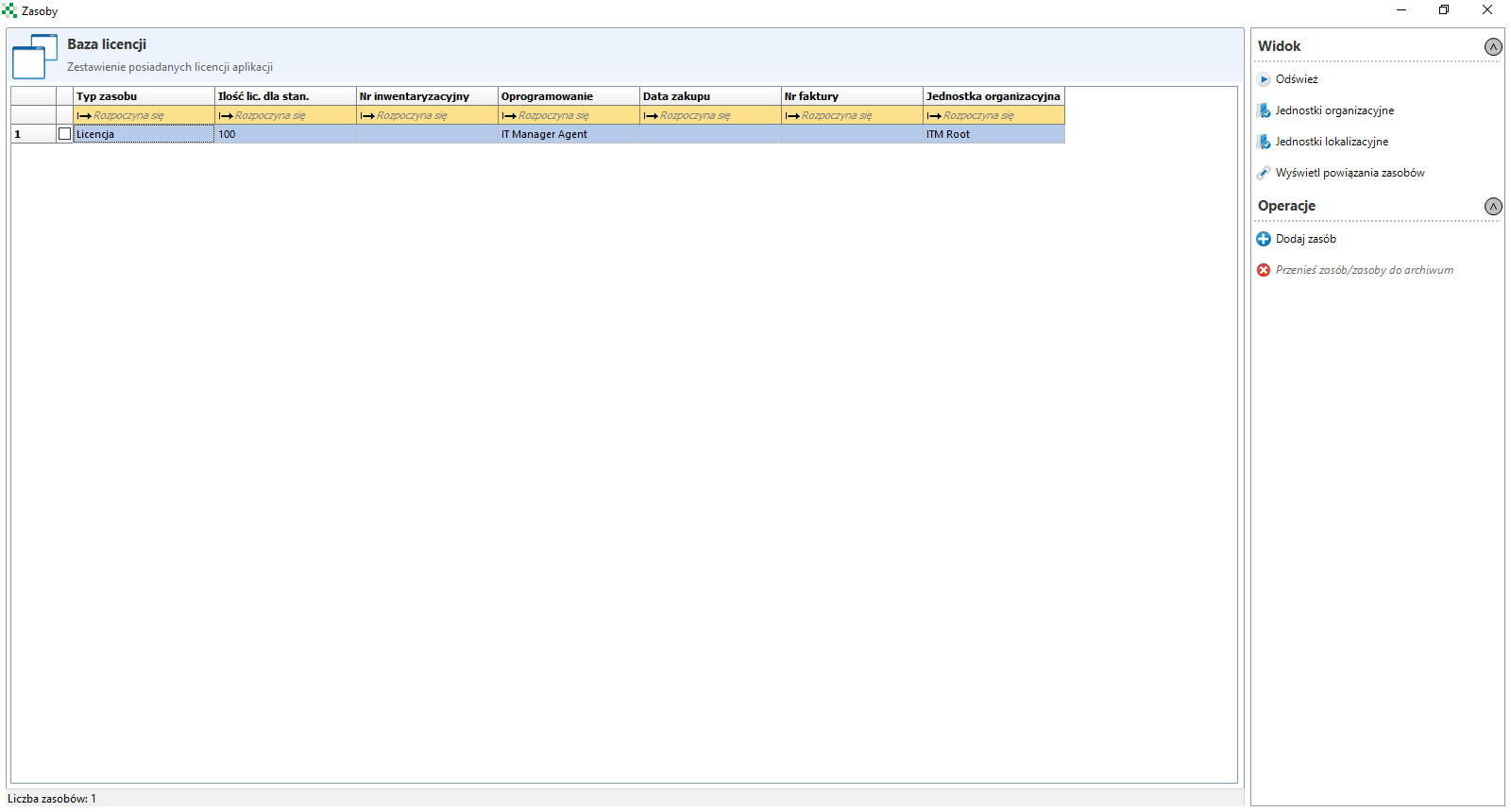
When you click on the Licence database button, a window with the list of available licences will open:
Double-clicking on a selected license will open the possibility of editing it:
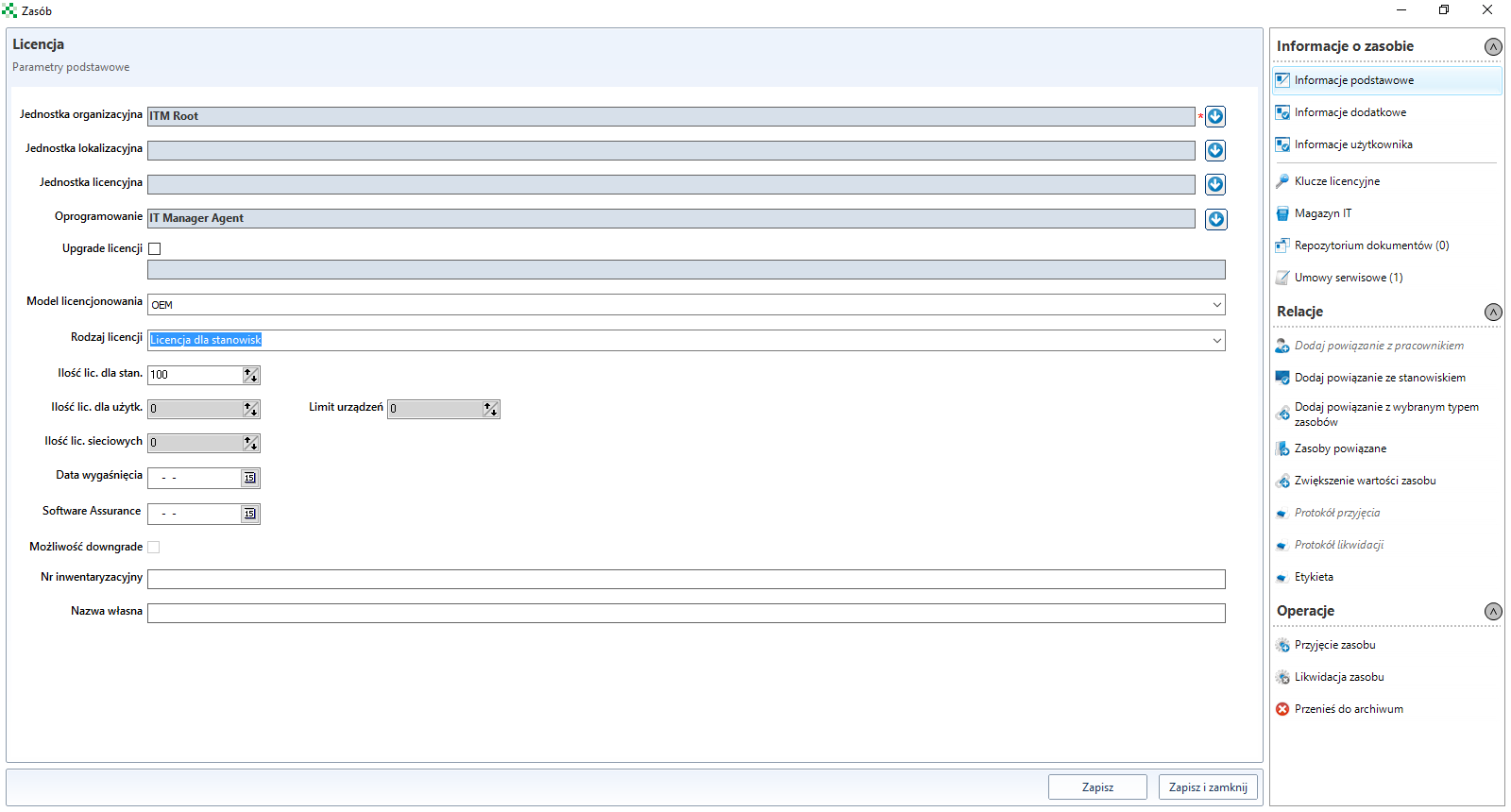
Here you can change the licensing model, number of licences, expiry date (if applicable) and add additional information. Editing of resources is discussed in chapter Resource management.
Licenses audit
After clicking on the Licences audit button, a window opens:
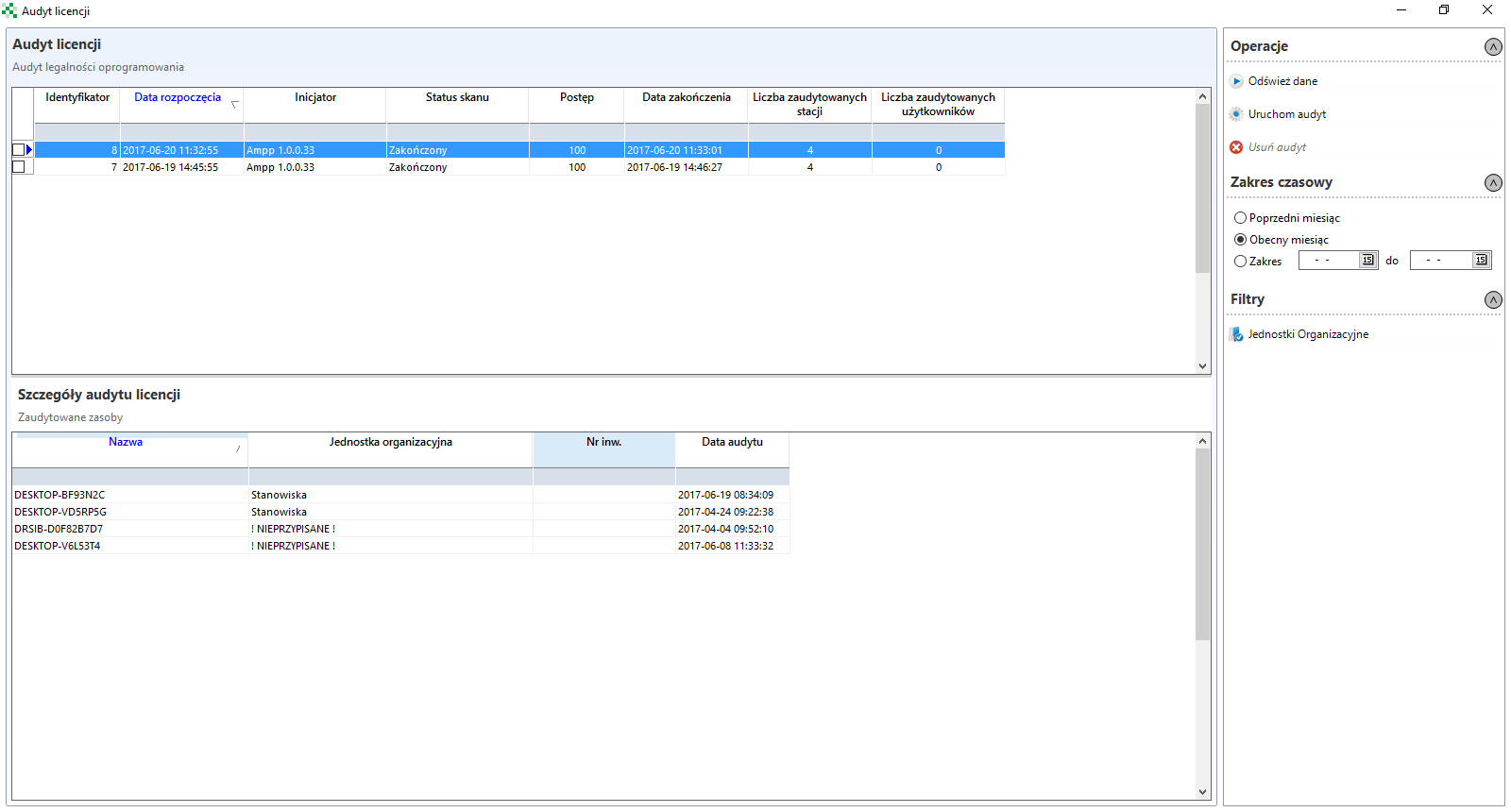
The license audit is performed after scanning and identifying the software. In order to perform an audit, click on the button Execute audit located on the panel on the right. After the audit is performed, a list of positions that have been taken into account during the audit will be displayed at the bottom of the window Licence audit details.
After double-clicking the audit, a new window Licence audit details will appear:
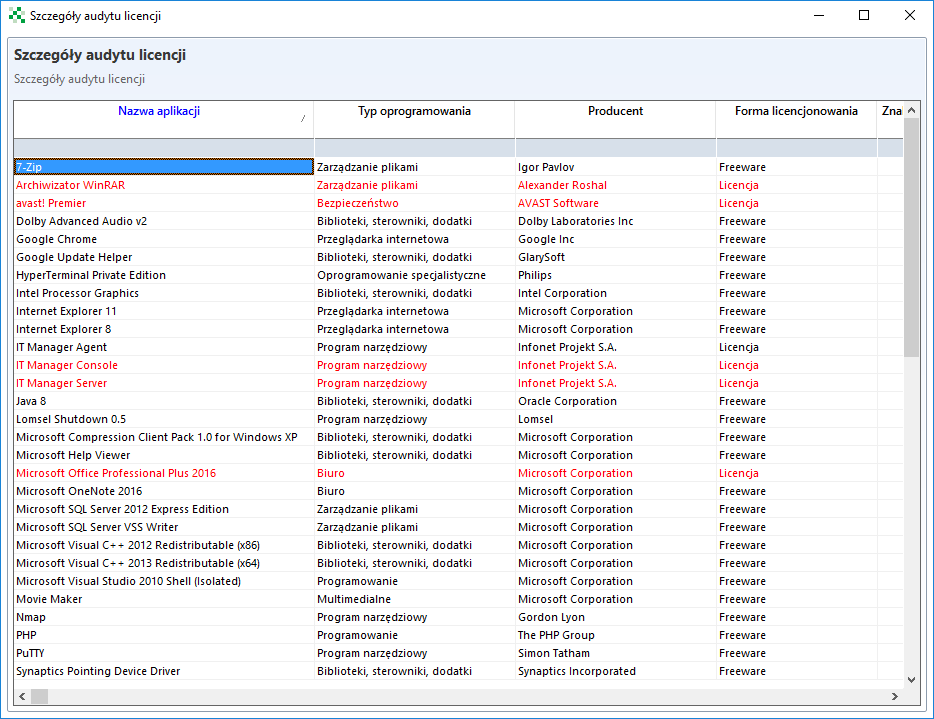
This window contains a list of software that has been identified by the ITManager system. The red font is used to highlight applications that require a license (in this case, add the corresponding license (right-click on the selected application - Add license to software).
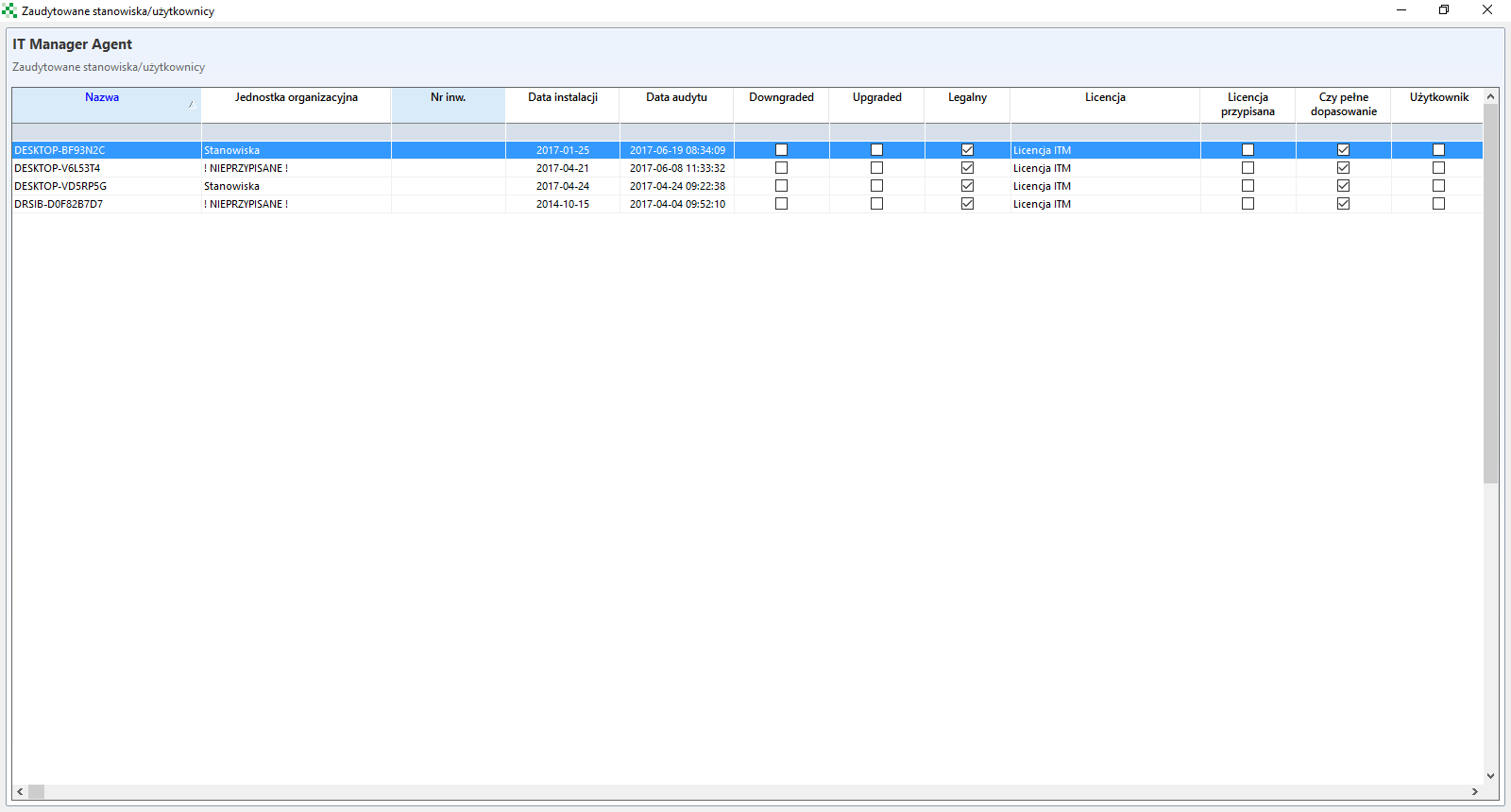
After double-clicking on any application name, a new window will appear with a list of all positions where it has been detected and identified with information about the full match, date of audit or license information.
Updating application signatures
The Download signatures button downloads/updates the application signature database.
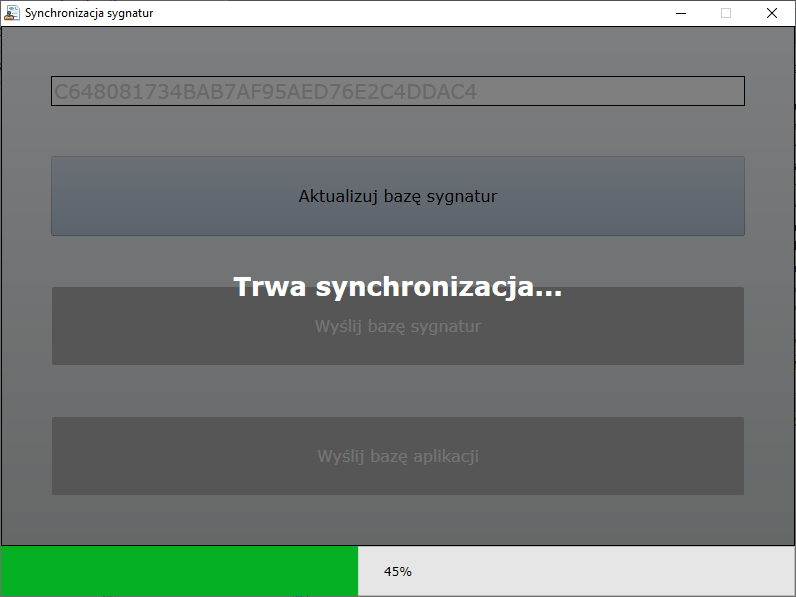
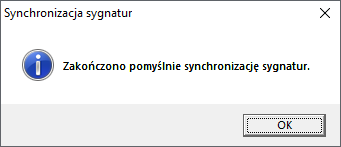
A message will appear after downloading.
Software identify
Software identification can be done globally for all positions or locally for each position.
To perform global identification, select Software identify.
To carry out the identification locally for a selected workstation, you need to select the module ** IT infrastructure management. from **List PC **select the position at which the identification is to be carried out, go to tabs **Applications and click Software identify.
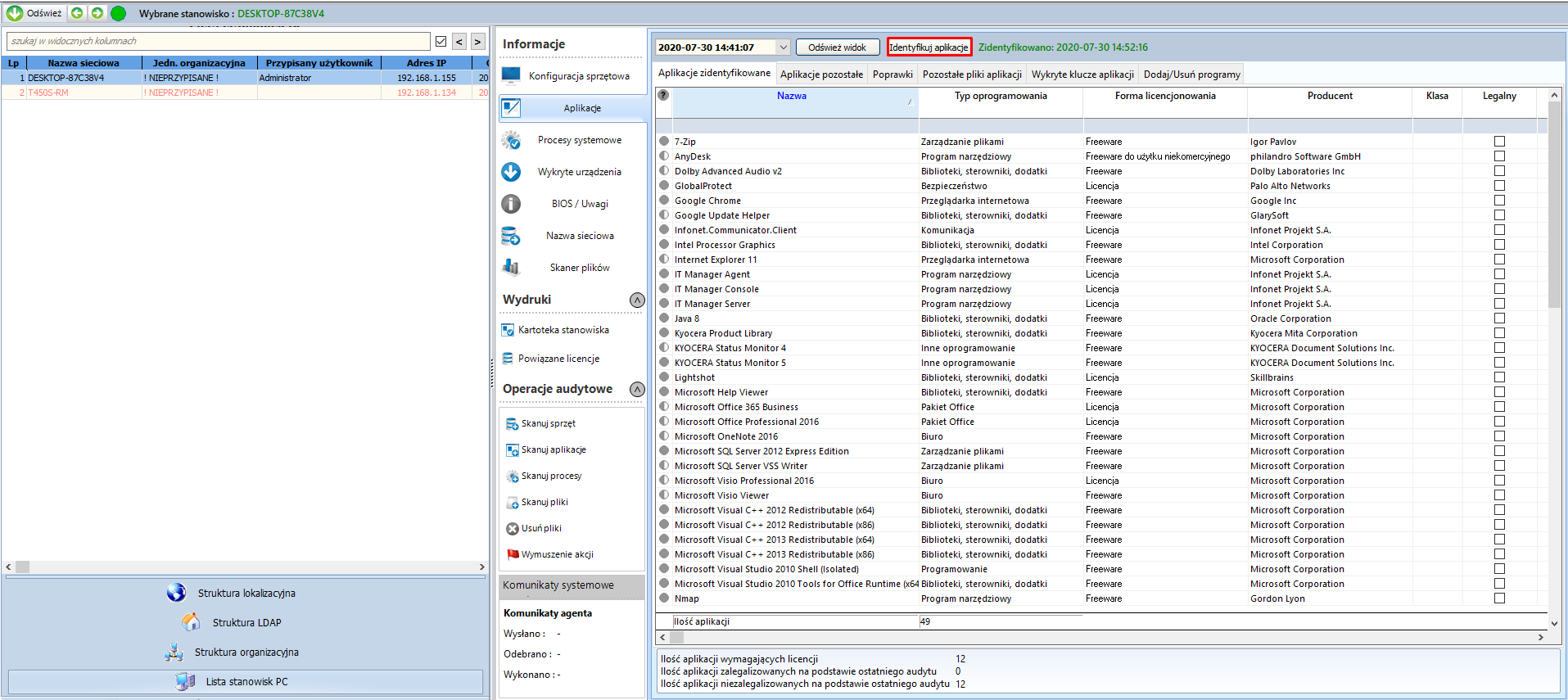
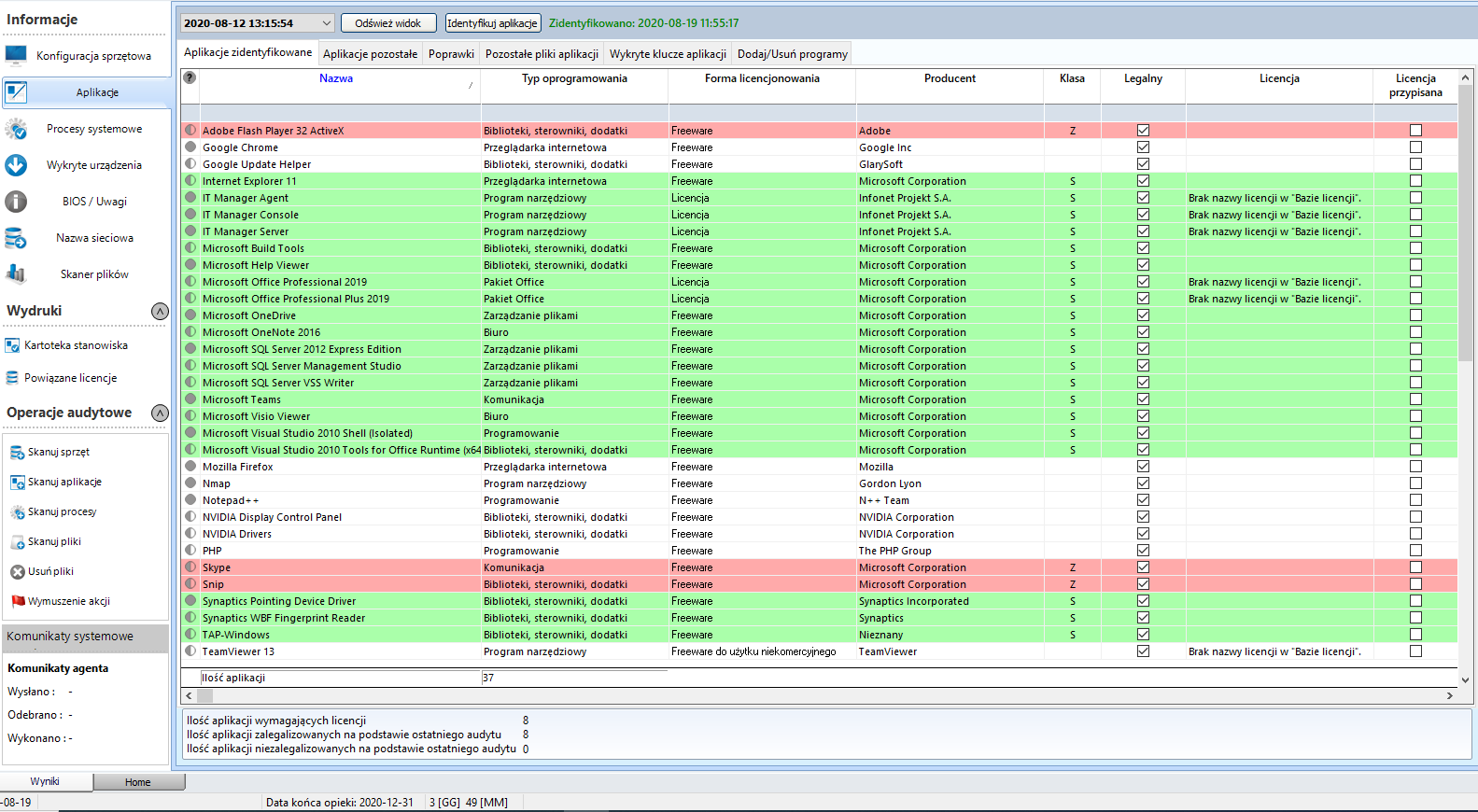
There are 6 tabs in the Application** window:
Identified software - here are all applications identified by the ITManager software. The mere appearance of an application on this list does not mean, however, that the application is installed on the station where the identification was performed. Only the column Exact match inform the user whether the application is installed on the computer. If checkbox is not checked, it means that the application was identified on the station by detecting the *.exe file. However, this does not mean that the application is installed, this may happen when using portable or the application has not been correctly removed from the workstation. Full matching means that the application is installed on the computer by detecting an entry in Add/Remove Programs.
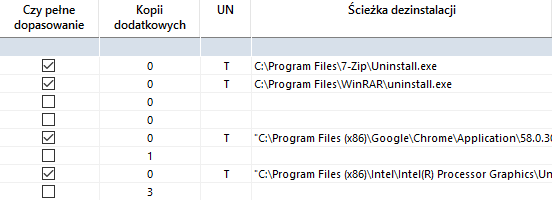
By double-clicking on the application name, a new window will appear, showing which files *.exe of the application have been identified and the path to the folder in which they are located.
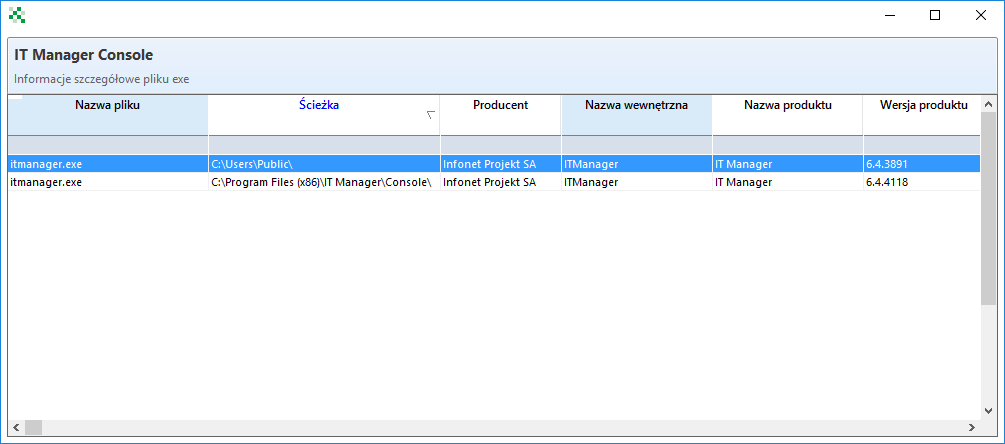
Other software is a list of applications that have been found but are not currently in the ITManager signature database. If there is an application on the list, which is to be added to the database, it is necessary to create a request in the CPM system and mark it as a functionality proposal, the name of the application should be given in the request.
Patches is a list of system patches that have been detected by the ITManager system.
Other software files - is a list of *.exe files, which were detected and which are not related to applications in the ITManager system signature database.
Detected software keys - this is a list of keys that have been detected for installed applications.
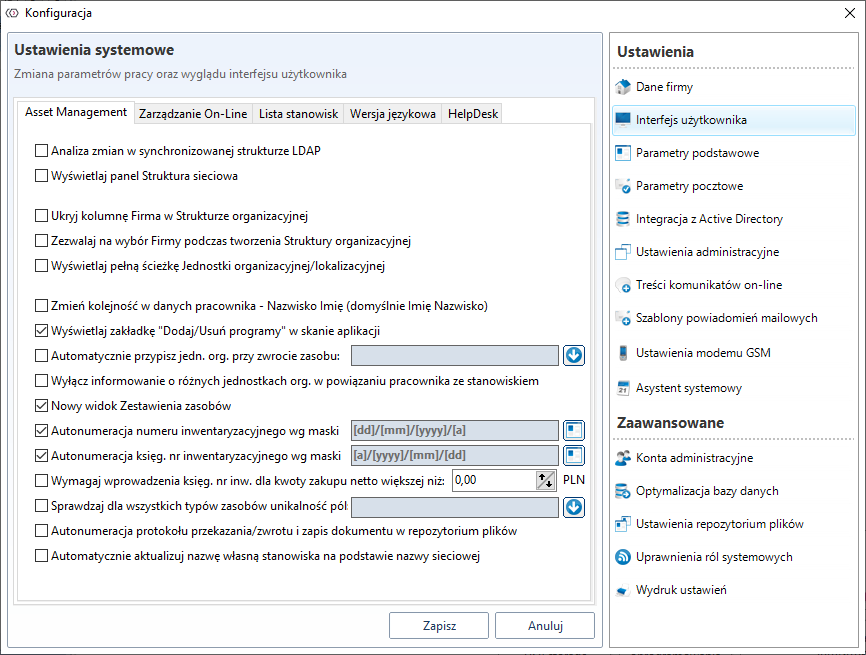
Add/Remove Programs - is a list of software installed on the computer. If this tab is not visible, go to Tools->Settings**,

in the new window, go to the tab User interface and select Display the "Add/Remove Programs" tab in the application scan, then save the settings by clicking Save.
Known software products
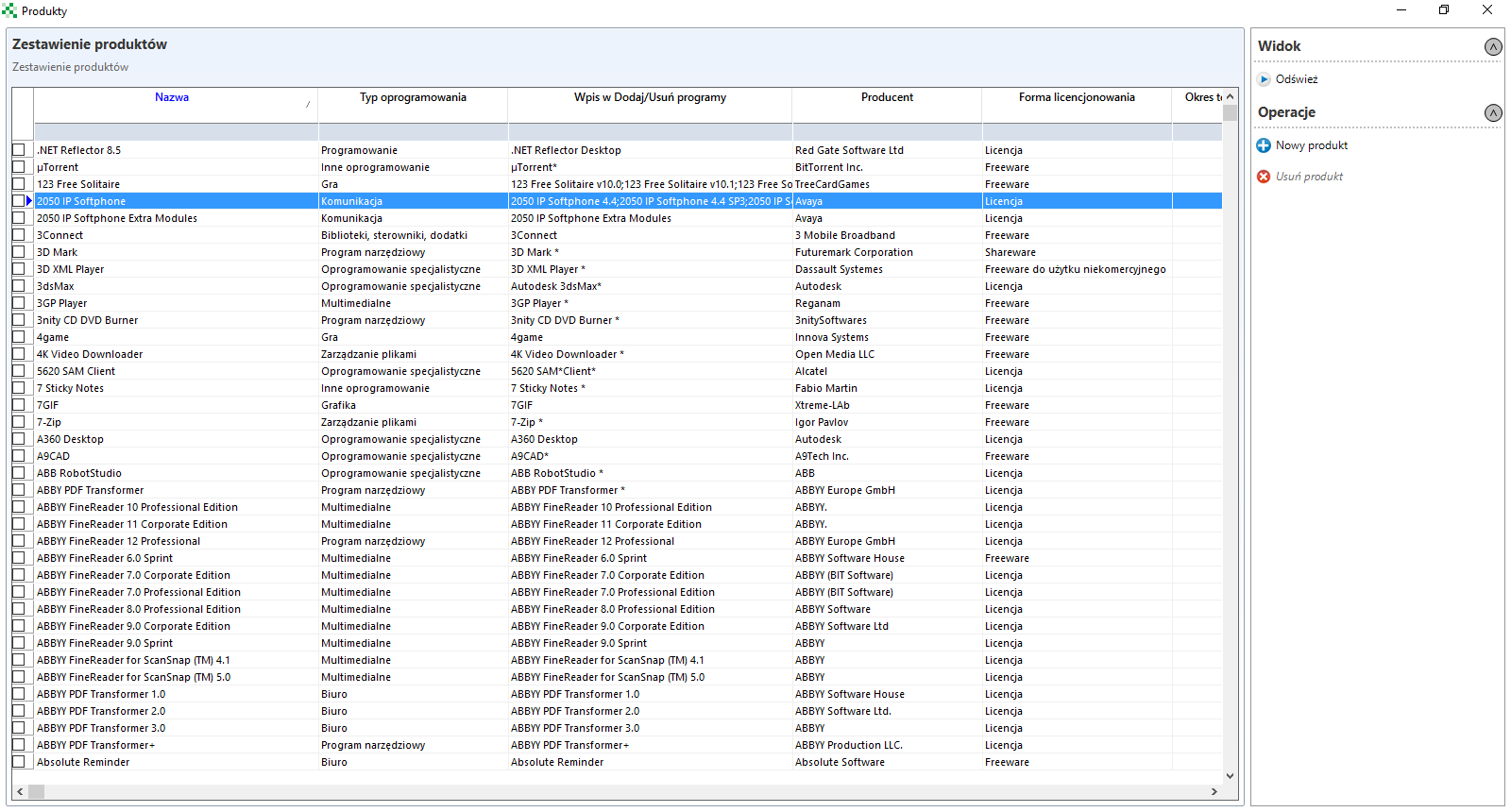
Known software products overview contains a list of applications for which the relevant signatures have been created.
Double-clicking on the application name will open a window with signature details:
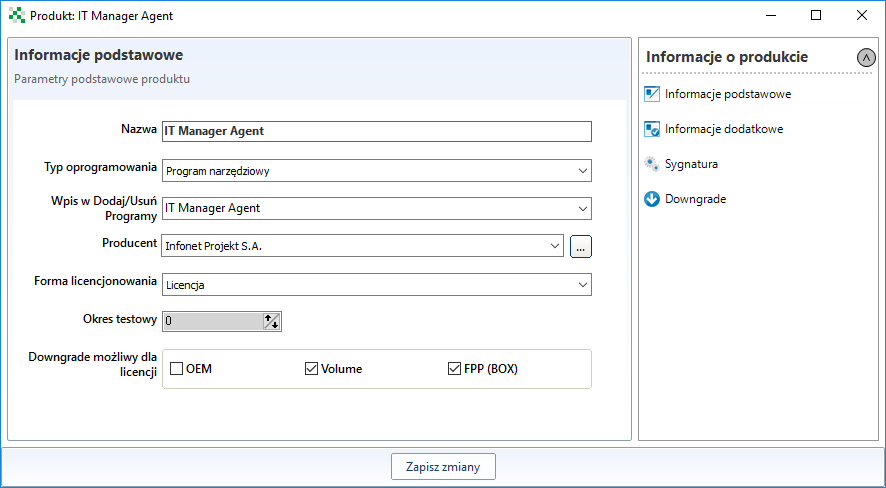
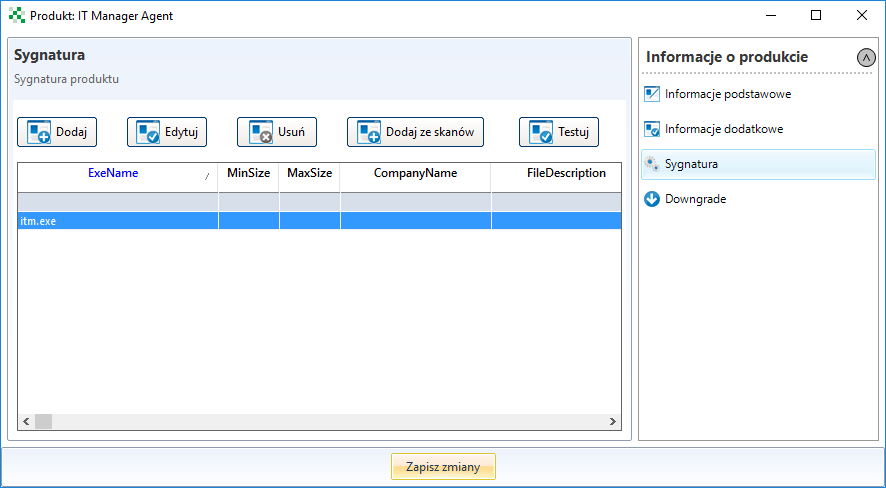
On the tab Signature there is a list of files *.exe, which are taken into account when identifying the software by the ITManager system.
License structure
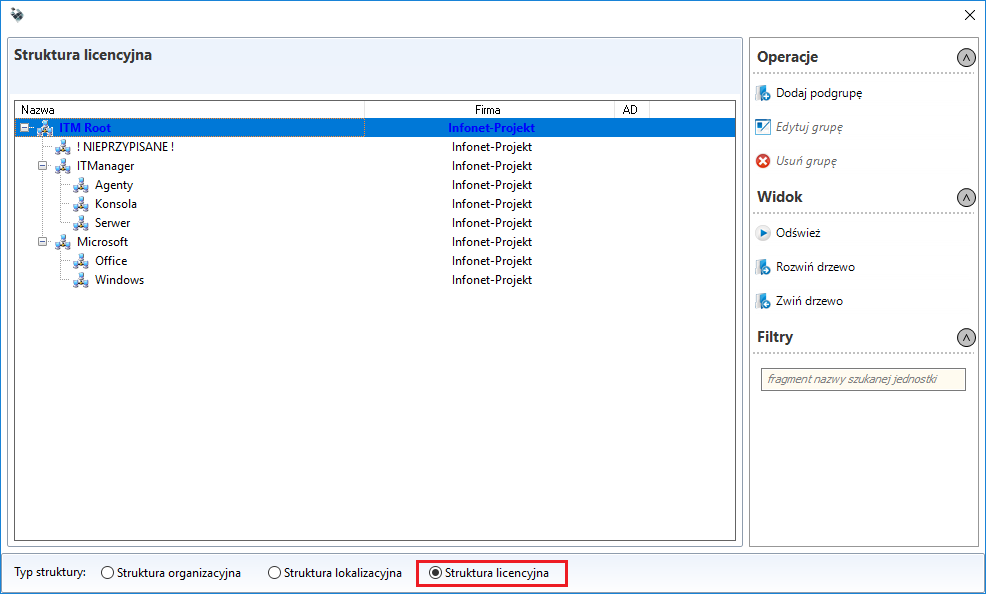
The license structure allows you to view in the form of a tree the licenses you have and the positions assigned to them. In order to generate such a tree, a license structure must be created (Tools->Resource Structure).
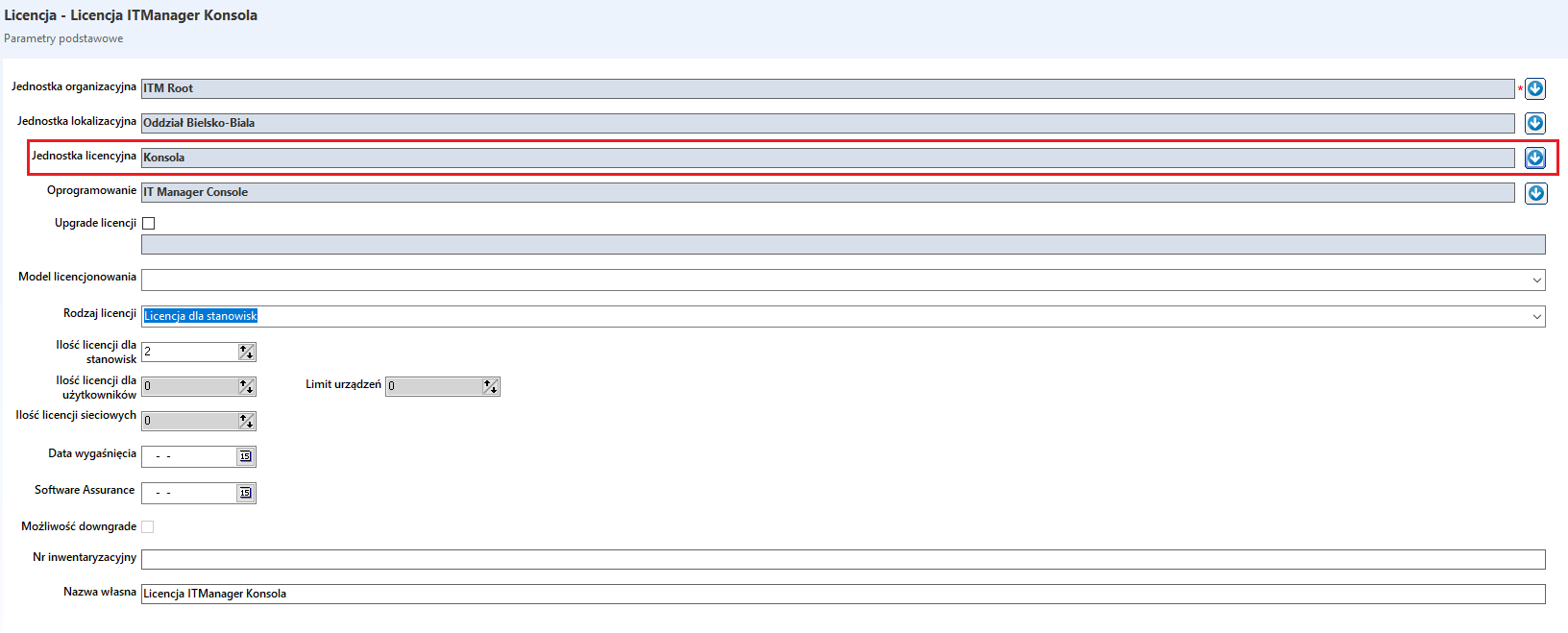
When creating a licence, its licensing unit must be supplemented.
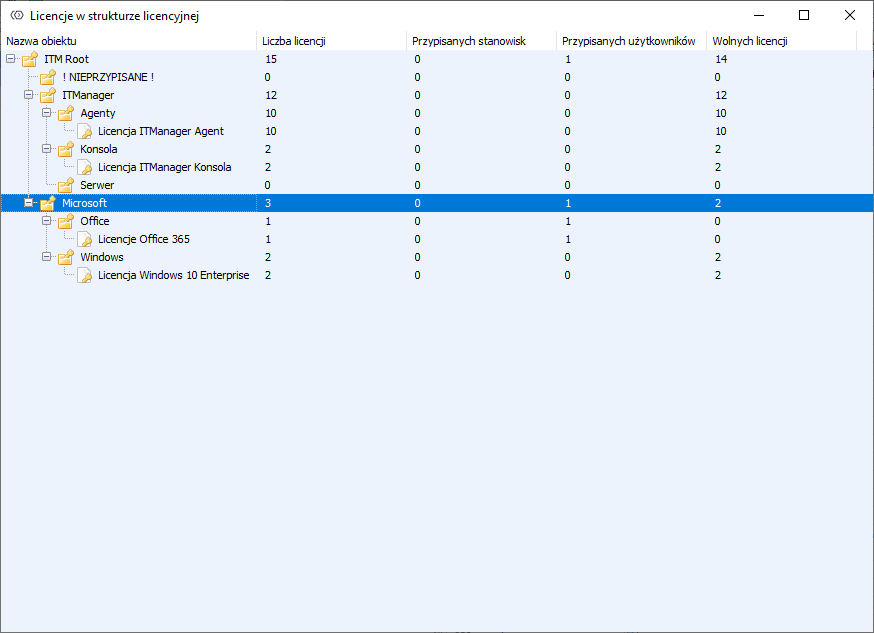
After the audit, a licence tree will be generated