
System configuration
The System configuration tab helps you to configure the console and the information it displays in the individual modules.

Configuration
Company data
Data added in the tab Company data are used for generating printout reports.

User interface
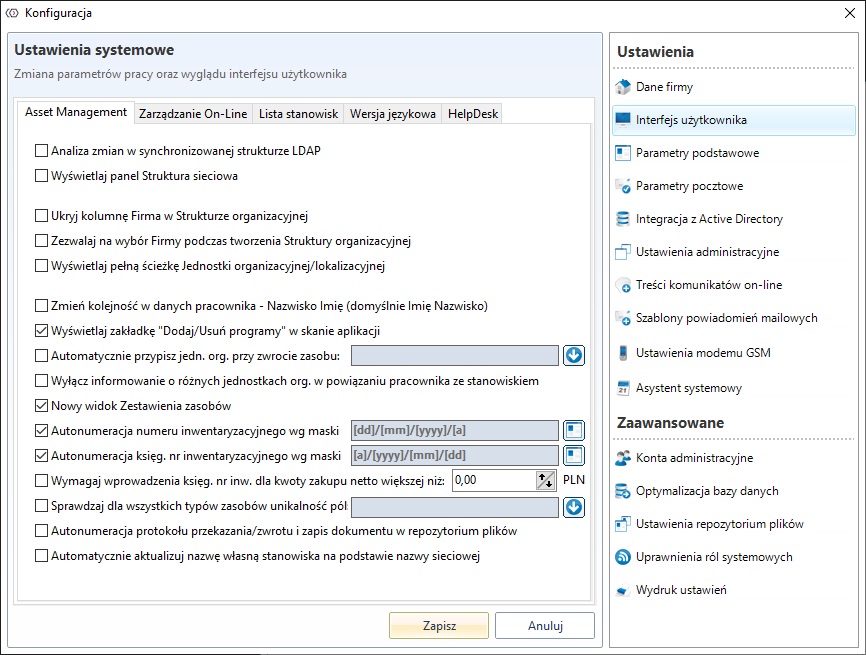
In the user interface tab, it is possible to personalise the information displayed by the ITManager console.
Asset Management
Name of the option | Description |
|---|---|
Change analysis in LDAP synchronised structure | Any changes in the LDAP structure are displayed in the corresponding tree |
Display panel Network structure | Add Network structure mapped from the addresses and paces of the station with an agent installed. |
Hide column Company in the Organizational Structure | The tab Organization Structurehides the column of the **Company. |
Allow chosing Company when creating organizational structure | When creating new organisational/location/licensee units, the company selection option is added. |
Show full path to the organizational/localization unit. | The full path to the target unit will be displayed in the PC list tab. |
Change order in the user data - Last name First name (default First name Last name) | Change the format for displaying first name and surname in the List of PC workplaces in the ** Assigned user**. |
Show tab Add/Remove Programs in the application scan | In the tab Applications a column will be added Add/Delete Program. |
Assign organizational unit while returning resource | When returning a resource, it is automatically assigned to a specific business unit. |
Disable notification about different organizational units in user-workstation relation | Switch off the message indicating that two resources are in different organisational units. |
New view of the Resource list | The new table in the resource view allows operations on more than one resource. |
Auto increment of inventory number by mask | The mask can be configured with this option |
Auto increment of financial inventory number by mask | |
Require an financial inventory number for a net purchase value higher than... | |
Check uniqueness of fields for all types of resources | The value of the fields is calculated for all types of resources and will not allow changes to be saved if 2 are the same. |
Autonumeration of transfer/return protocol and saving document in file repository | Automation of the document in the selected repository and assigning a document number |
Automatically update the 'Name' of the station based on the 'Network name' | Automatically check and update the job title on the basis of the network name. |
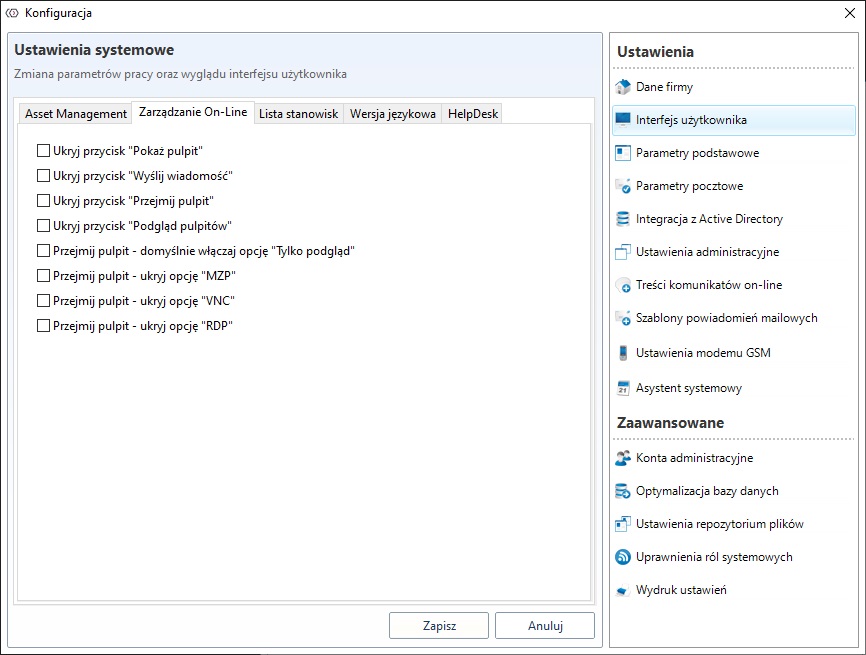
On-Line Management
Name of the option | Description |
|---|---|
Hide the Show desktop button | Deactivates the Show desktop button in the Remote operations tab. |
Hide the Send message button | Hide the Send message button in the Remote operations tab. |
Hide the Desktop control button | Hides the Desktop control button in the Remote operations tab |
Hide button Multi screen | Deactivates the desktop preview button in the Remote operations tab |
Desktop control - default enable option 'only view' | In the options for taking over the desktop, the option Only view is activated by default |
Desktop control - hide option MZP | Hide the option to connect using MZP |
Desktop control - hide option VNC | Hide the option to connect using VNC |
Desktop control - hide option RDP | Hide the option to connect using RDP |
Workstation list - this tab allows you to configure what information is to be displayed in Workstation list and in what order and width.
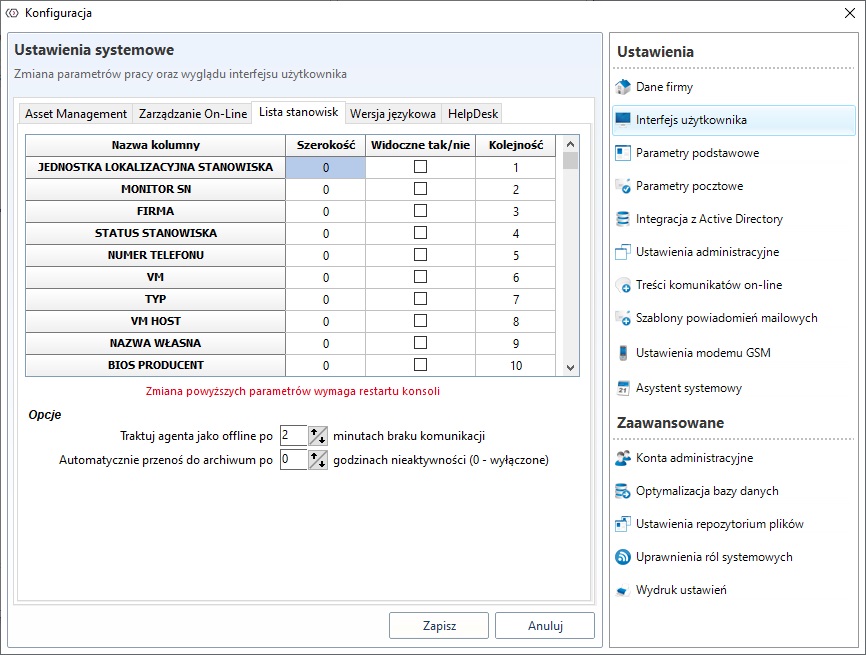
Treat agent as offline after ... minutes without communication - determines after which time the position will be marked as offline in Workstation List (red color).
Move to archive automatically after ... hours of inactivity (0 - disabled) - determines after which time the position will be transferred to the archive in case of inactivity.
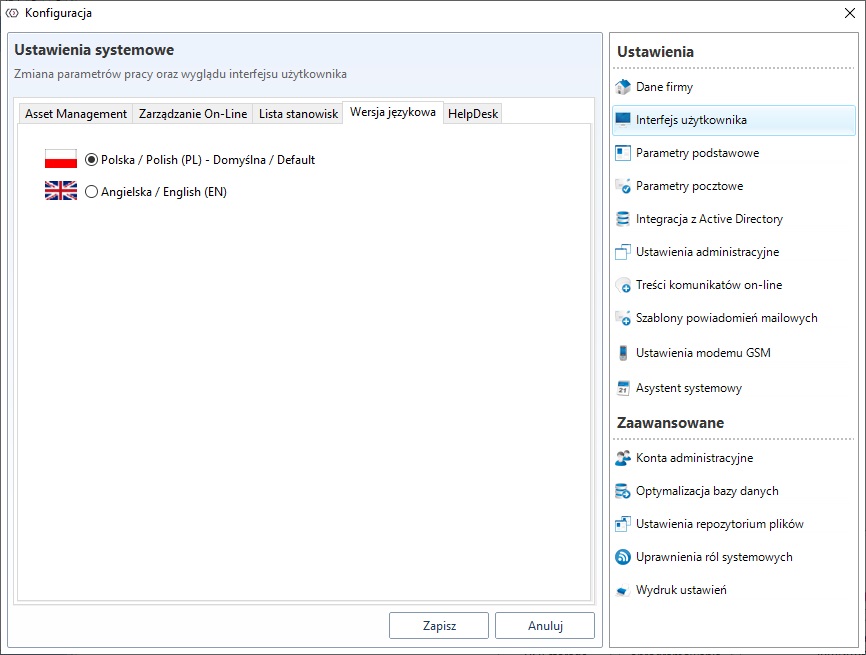
Language version - the tab is responsible for selecting the language version.
HelpDesk
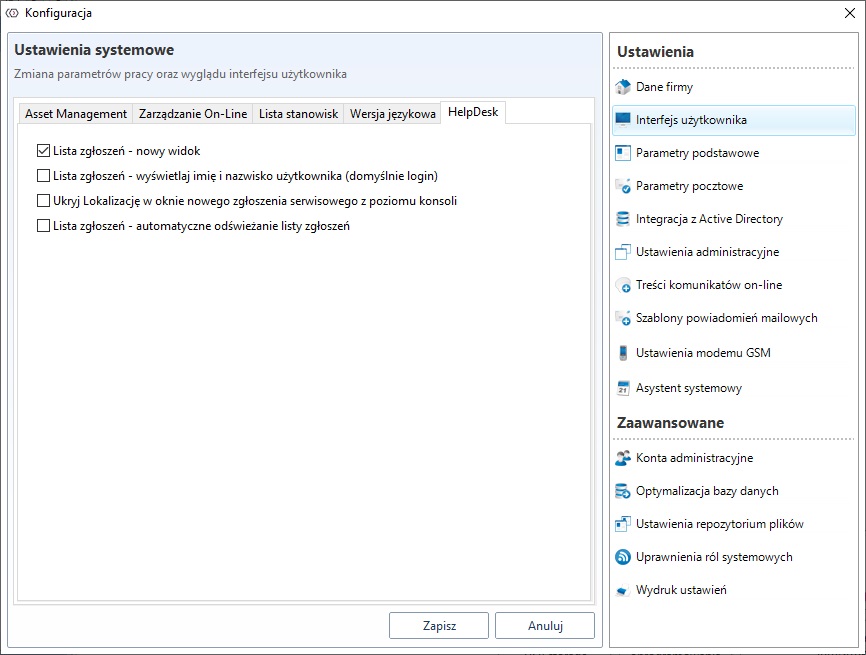
Name of the option | Description |
|---|---|
Ticket list - new view | Launches a new view for the list of requests in the HelpDesk->Notification list. |
Ticket list - show first and last name of user (login default) | The user's name is displayed in the ticket list instead of the login |
Hide location in new ticket window in the console | When creating a new service request from the ITManager console, the location selection option is hidden |
Ticket list - automatic refresh of the list | Automatically refreshing the list |
Basic parameters
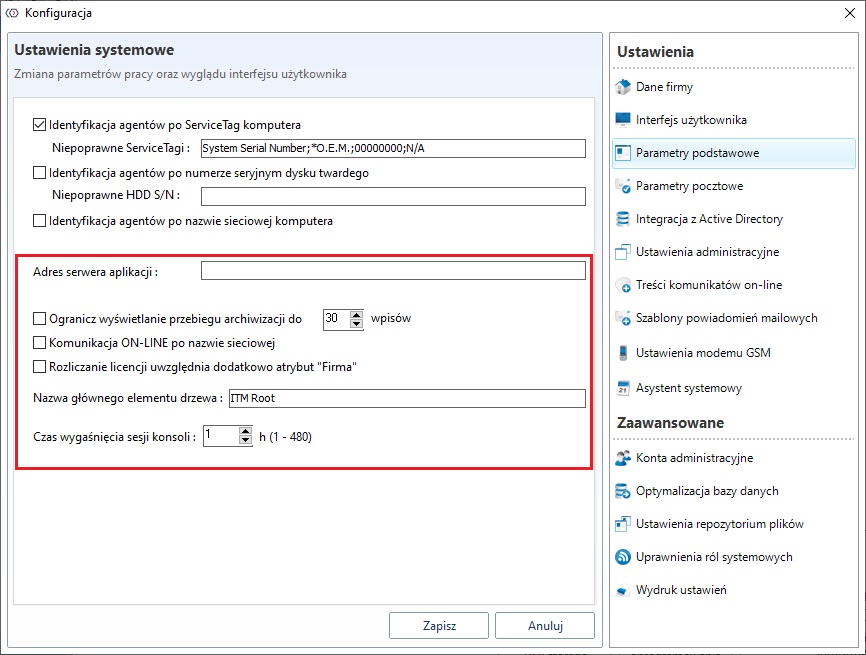
Name of the option | |
|---|---|
Application server address | In the case of several application servers (Helix), the main address must be provided |
Use your own date format | Permits you to change the date format displayed on the system |
Limit backup data process displaying to ... entries | Select a specific number of entries for the archiving process |
The software change analysis blockade | The software change function is blocked (available for version 5) |
Online communication by computer name | For communication, the network name of the station, not the IP address, is used |
Software audit takes into account the additional attribute 'Company' | Addresses the Company attribute to clearing |
Name of the tree root node: | Changes the name of the root displayed in organisational/location/network/licence structures, default ITMRoot. |
Console session expired time | Determines the time of console activity in hours |
Identification of agents

Important
In case of bad agent configuration, when the same ID is assigned to several agents, they will be overwritten.
Agents can be identified in several ways:
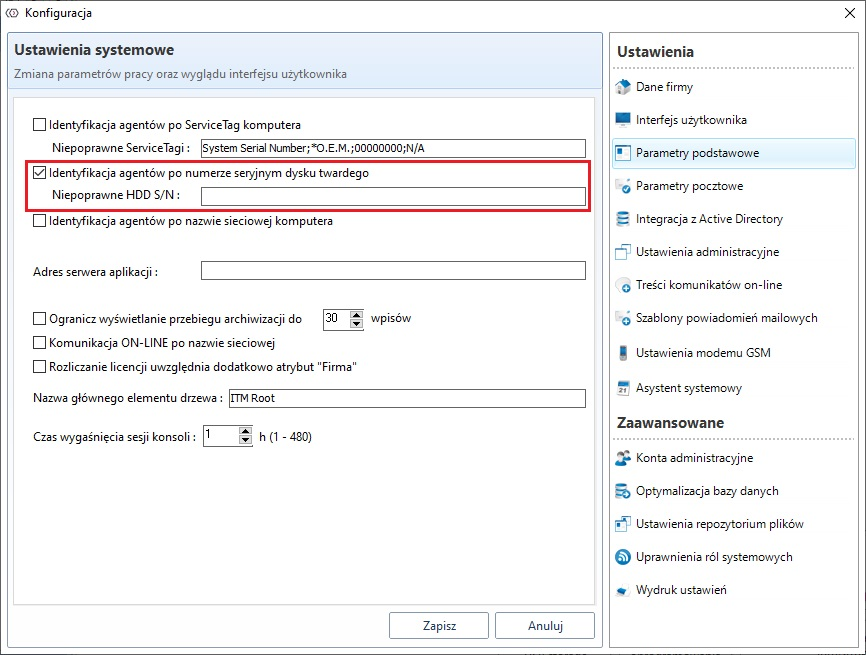
The option Identify agents by computer ServiceTag allows you to identify them by their serial number. However, this number may be repeated for OEM devices. Therefore, add sample numbers to the exceptions. When this number is repeated, the console will begin to identify the agents by the serial number of the hard disk. However, just as in the case of identification by ServiceTag, this number may also be repeated here. Such situations may occur in the case of virtual machine cloning. Therefore, here again, the disk numbers should be added to the exceptions. In this case, if the first two methods "fail", the agent will be identified by the network name of the computer.
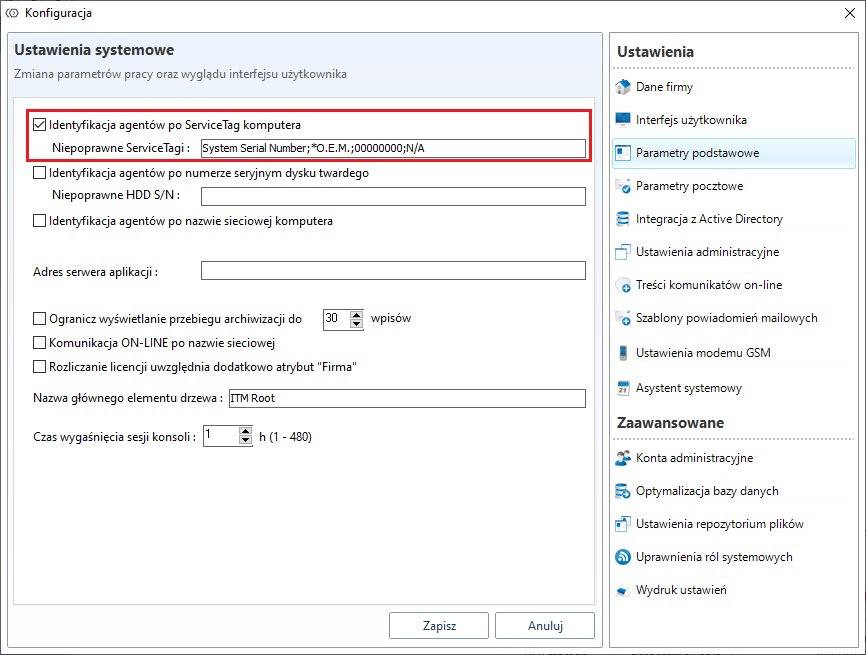
If you select Identify agents by HDD serial number and ServiceTag serial number, you must add exceptions and incorrect serial numbers, just like the previous time. In this case it should be remembered that hardware changes will affect the agents' identification. If a motherboard or drive is replaced in your computer the agent will be identified as a new station. If you remove the drive from the station and move it to another station, add its serial number to the exceptions.
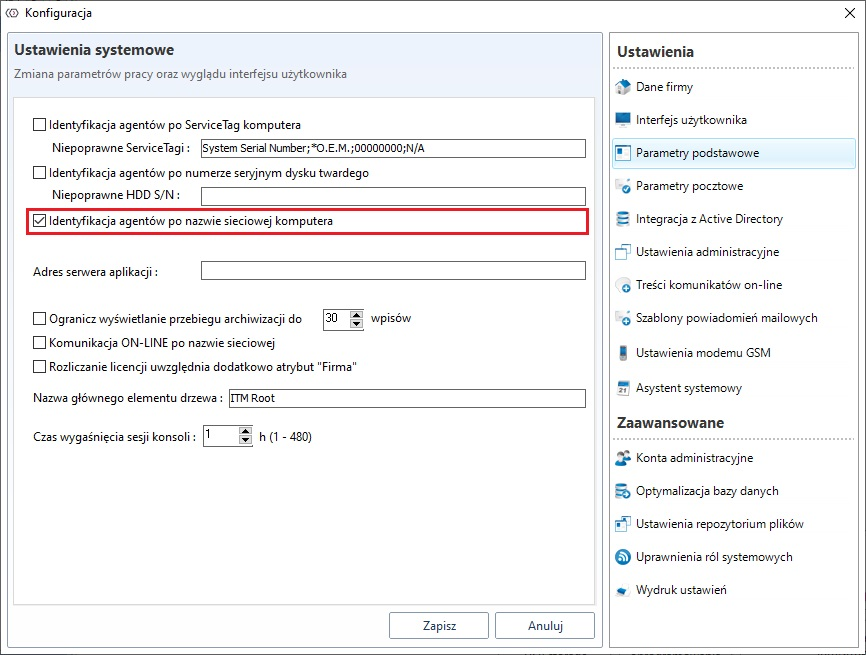
The next option is to select the option Identify agents by computer name. In this case, the agents will be identified by the network name of the station on which they were installed. An error may occur if there are several computers with the same name on the network.
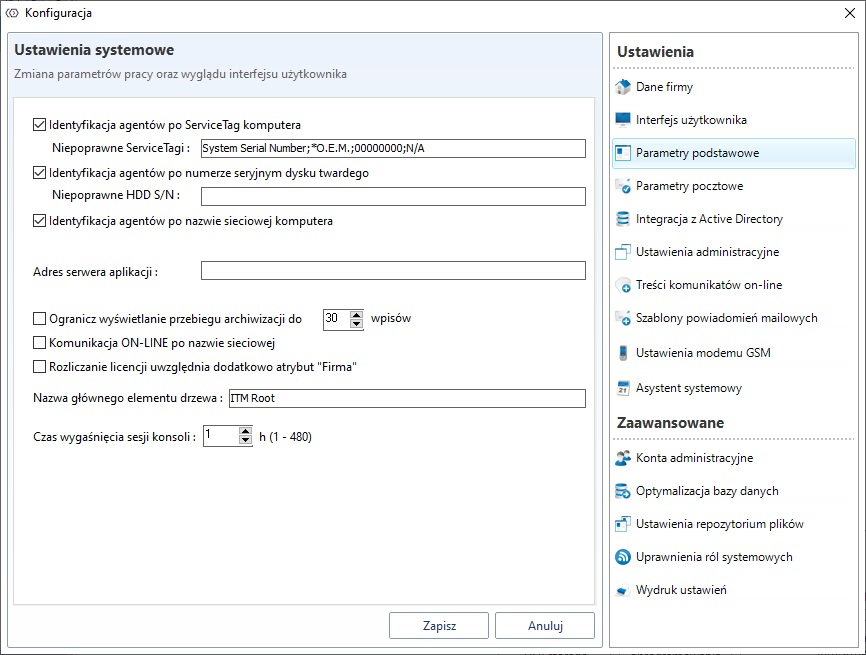
The last option is to select all the above mentioned options, then the identification of agents will take place according to all criteria simultaneously. This may lead to excessive creation of resources such as a computer station.
E-mail configuration

Mail configuration is essential for all functions that use e-mail notifications. Among other things, they depend on it:
HelpDesk notifications
software/equipment alerts
Network scanner alerts
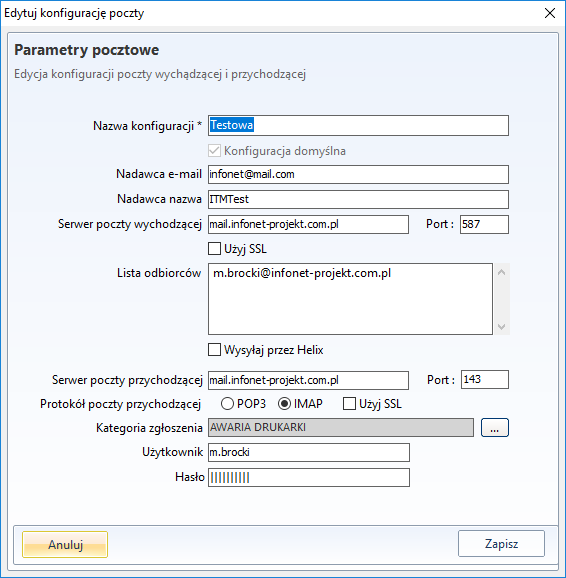
After filling in all required fields, check the configuration and perform a test by clicking Test sending.
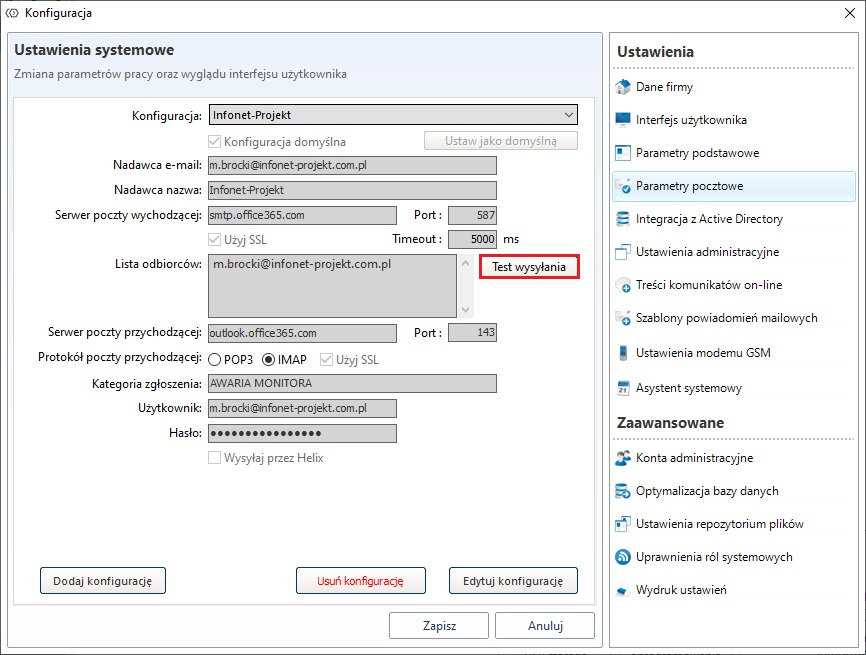
Other configurations can be added to the settings, but only the configuration marked as default will always be active.
Incoming mail settings are configured to allow users to create service requests via email.
Service | Port | Port SSL |
|---|---|---|
SMTP | 25 or 587 | 465 |
POP3 | 110 | 995 |
IMAP | 143 | 993 |
Active Directory integration
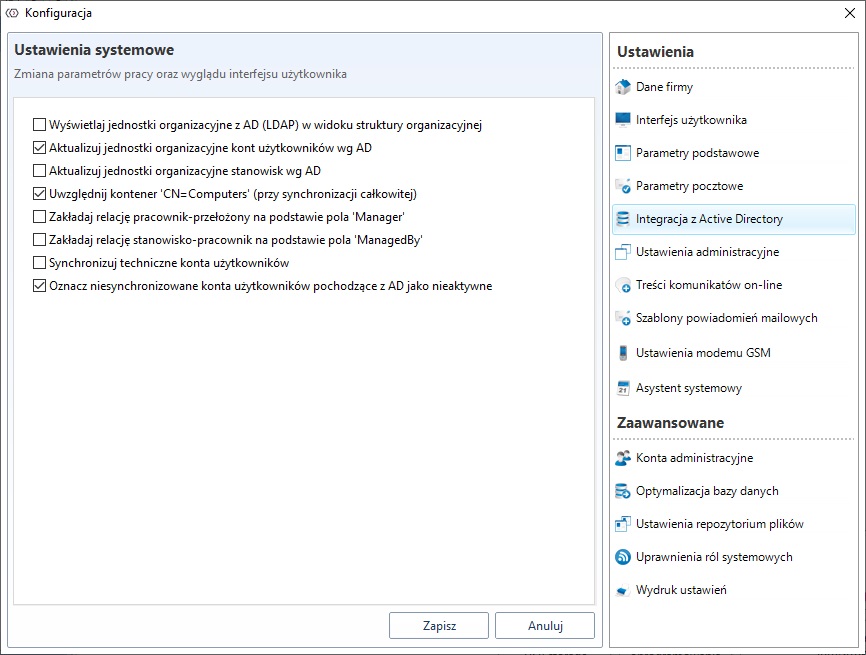
Settings Active Directory integration are responsible for additional options for synchronising and presenting data from a domain in the ITManager system.
Name of the Option | Description |
|---|---|
Display organisational units from AD (LDAP) in the organisational structure view | The organisational units from AD are displayed in the organisational structure |
Update organisational units of user accounts by AD | The user is assigned to the organisational unit by AD organisational unit. This operation is irreversible! |
Actuate organisational units of posts according to AD | The organisational units of AD are assigned to the posts. This operation is irreversible! |
Include the 'CN=Computers' container (in total synchronisation) | in case the computer stations are in CN containers at AD |
Create an employee-supervisor relationship on the basis of the 'Manager' field | During synchronization, employees are automatically bound by the employee-supervisor relationship with AD |
Create an employee-employee relationship using the 'ManagedBy' field | During synchronization, employees are automatically tied to their position with AD |
Synchronise technical user accounts | Technical accounts are included in the synchronisation (accounts without name) |
Mark non-synchronised AD user accounts as inactive | Accounts are transferred to the archive, marked as inactive and assigned to the organisational unit Employees without AD integration |
Administration settings
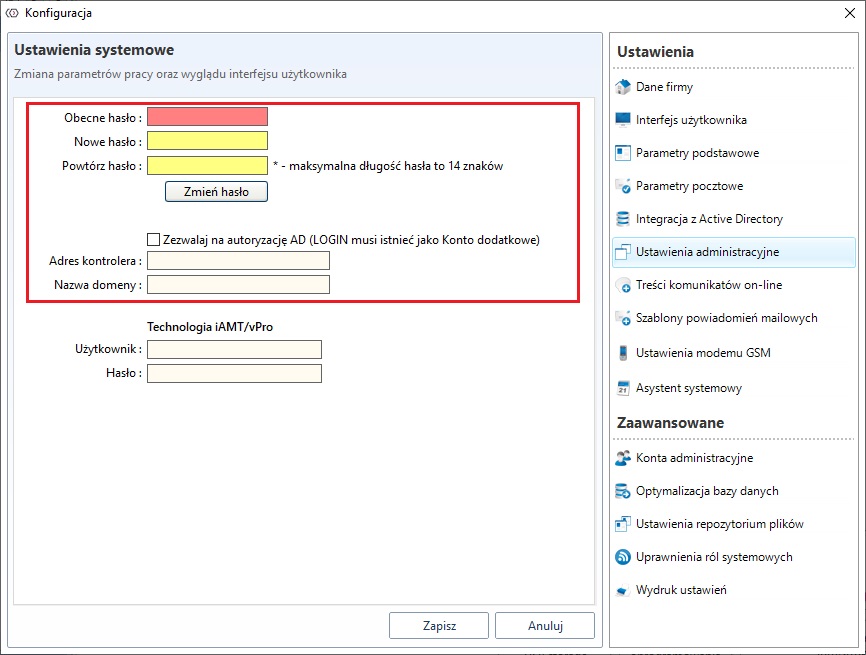
In the tab Administration settings, you can configure the authentication method for logging into the console. Two options are available:
Logging in using the built-in admin account - if you log in to the console using the built-in administrator account in the panel, you can change the password. This account is automatically "unlocked" when the console authorization function is activated by logging in with the administrator account. Logging with the use of a domain account - the option of logging with the use of a domain account enables authorization to the console by means of domain credentials. In order to do so, it is necessary to synchronise with AD, and to provide the required data in the given fields. In the case of a domain name, use the so-called short name.
Content of online messages
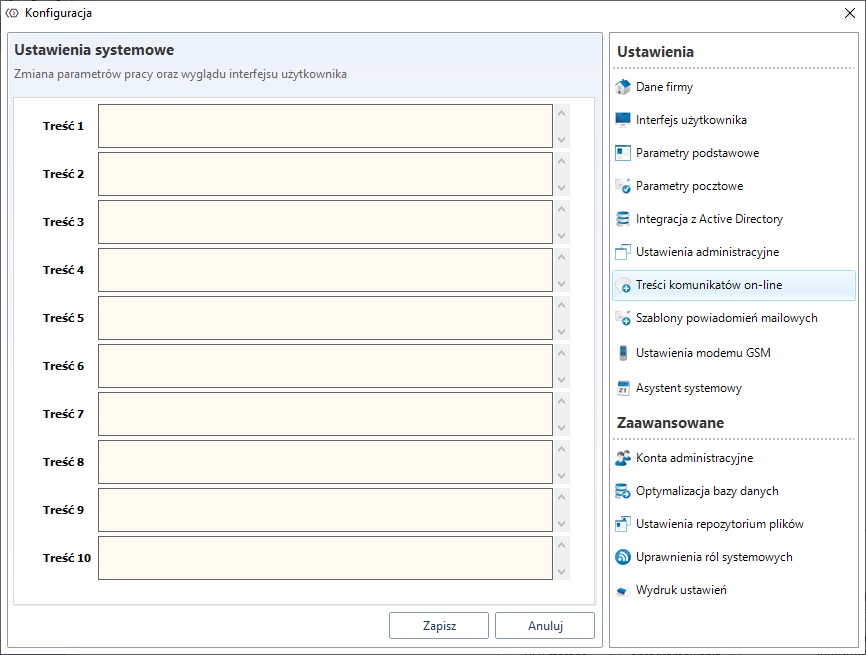
The Context of online Messages tab allows you to define 6 messages to be sent as Templates to workstations or workstation groups (** Remote operations->Send a message**).
Email notification templates
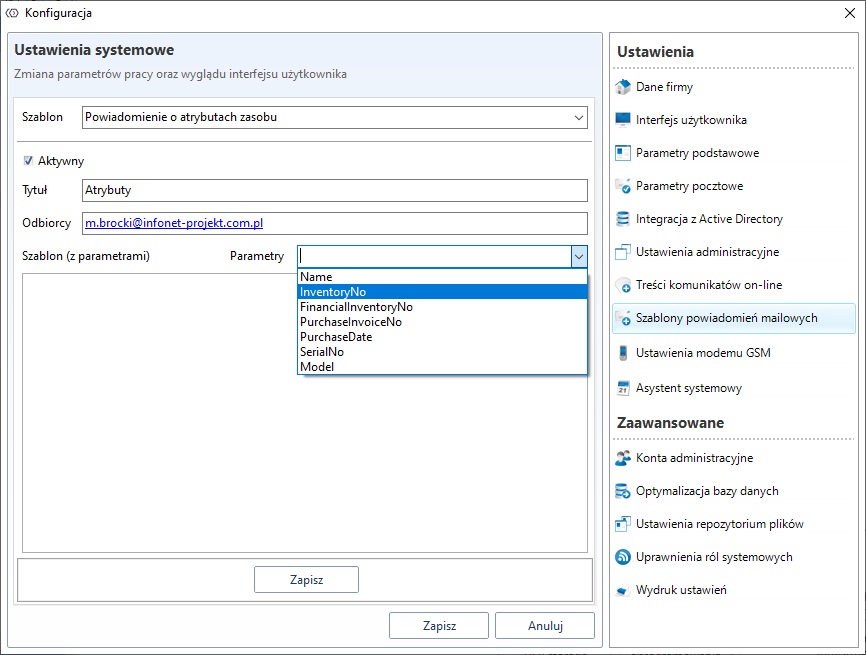
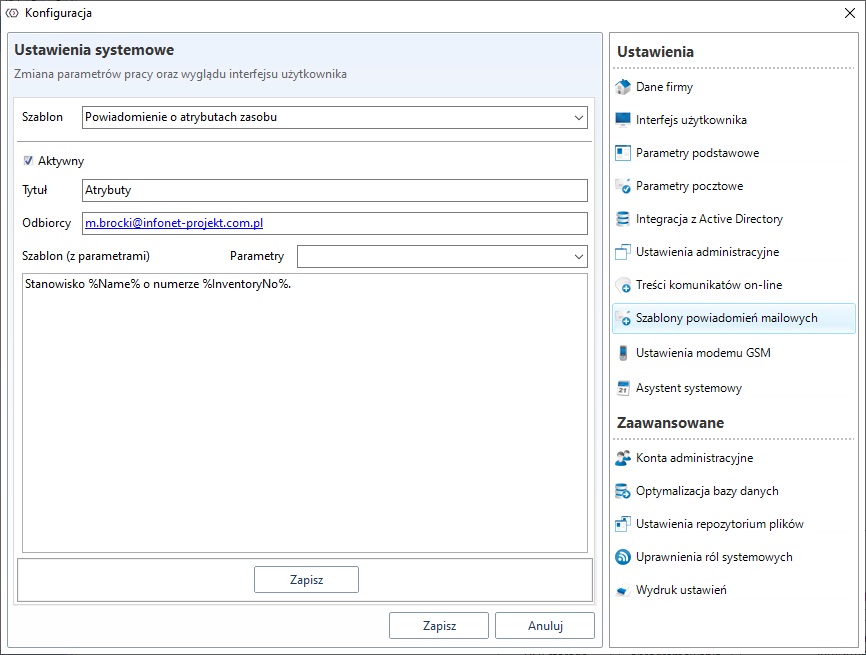
After completing the fields, go to the selected resource and from the section Operations select Send notification.
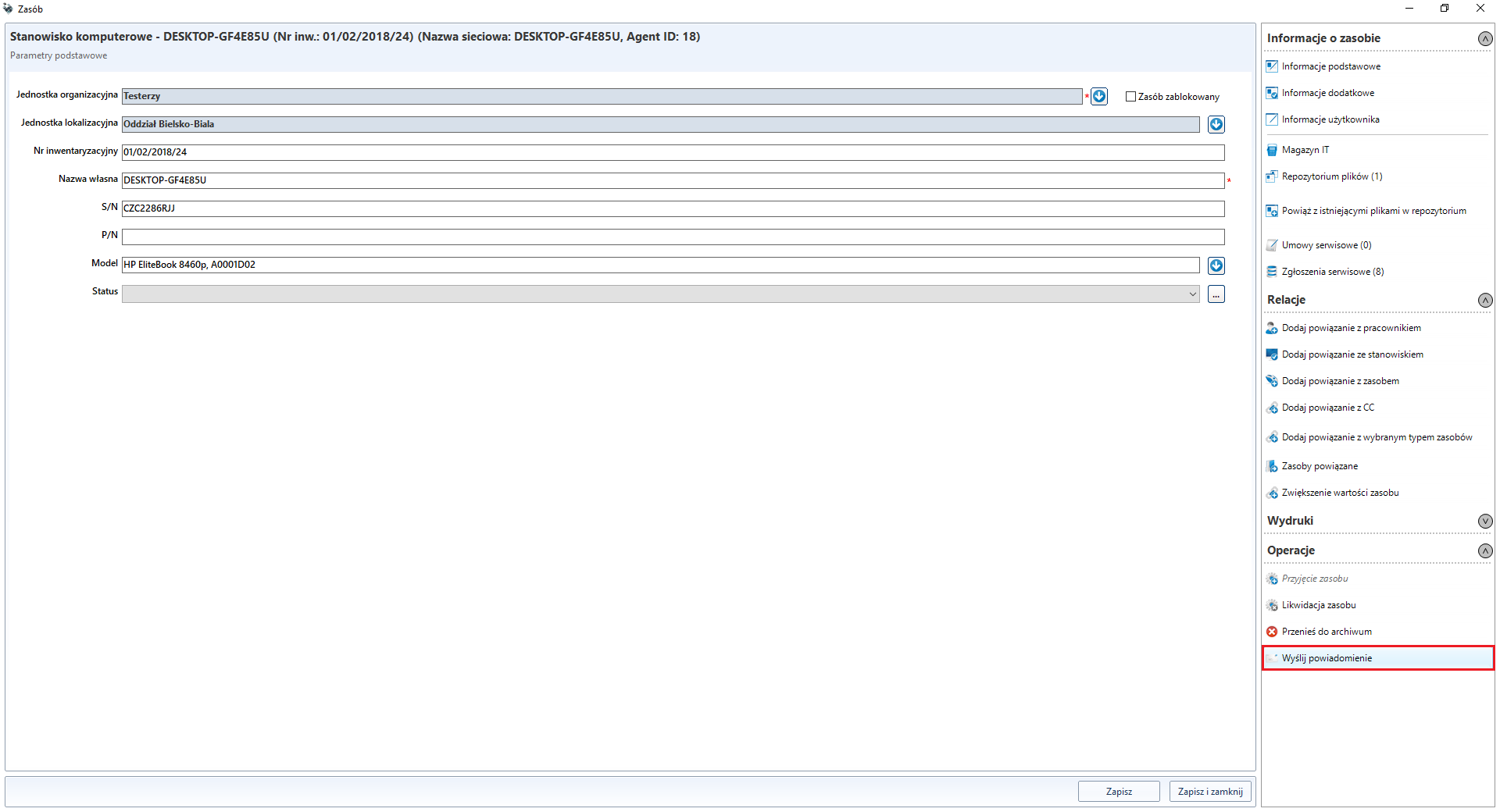
Notification of the content will be sent to the e-mail address indicated in the template.
Advanced
Database optimization
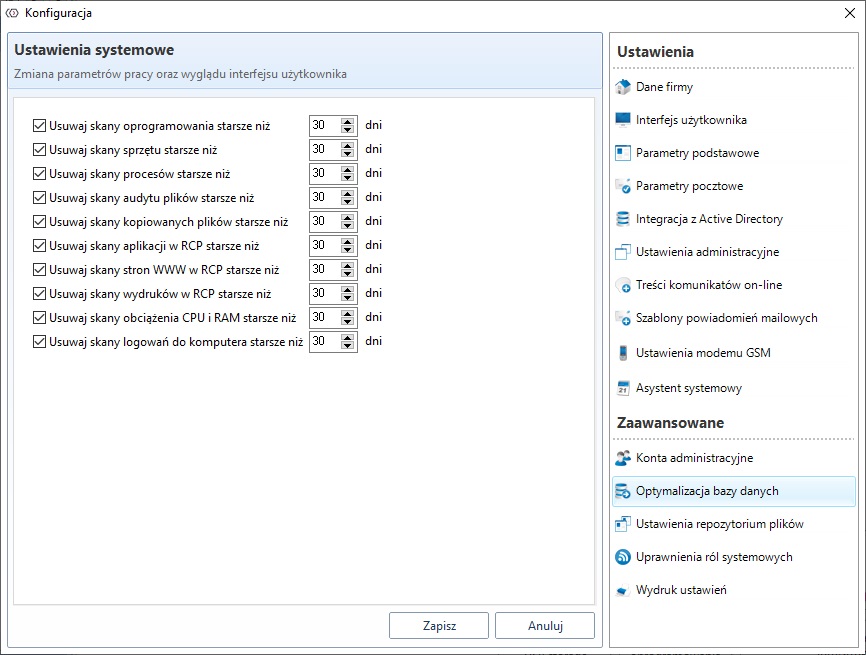
The tab Database optimization allows you to set parameters related to the reduction of duplicate or old scans.
Name of the option | Description |
|---|---|
Delete software scans older than ... days | Remove scans of software that are older than a certain number of days |
Delete hardware scans older than ... days | Remove hardware scans that are older than a specified number of days |
Delete process scans older than ... days | Delete process scans that are older than the specified number of days |
Delete file audits scans older than ... days | Delete file audit scans that are older than the specified number of days |
Important
Database optimization should be run in server options Tools->Configure->Configure Helix->DbOpt
File repository settings
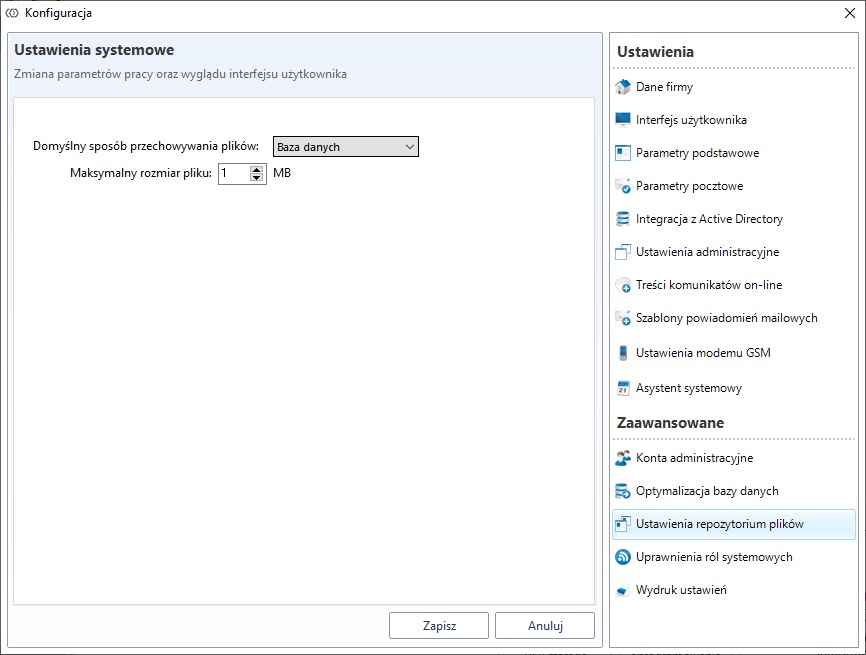
If you select a file storage location in the database, the data will be saved in the ITManager database.
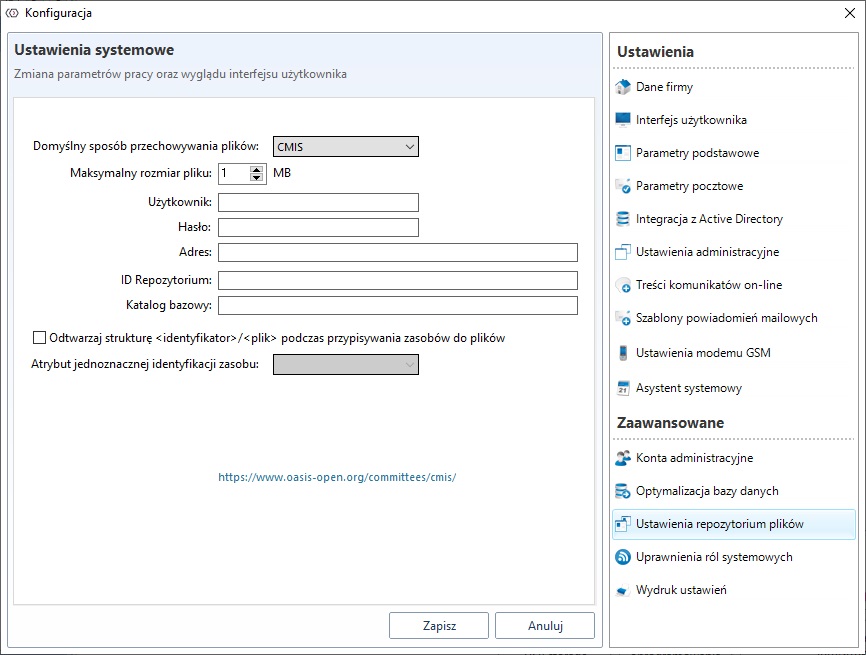
If you select CMIS, the files will be saved in Microsoft SharePoint.
Remands
The module requires a Microsoft .NET 4.5. compatible launch environment.
Remands
The maximum size of the stored file must be no more than 50 MB.