Inventor
The inventory module is an additional module which enables to carry out an inventory of resources located in the company.
Installation
The inventory module requires the installation of an additional inventory server service. The server service for the inventory module is located under the link below:
https://file.it-man.pl/download/itm/Infonet.AssetInventoryServiceSetup.msi
The service is best installed on the same machine as the Helix server service.
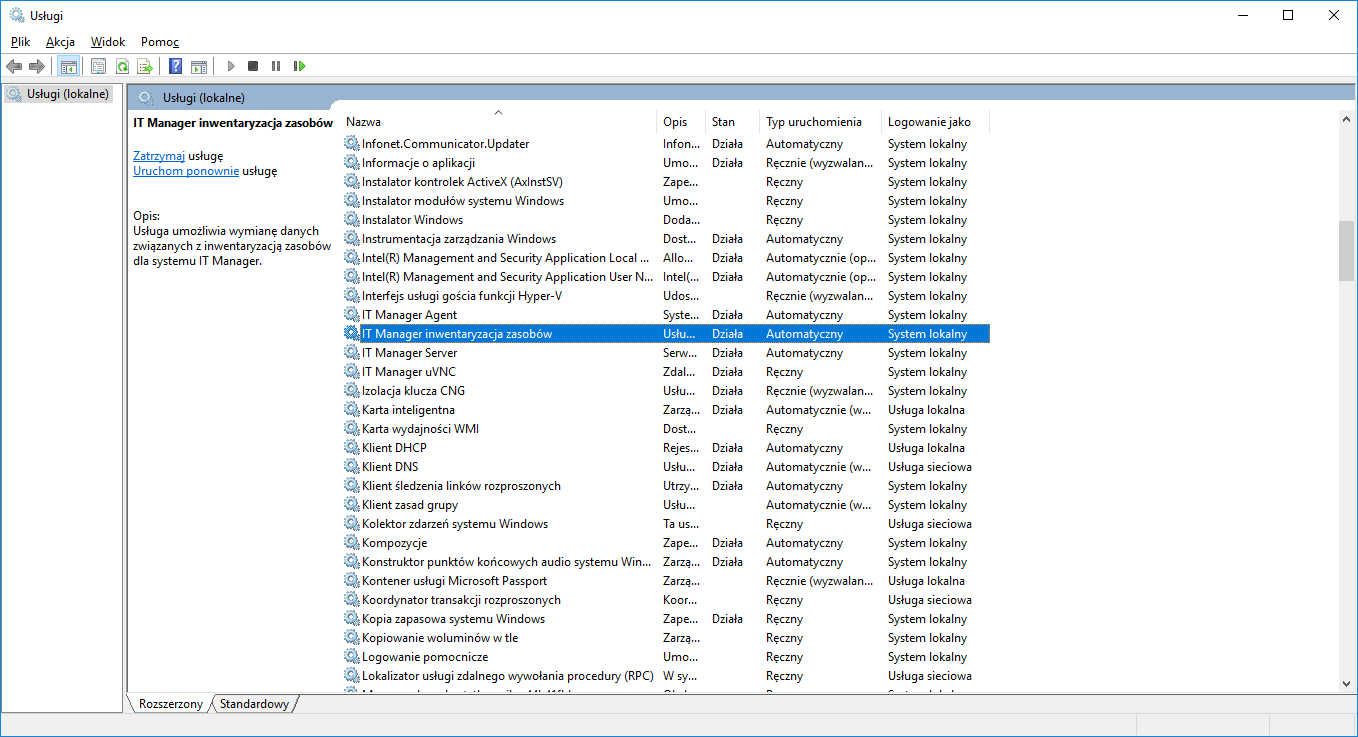
The following service should appear in the list of services: IT Manager resource inventory.
Configuration
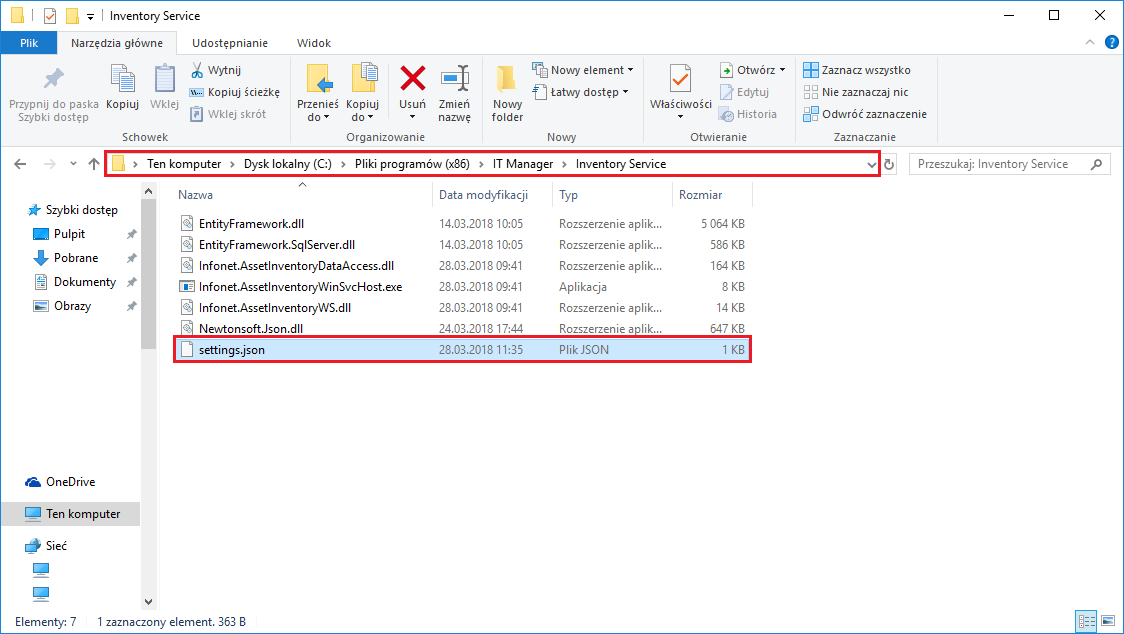
In the catalogue: C:\Program Files (x86)\IT Manager\Inventory Service will create the file settings.json.
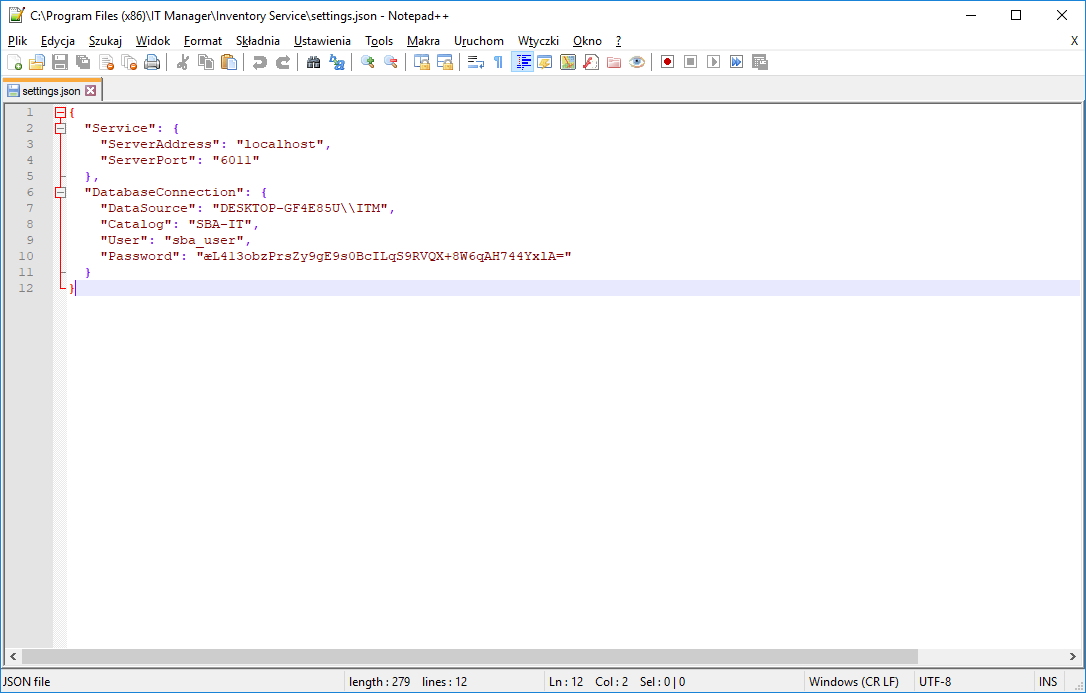
The default port is set to 6011. If the server on such a port is already listening, you have to change it. Then you need to specify the parameters of connection to the database and restart the service. The password will be encrypted in the file.
The inventory service must then be restarted.
After the service has been installed, the application with which the inventory will be performed should be installed on your Android phone: https://file.itman.pl/download/itm/infonet.assetinventory.apk

Inventory
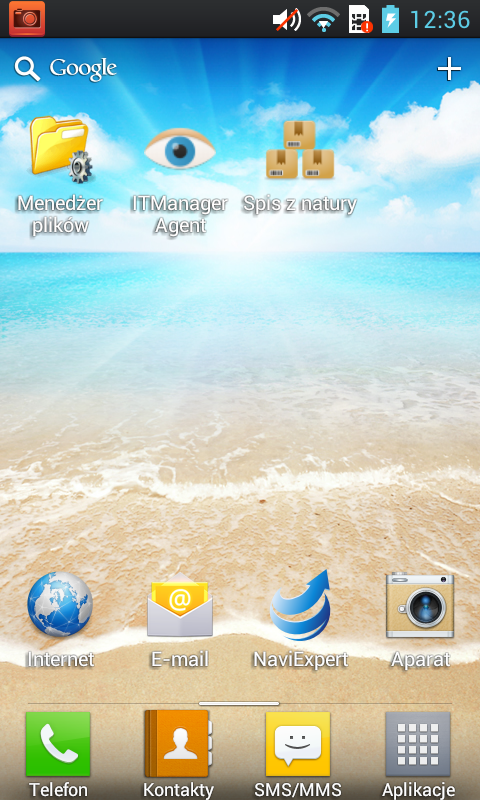
When the application is installed on your phone, you will see an icon Spis z natury
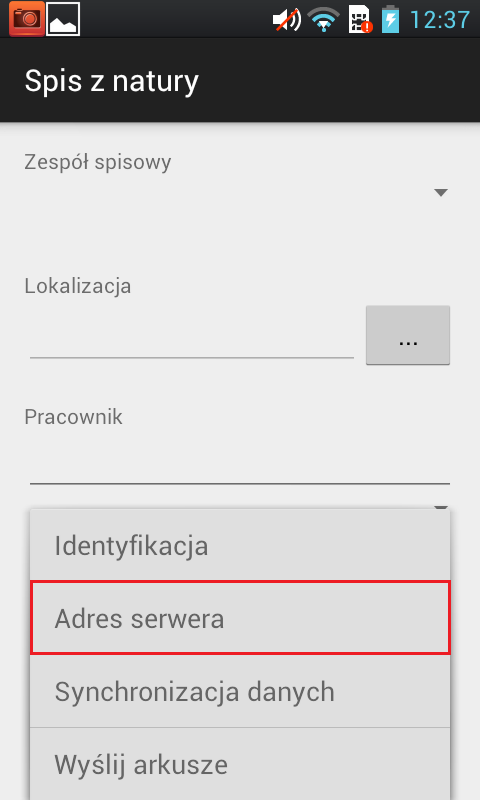
After selecting the option Server address, the IP and port of the server on which the inventory service is installed must be entered in the field.
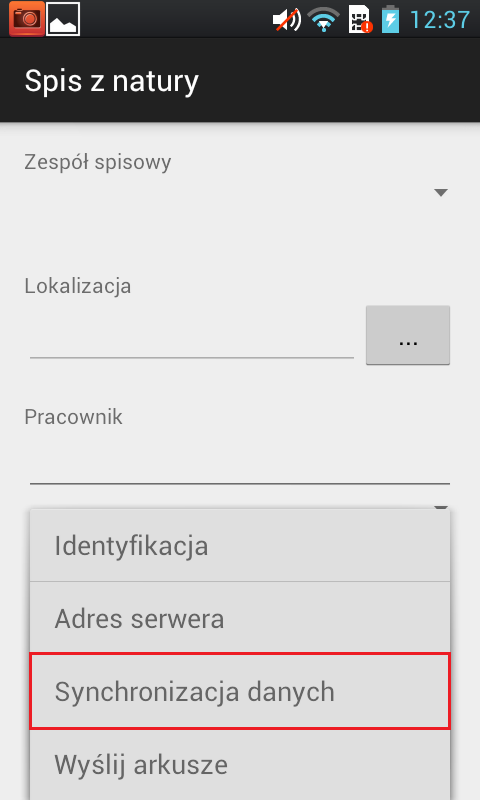
Then select the option Data synchronisation to retrieve ITM resource information
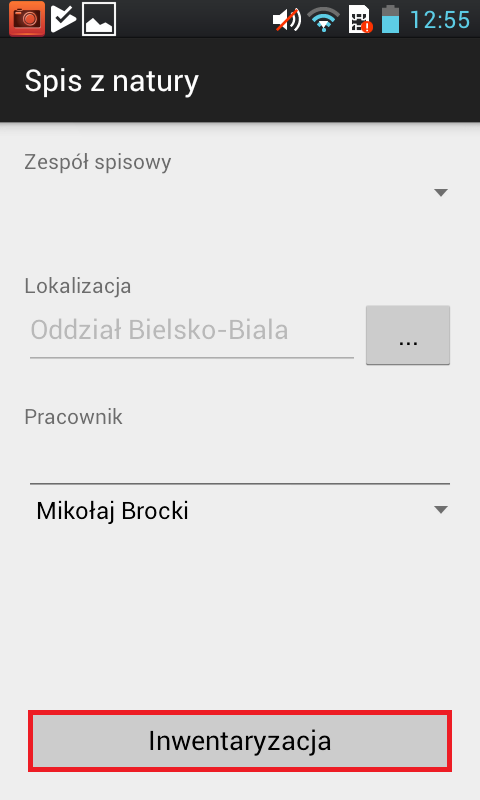
In the next step after successful synchronisation, select the Location Unit and the person performing the inventory and select the button Inventory.
In the new window, you can manually transcribe the inventory number into the identifier field or scan the barcode by pressing Scan (requires the installation of an additional application).
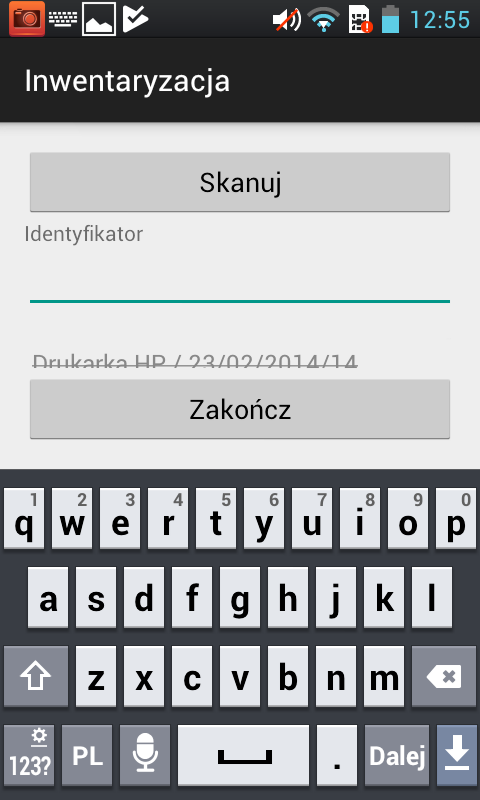
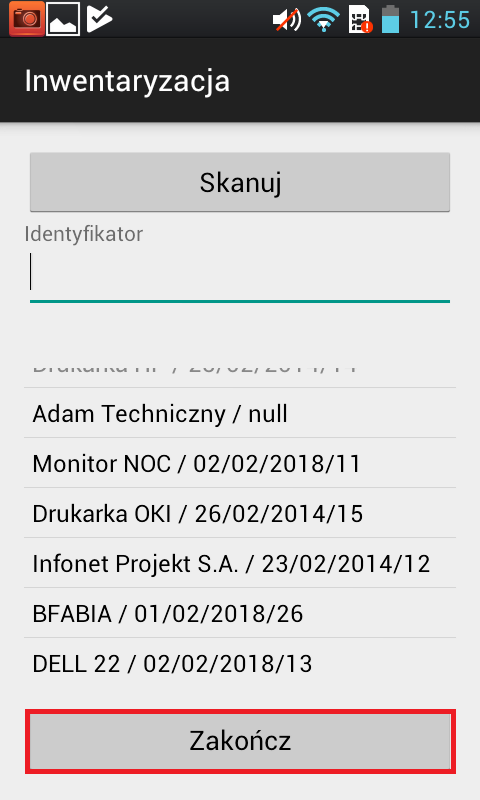
After the inventory is completed, select the Finish button and save the inventory sheet.
By selecting the Identification button, you can display the resource information on your phone based on the given inventory number.
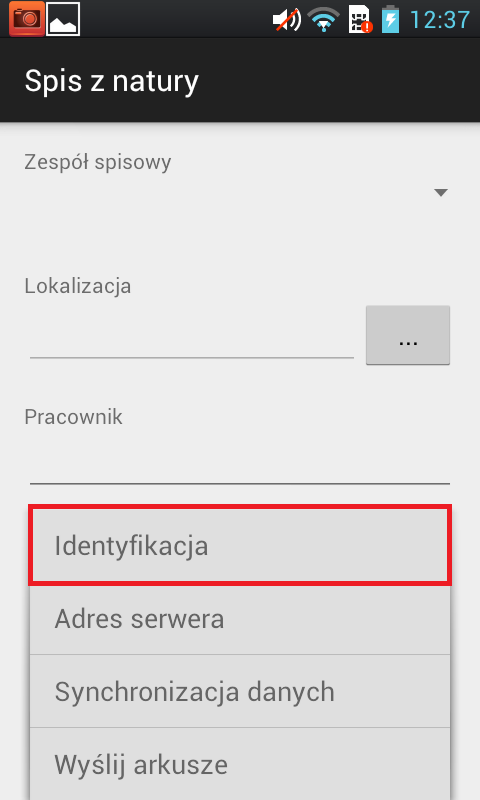
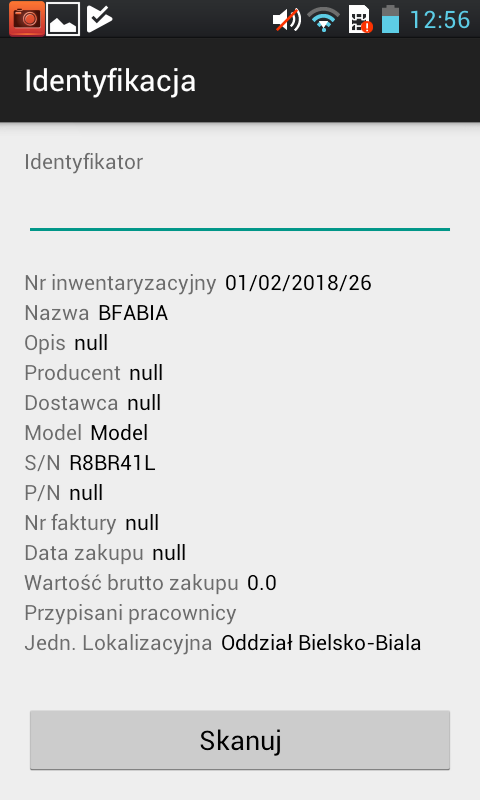
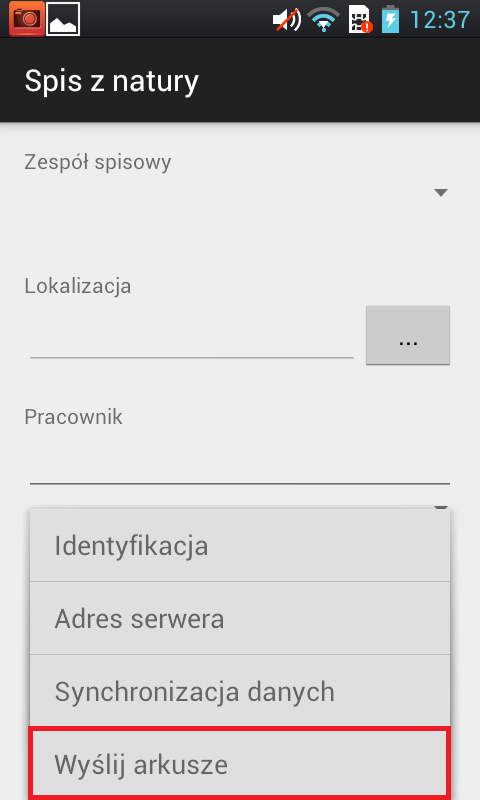
After saving the sheets, all that remains is to send them to the server using the Send sheets button.
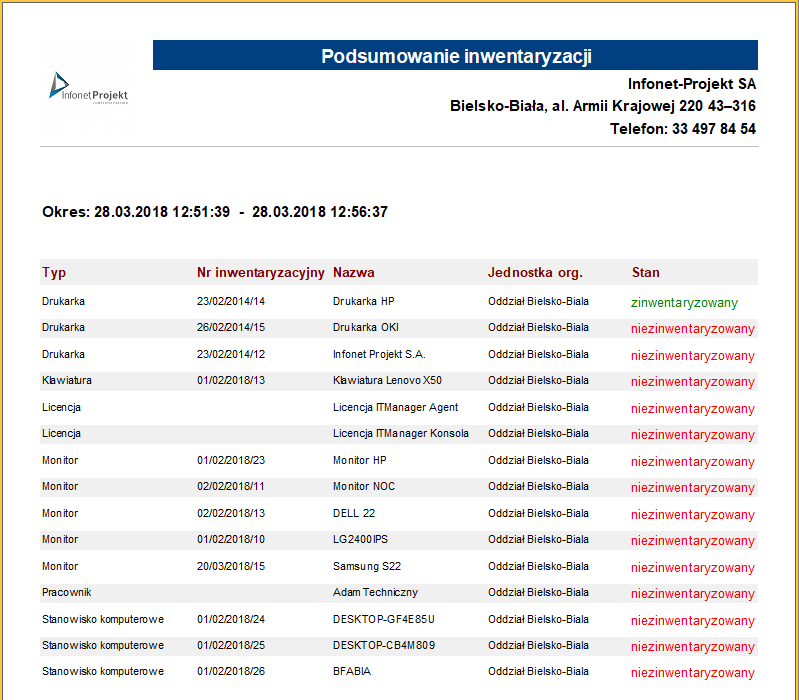
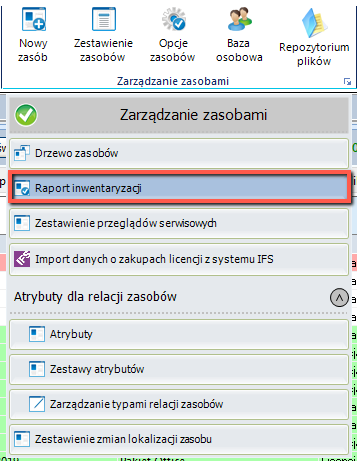
After the inventory has been performed, in the tab IT infrastructure management, select the item Inventory report from the drop-down list.
In a new window, after selecting the location units, an inventory report will be displayed
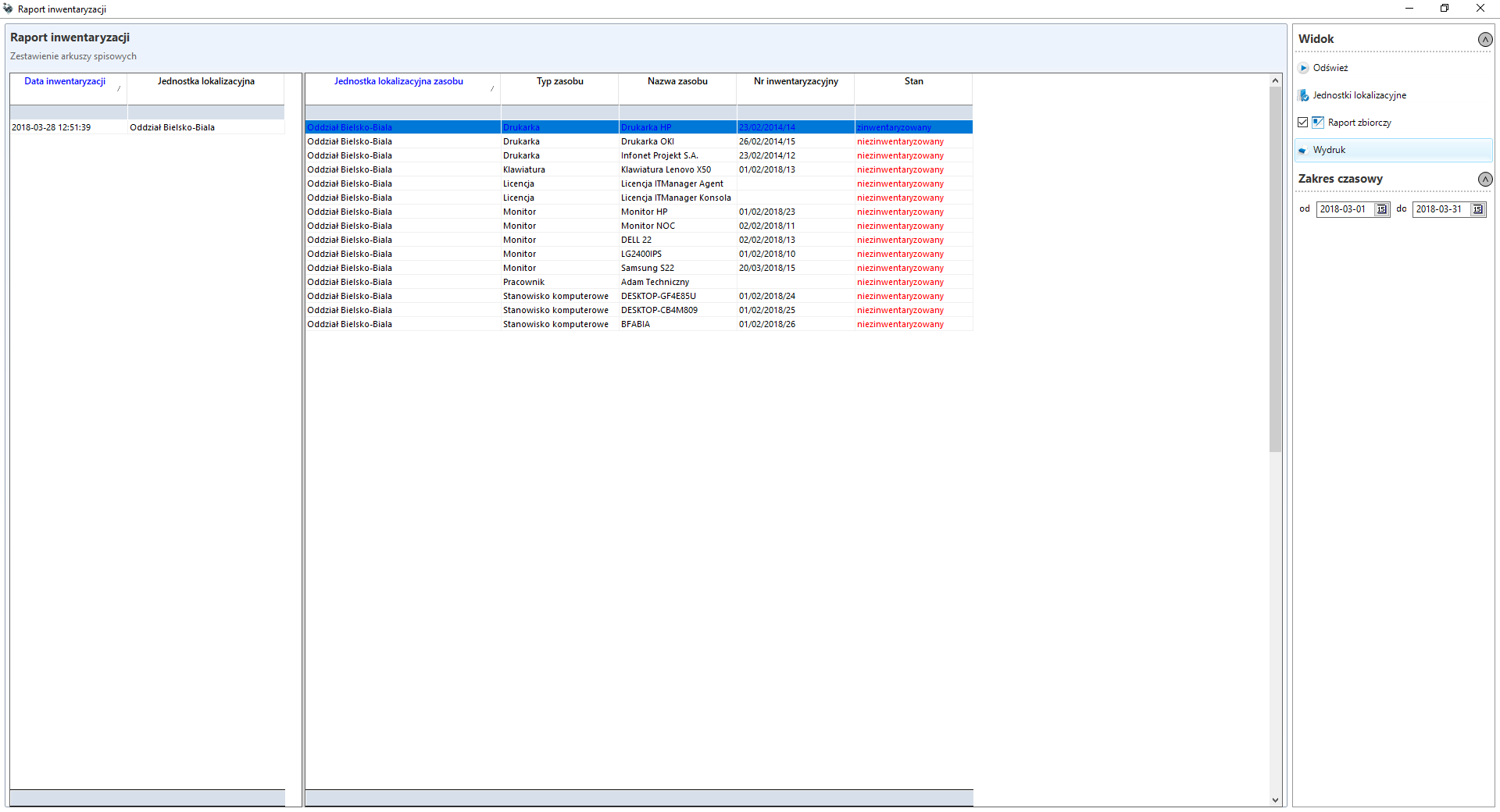
With the possibility to generate a printout