Alerter configuration
The Tools tab contains all the necessary settings relating to system operation, configuration of Helix servers, agents, integration with Active Directory or database updates.

Alerter Settings
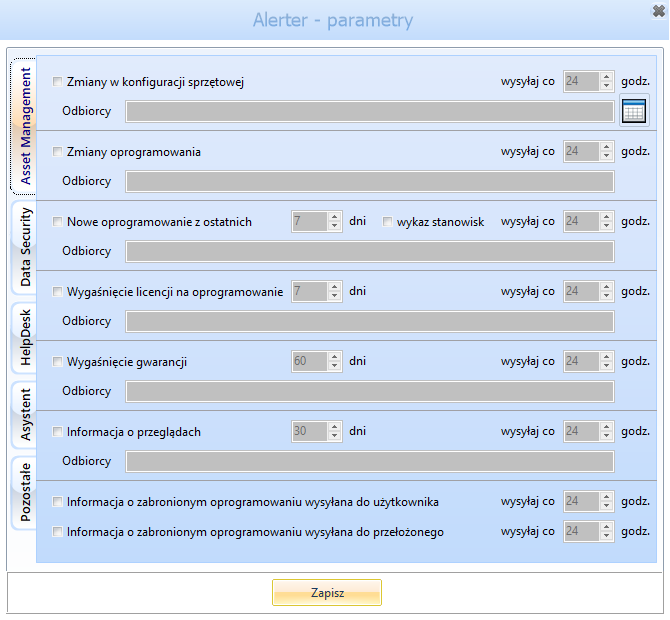
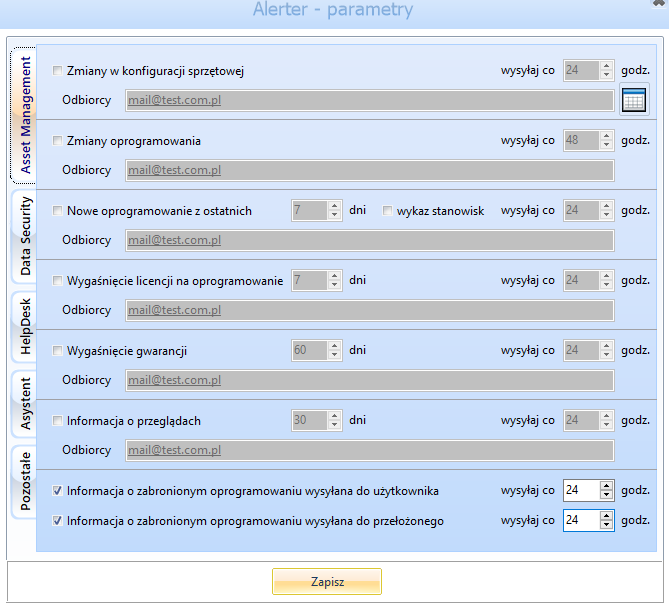
After clicking the tab Alerter a new window will appear Alerter - parameters

Attention
To make the Alerter work, the mail parameters must be configured in advance (Tools->System configuration->E-mail configuration)
An alert allows you to send information by e-mail:
Asset Management (IT configuration management):
changes in hardware configuration,
changes in software,
new software from last ... days,
expired license for software,
warranty expires,
inspection informations,
Data Security (Device management, USB, data backup):
files copied from workstation from last ... days,
files copied to workstation from last ... days,
exceeding the limits of copied data,
backup tasks,
HelpDesk (ServiceDesk):
expiry of service contracts,
Assistant:
workstations with partition less than ... GB,
workstations with partition less than ... %,
workstations with RAM memory less than ... MB,
posts having files with the indicated extensions in the last file audit,
posts that have not sent a hardware and system scan since the indicated number of days,
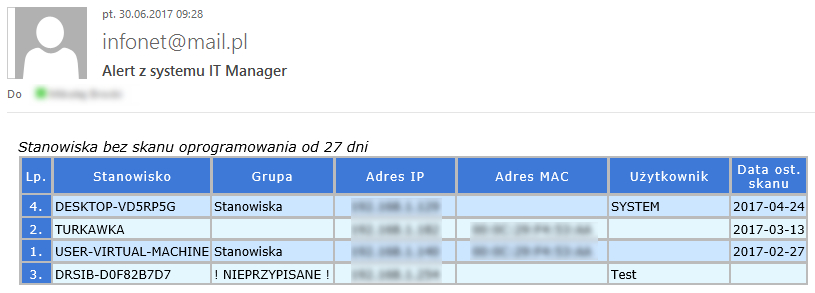
posts that have not sent a software scan since the indicated number of days.
Asset Management
The following email alerts are available in section Asset Management:
Changes in hardware configuration - the alert informs about detected changes in the latest hardware-system scan compared to the last one in the range:
operating system changes (operating system, license key, product ID),
hard drive,
RAM memory,
graphic card,
processor.
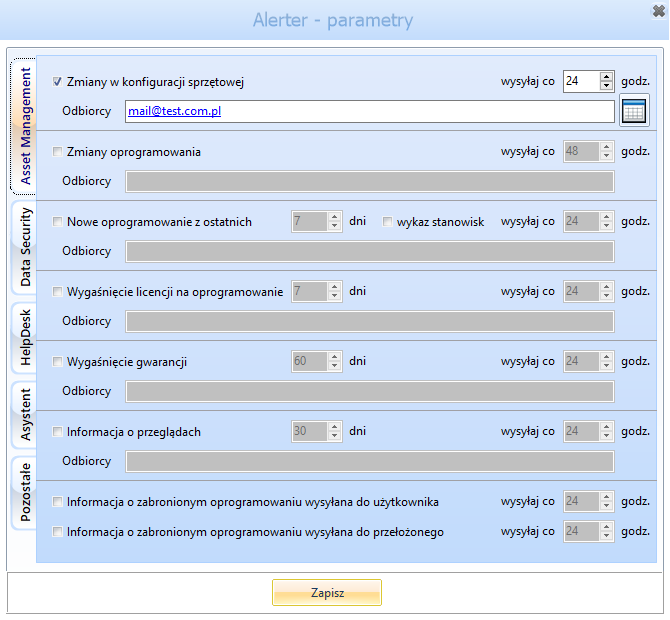
To enable e-mail alerts, select Changes in hardware configuration. The fields will then become available to determine the hourly cycle (every how many hours the notification is to be sent) and the e-mail addresses of the recipient(s) (addresses should be separated by semicolon).
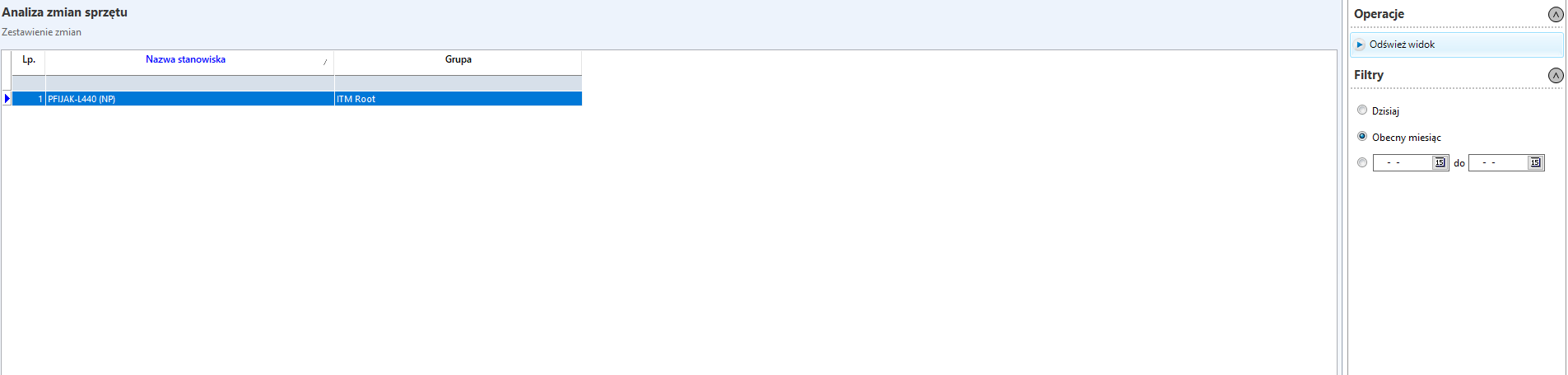
After double-clicking on the selected position, a new window opens with the possibility to preview the changes.
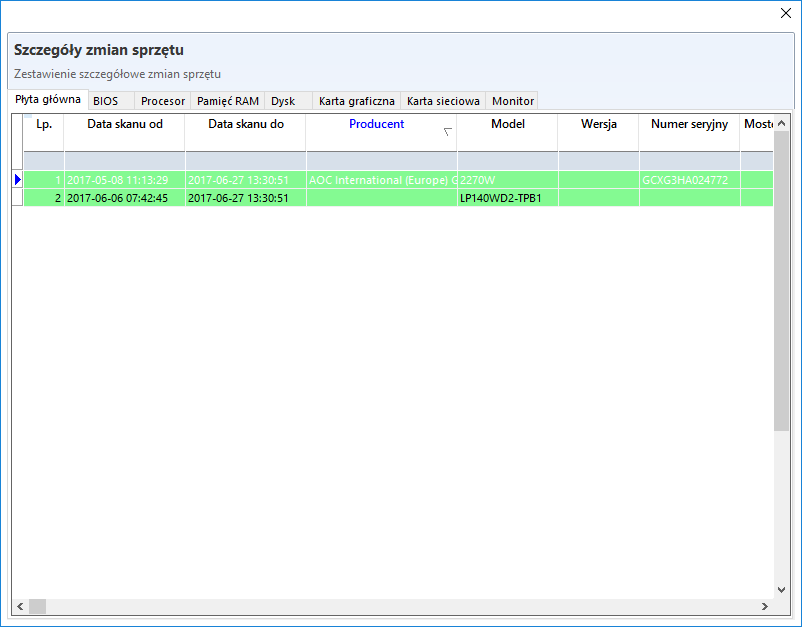
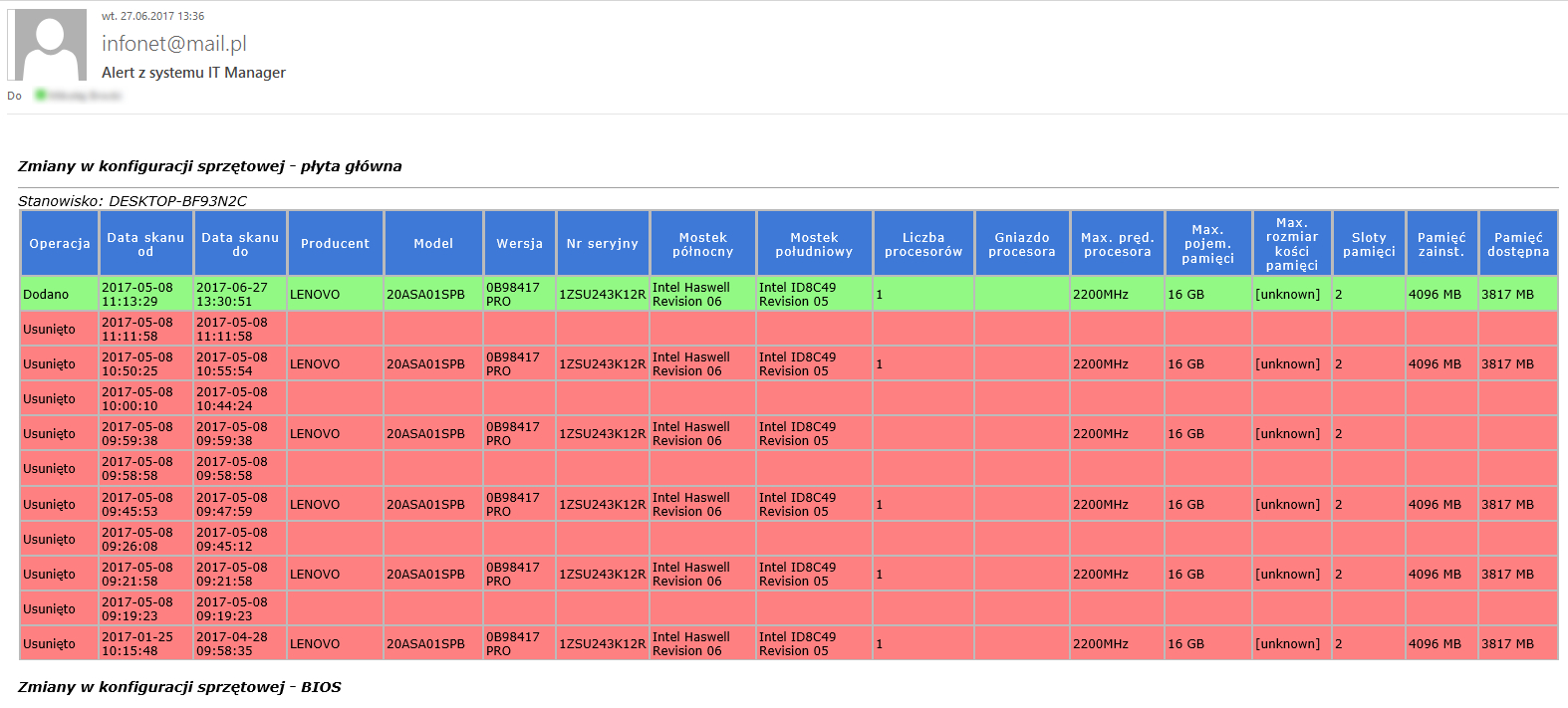
An e-mail alert containing this change will look like this:
Changes in software - the alert indicates changes detected in the latest software scan compared to the last one in the range:
applications installed,
applications deleted.
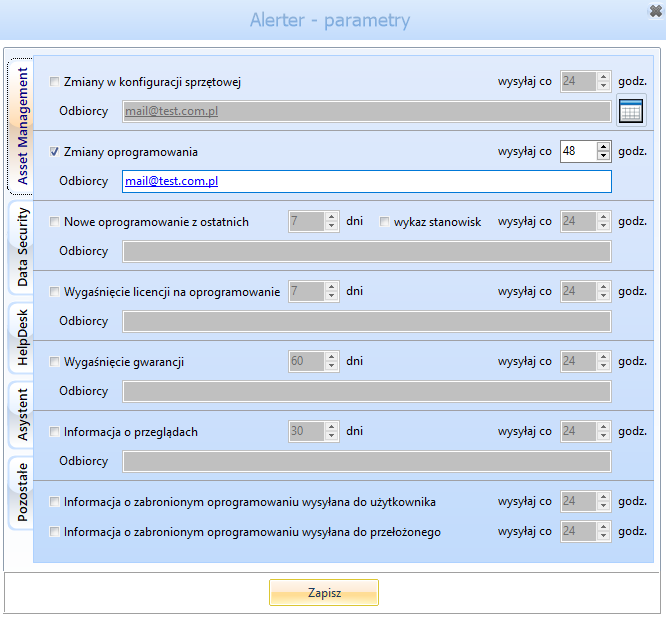
To enable the sending of e-mail alerts, select Changes in software. The fields will then become available to determine the hourly cycle (every how many hours the notification is to be sent) and the e-mail addresses of the recipient(s) (addresses should be separated by semicolon).
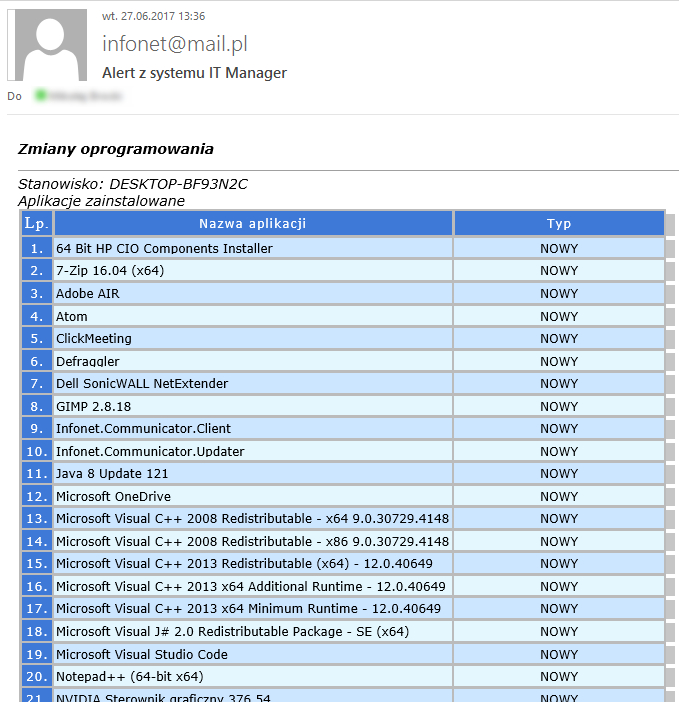
An e-mail alert containing the above changes will look like this:
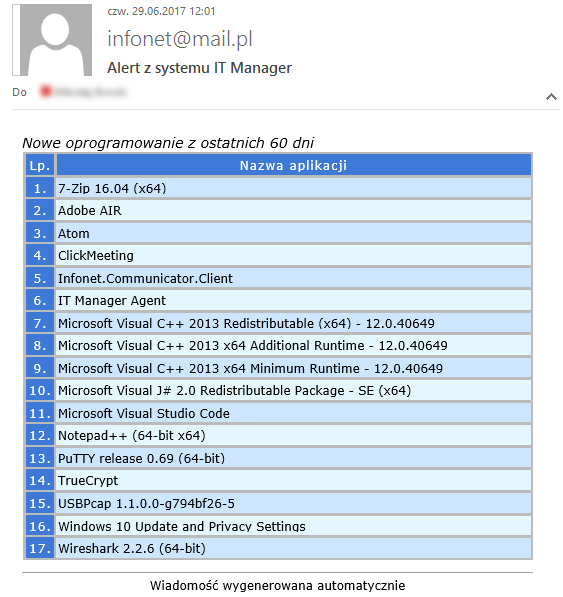
New software from last - the alert informs about applications detected during the indicated number of days that have not yet been classified - they have not been assigned a Type (e.g. Freeware, License, etc.).
The e-mail alert containing information about new applications will then look like this:
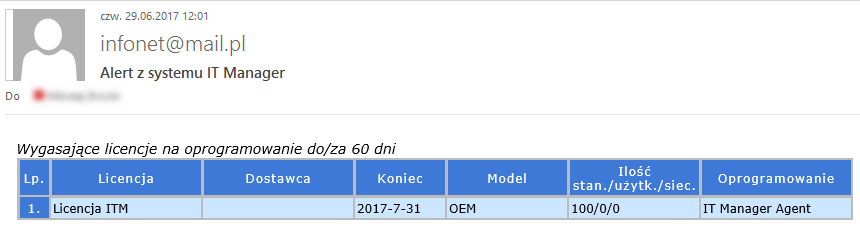
** Expired license for software** - the alert informs about licenses that expire within the indicated number of days.
The license expiry date is set when you add/edit the license (IT infrastructure management->Licence base), field Expiration date.
An e-mail alert containing information about expiring licenses will then look as follows:
Warranty expires - the alert informs about warranties that expire within the indicated number of days.
To add the warranty information, please go to the tab Edit the resource type (IT infrastructure management->Add resource).
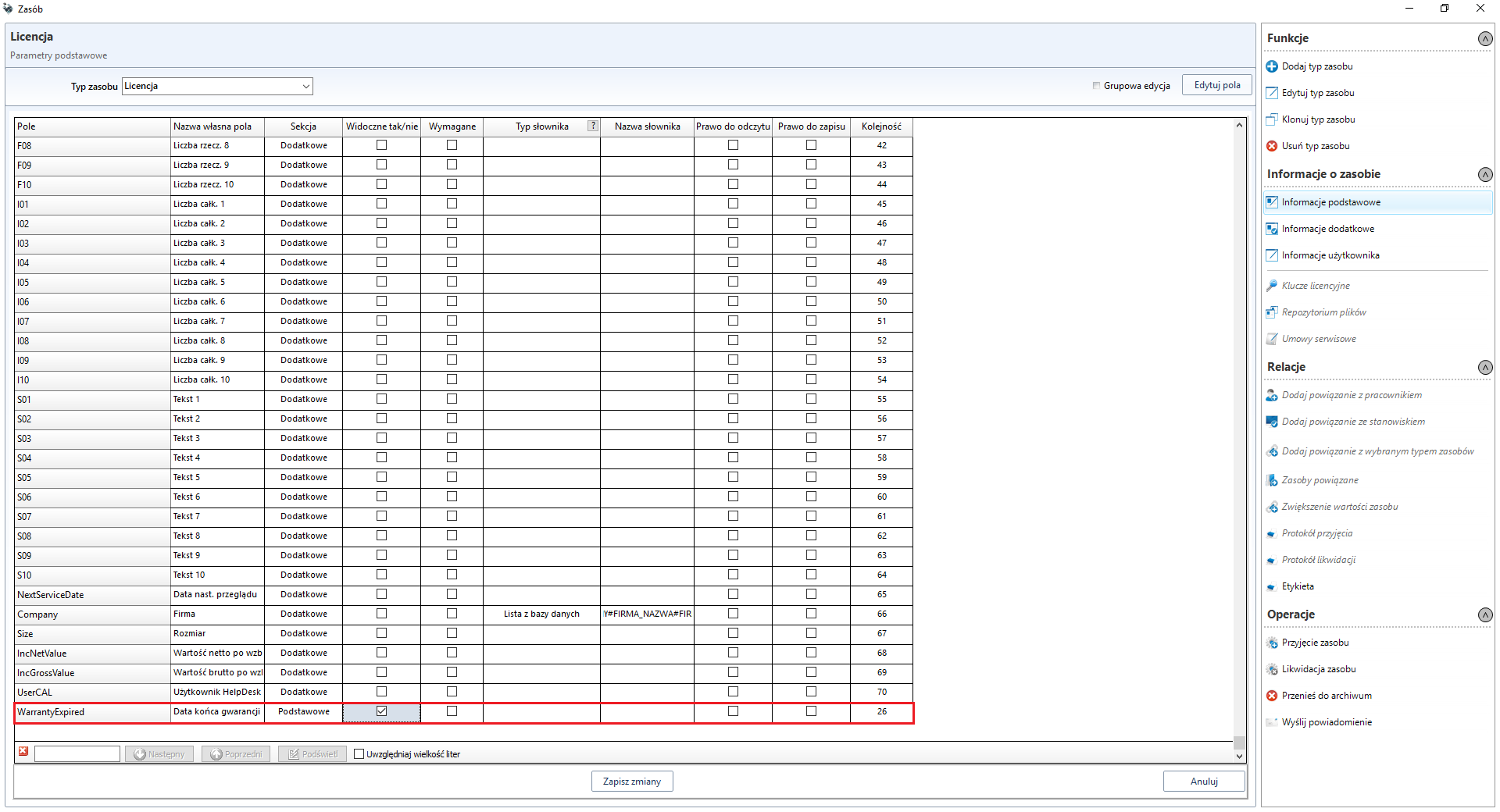
Then activate field Guarantee end date and fill in the resources to which this field has been added.
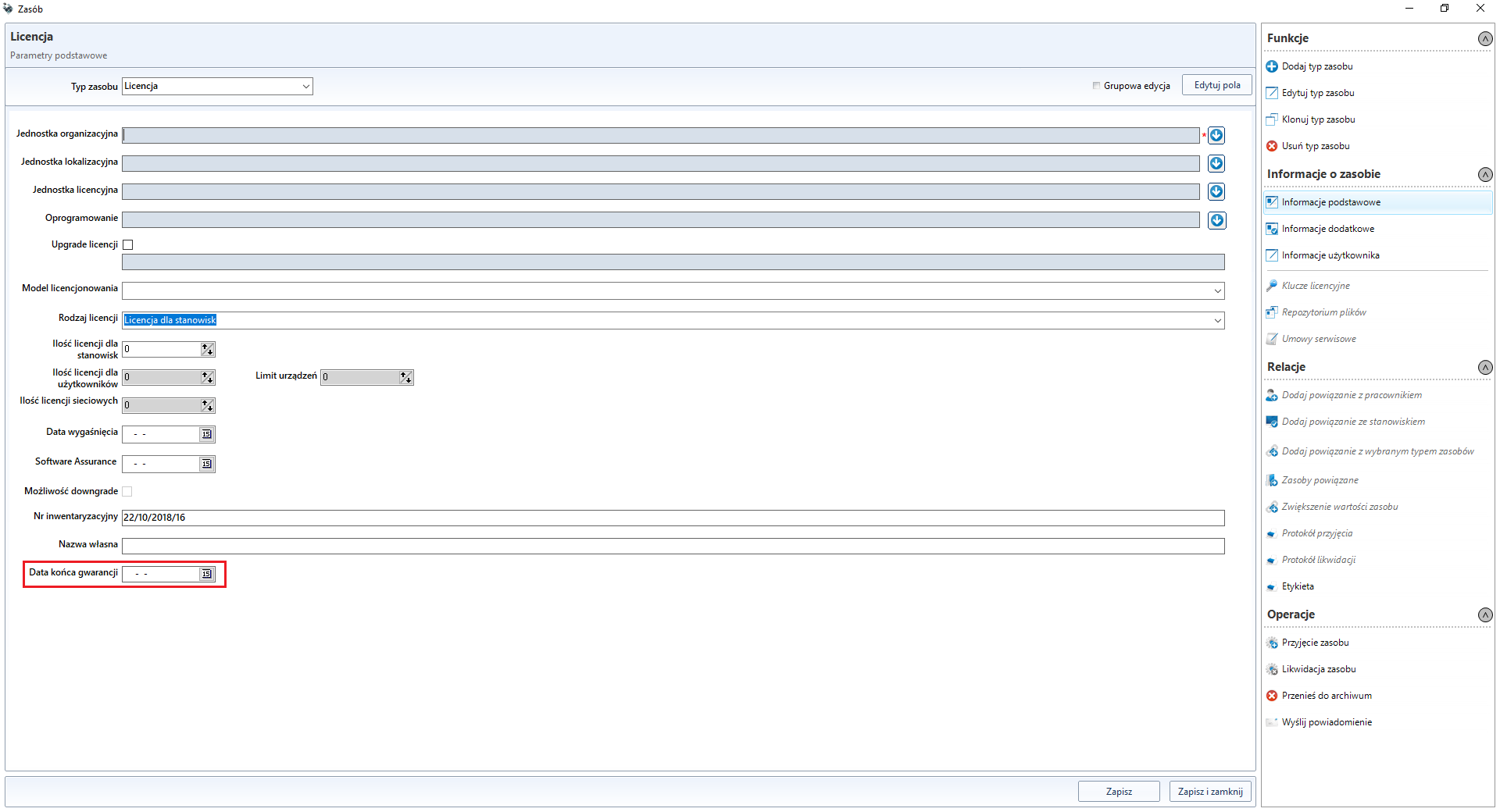
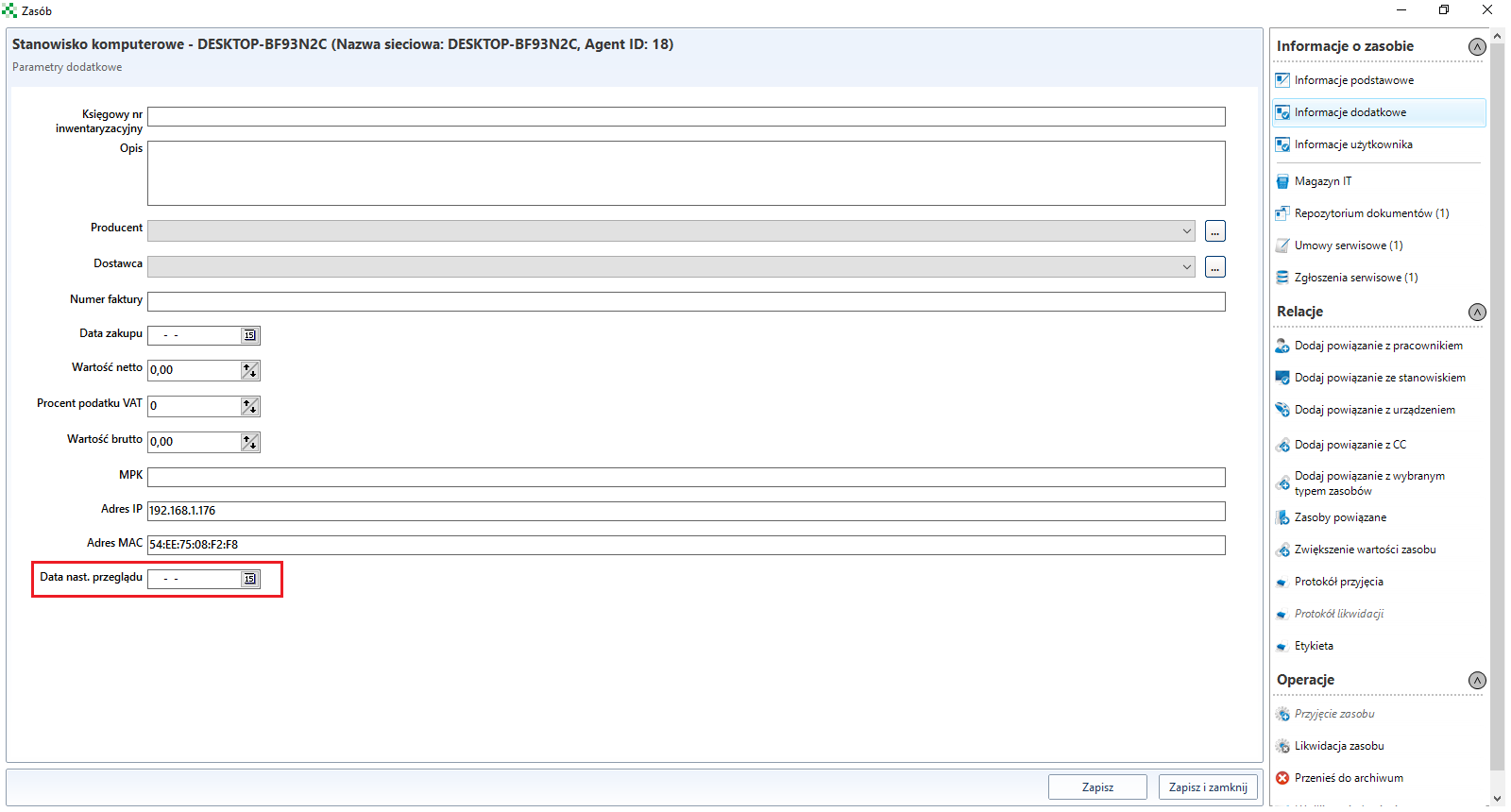
Inspection informations - provides information on upcoming equipment maintenance.
To add maintenance information, please go to the tab Edit the type of resource (IT Infrastructure management->Add resource).
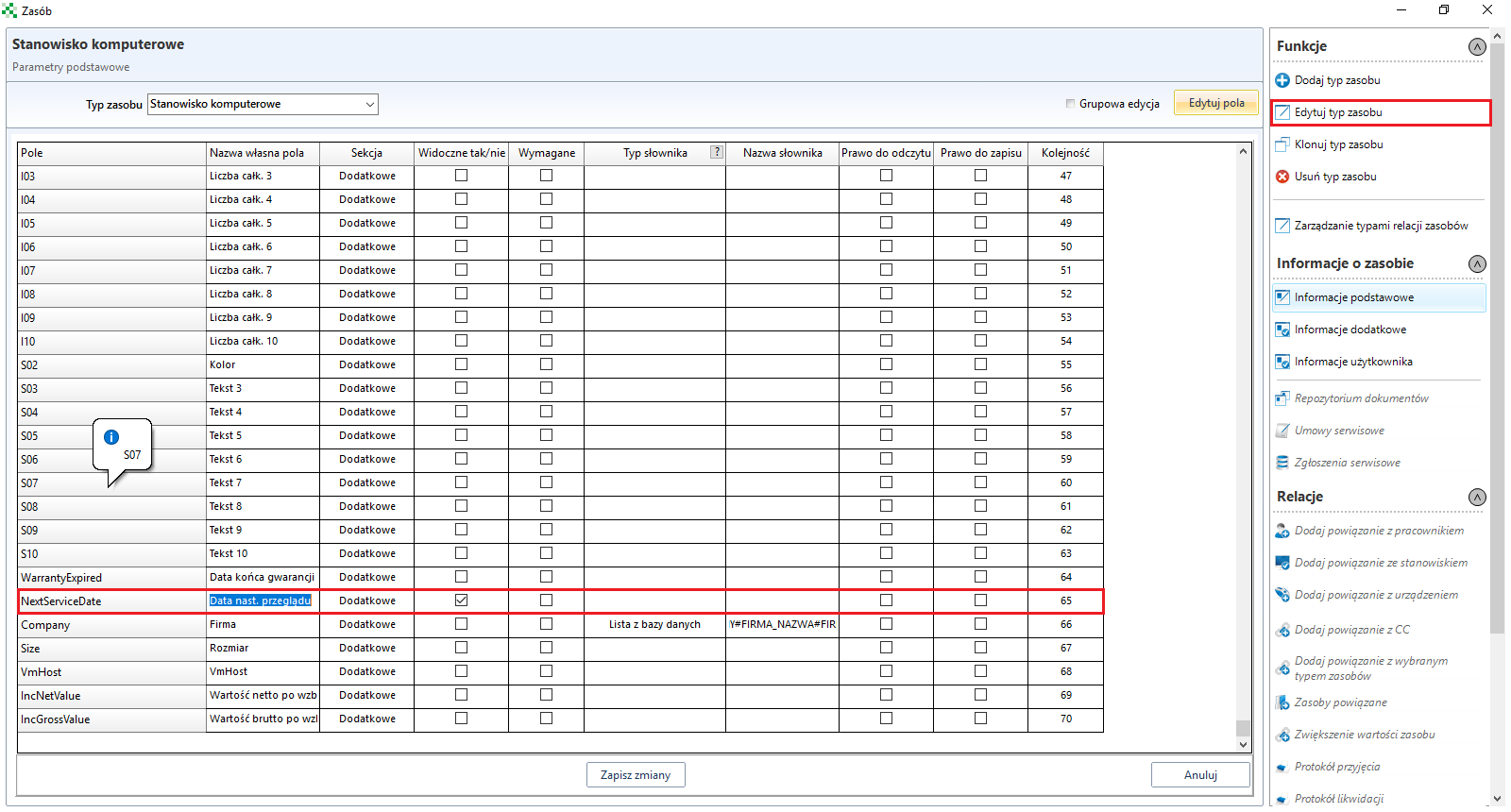
Then activate field Date next review and fill it in the resources to which this field has been added.
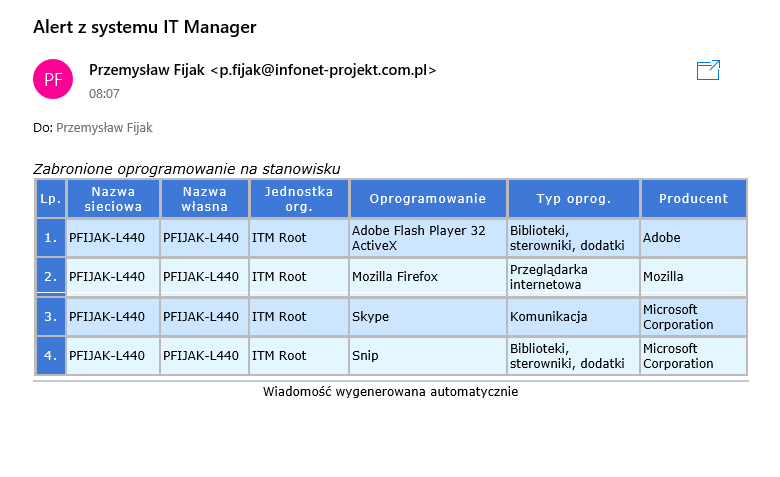
Information about forbidden software sent to the user/supervisor - if the system detects that forbidden software will be installed at the stand, an e-mail will be sent to the user/supervisor informing about this fact.
Data Security
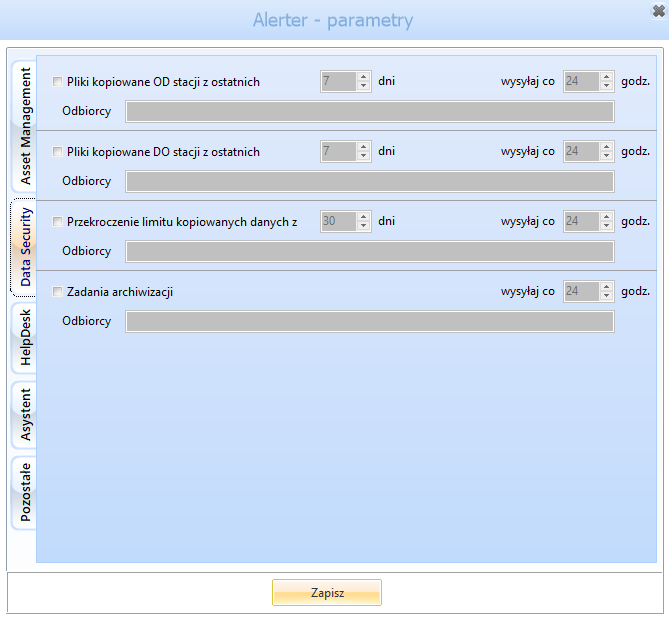
The following email alerts are available in section Data Security:
Files copied from workstation from last ... days - the alert informs about the number and size of files copied from the station to portable USB drives.
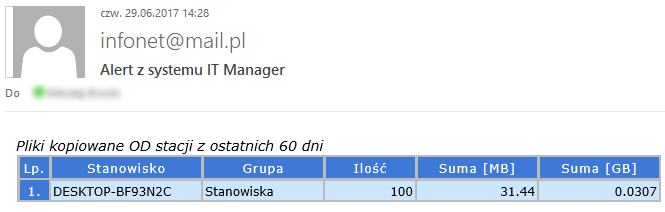
Files copied to workstation from last ... days - the alert indicates the number and size of files copied to the station from portable USB drives.
Exceeding the limits for copied data ... days is exceeded, the alert indicates the number and size of files copied to the station from the station to the USB flash drive.
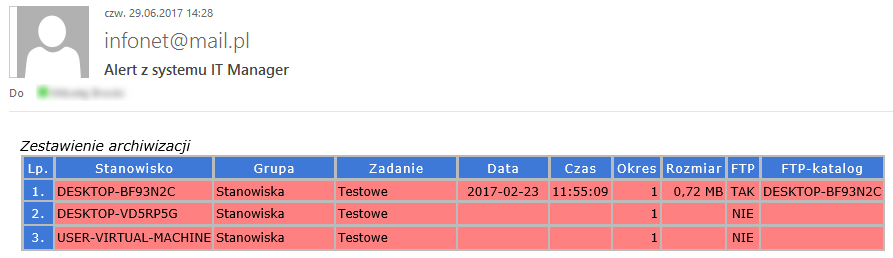
Backup tasks - an alert informs about completed/not completed archiving tasks assigned to individual stations.
HelpDesk
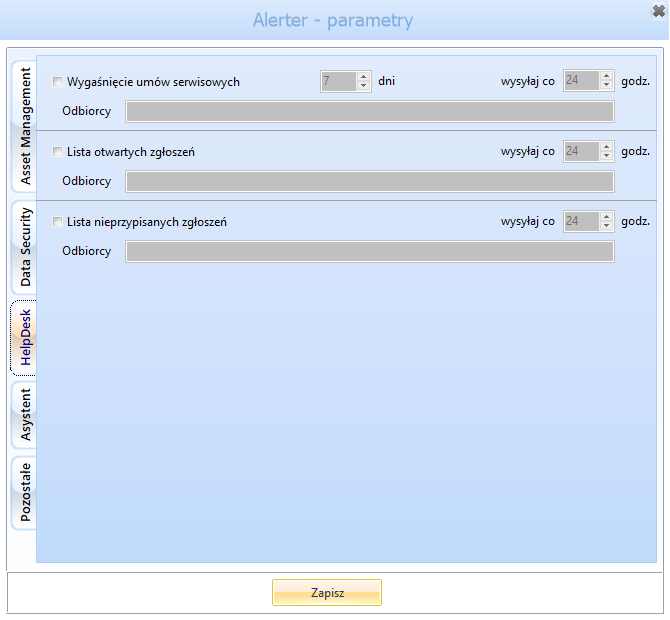
The following email alerts are available in section HelpDesk:
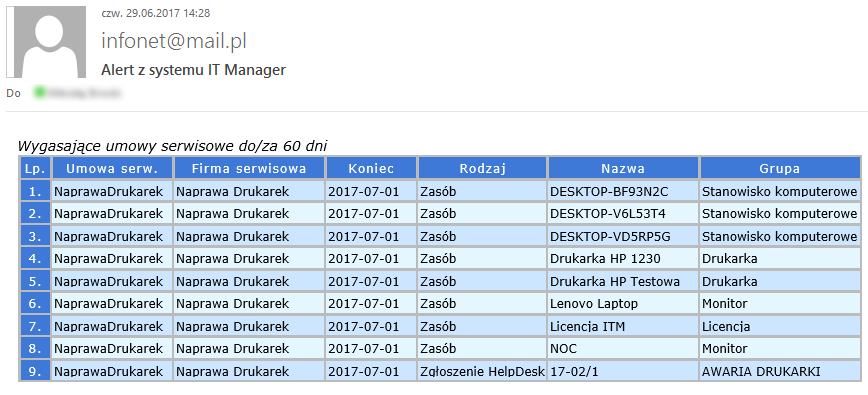
Expiration of service agreements - informs about expiring service contracts.
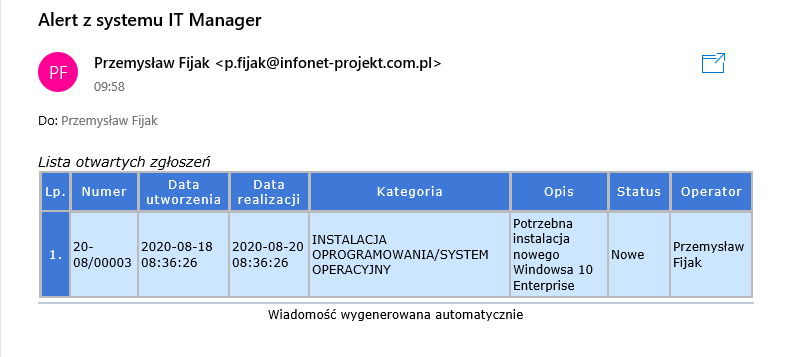
List of open service tickets - notification of open notifications assigned to a specific operator.
List of unassigned service tickets - notification of notifications not assigned to any operator.
Assistant
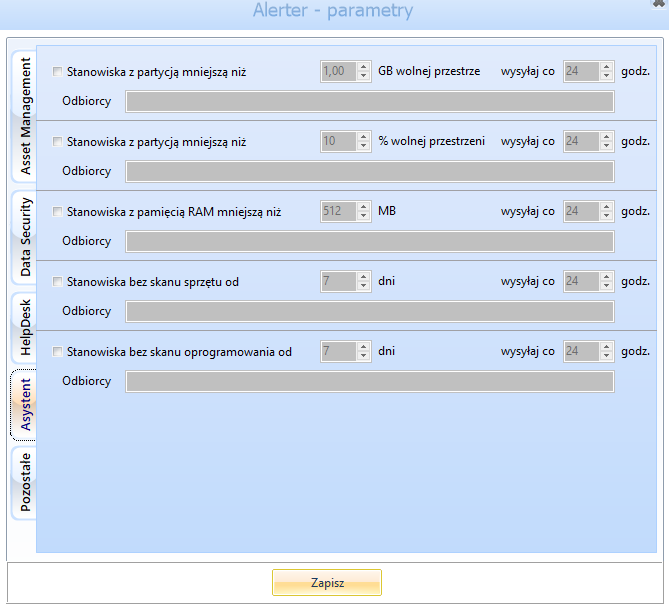
The following email alerts are available in section Asystent:
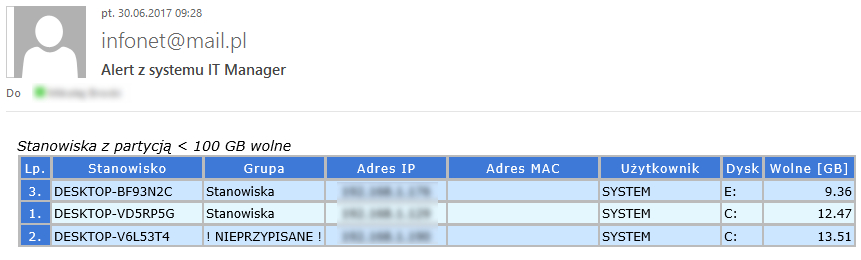
Workstations with partition less than ... GB - the alert informs about stations with a partition with less than the specified amount of free space (in GB).
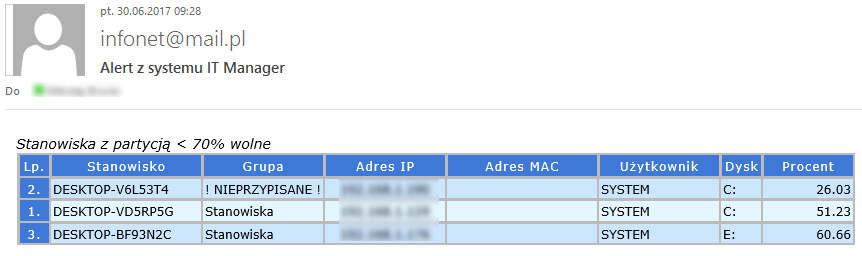
Worktations with partition less than ... % - the alert indicates stations with a partition with less than the specified number of seats available (in %).
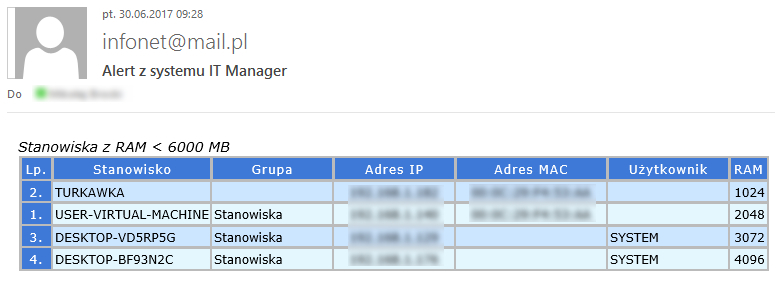
Workstations with RAM memory less than ... MB - alert informs about stations with RAM less than specified (in MB).
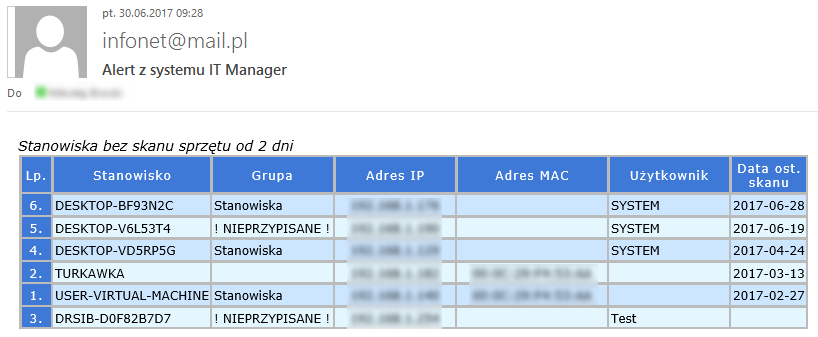
Workstations without hardware scan for ... days - the alert informs about stations that have not sent a hardware-system scan for a certain number of days.
Workstations without software scan for ... days - the alert informs about stations that have not sent a software scan for a certain number of days.
Other
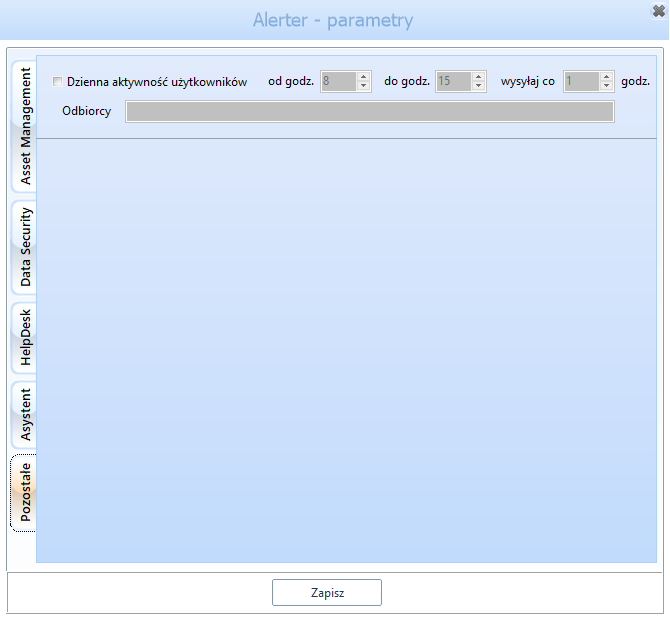
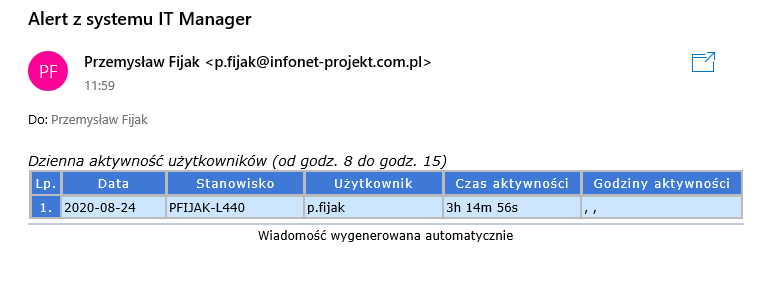
In section Other an e-mail alert is available to inform about the daily activity of users at selected hours during the day.